Access keys
Create, rotate, deactivate and delete the keys your apps use to connect.
An access key is the username and password your S3 tools and apps use to connect to Zata. It has two parts: the access key (public ID) and the secret key (keep it private). You manage keys for yourself and for your sub-users on the Access Keys page of the Zata console.
Each key works in one region only. A key made for Indore does not work on the Mumbai endpoint, and the other way round. Use a key from the same region as your bucket.
| Region | Endpoint |
|---|---|
Indore (idr01) | https://idr01.zata.ai |
Mumbai (bom01) | https://bom01.zata.ai |
The Access Keys page
Open Access Keys in the sidebar. The page shows how many keys you have (Total Keys, Root Keys, Sub-user Keys) and a list of all keys in both regions. Use the All Keys, Root Keys and Sub-user Keys tabs to filter the list.
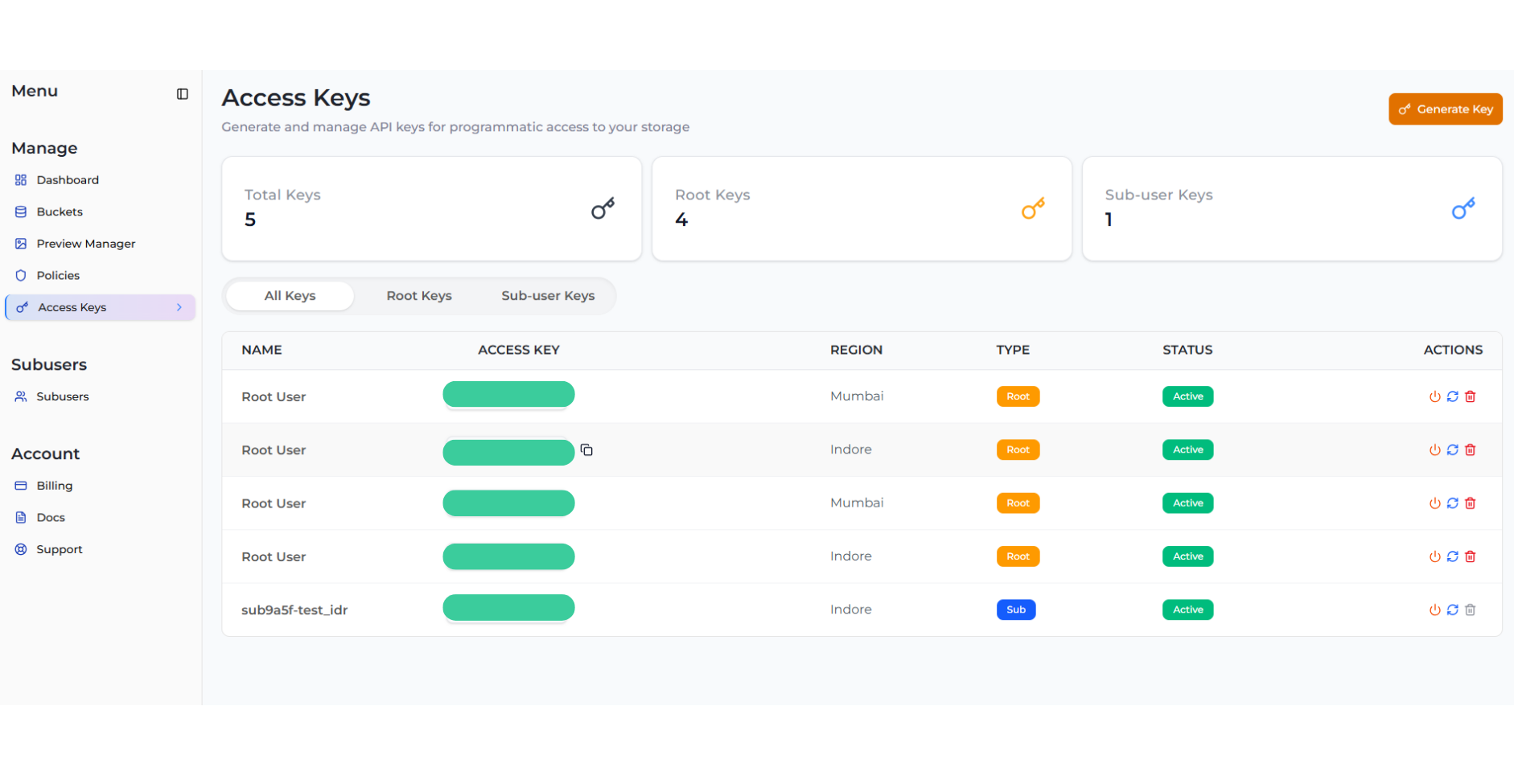
- Root keys belong to you, the account owner. They can do everything in your account.
- Sub keys belong to a sub-user. They can only do what you allowed that sub-user to do.
Create a key
The steps depend on who the key is for. Pick the tab that fits.
- Key for yourself (Root User)
- Key for a sub-user (Sub User)
On the Access Keys page, select Generate Key.
Select Root User. Under Select Region, choose Indore or Mumbai, then select Continue.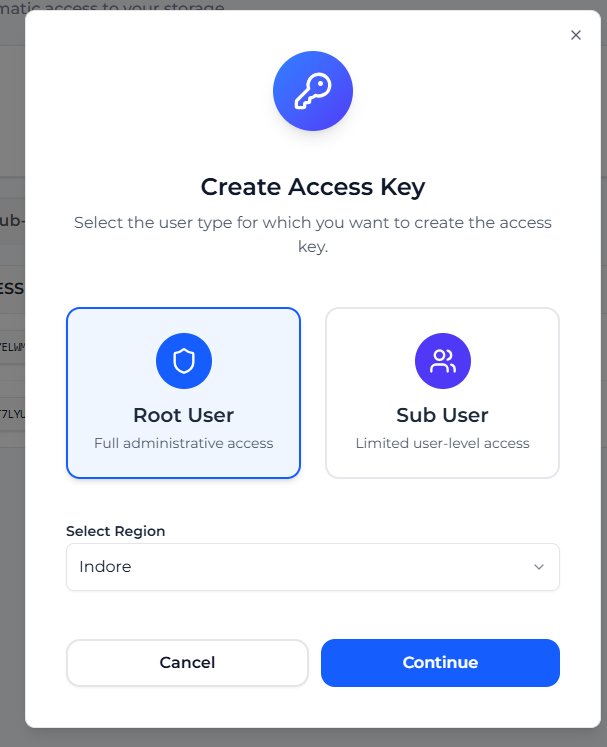
The Important Note window opens. Select Generate Key. A .txt key file downloads straight away. It contains the service URL, the access key, the secret key, the region and the user.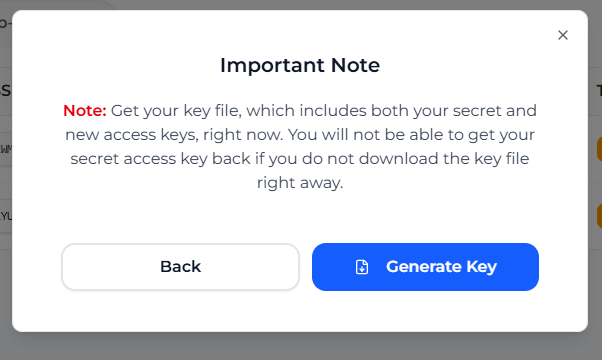
On the Access Keys page, select Generate Key.
Select Sub User. Under Select Region, choose the region the key is for, then select Continue.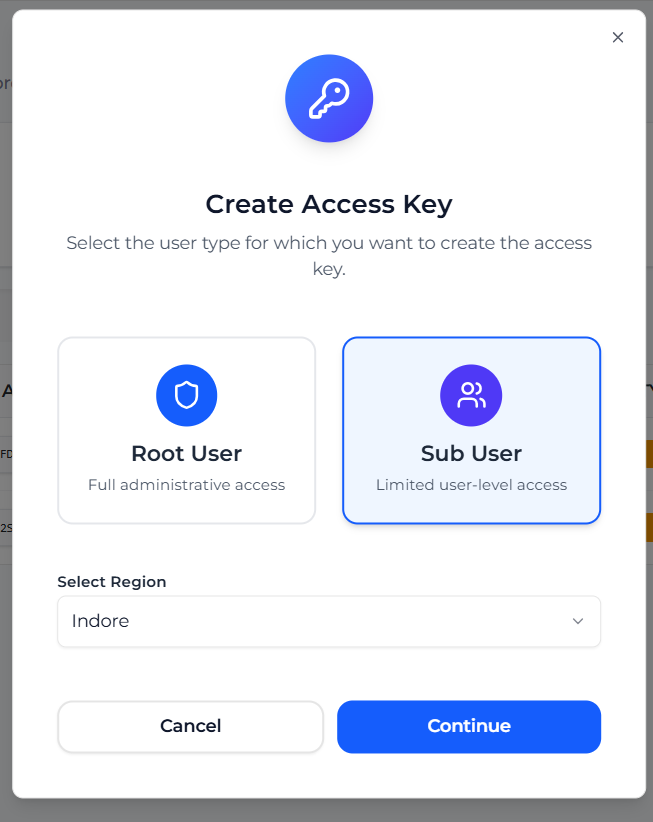
The Important Note window opens with a Select Sub User list. This list appears only when you chose Sub User. Pick the sub-user. Generate Key stays greyed out until you do.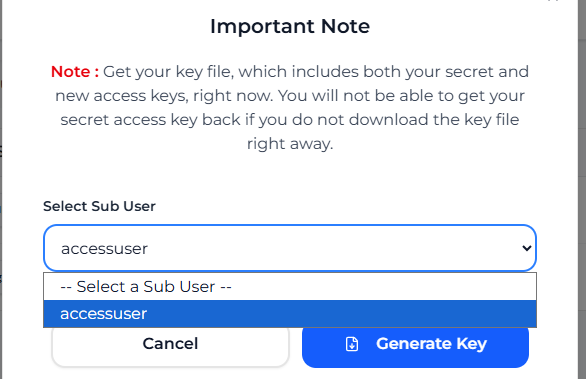
Select Generate Key. A .txt key file downloads straight away. It contains the service URL, the access key, the secret key, the region and the user. Give this file to the sub-user.
The secret key is only in that file. Zata cannot show it again. Store the file somewhere safe. If you lose it, rotate the key to get a new pair.
Key limits
| Key owner | Keys per region |
|---|---|
| You (root keys) | 2 |
| Each sub-user | 1 |
These are the default limits. If you hit one, you see a "key limit reached" message. Delete a key you no longer use, or contact support if you need more.
A sub-user already gets one key in each of its regions when you create it, so you normally only create a sub-user key after deleting one. See New keys for a sub-user.
Manage your keys
Each key has three buttons in the Actions column:
| Button | What it does |
|---|---|
| Deactivate Key / Activate Key (power icon) | Turns the key off for now, or back on. A deactivated key stops working but is not deleted. |
| Rotate Key | Replaces the key with a new access key and secret key. The old pair stops working at once, and a new key file downloads. Update your apps with the new key. |
| Delete Key | Removes the key for good. Apps using it stop working. This cannot be undone. |
Rotate a key
Select Rotate Key on the key's row, read the warning and select Rotate Key again. Only an active key can be rotated — activate it first if it is off.
What the console stops you from doing
So that you never lock yourself out, some buttons are greyed out:
- You must keep at least one active root key in each region. You cannot deactivate, rotate or delete the only active root key in a region. To replace it, create a second root key in that region first, switch your apps over, then delete the old one.
- You cannot delete a sub-user's last key. Delete the sub-user instead.
- You cannot create a key for a suspended sub-user, or rotate a key in a region where the sub-user is suspended. Reactivate it first.
Keep your keys safe
- Never share your secret key or put it in public code, a web page or a mobile app.
- Give each person or app its own sub-user with only the access it needs, instead of sharing your root key. Zata has no temporary credentials (STS or IAM roles).
- Rotate keys from time to time, and delete keys you no longer use.