Profile settings
Change your name and password, and turn on two-step sign-in.
Your profile holds your name, username and email address, and the security settings for signing in.
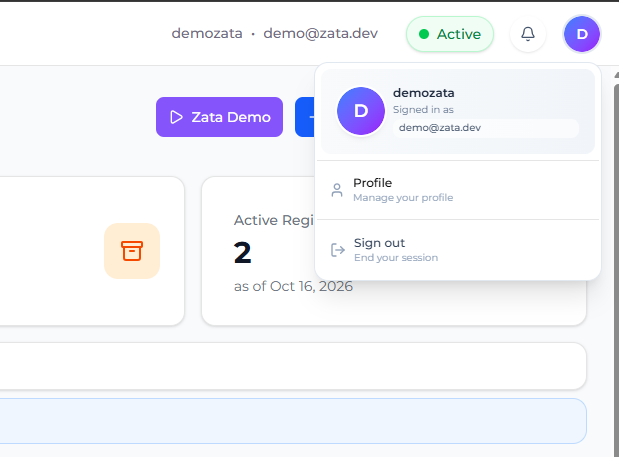
To open it, select your profile icon in the top-right corner of the Zata console, then select Profile. Sub-users select Account Settings in the left menu instead.
Change your name
On Profile Settings, select Edit Profile.
Change First Name or Last Name. Both are required.
Select Save Changes.
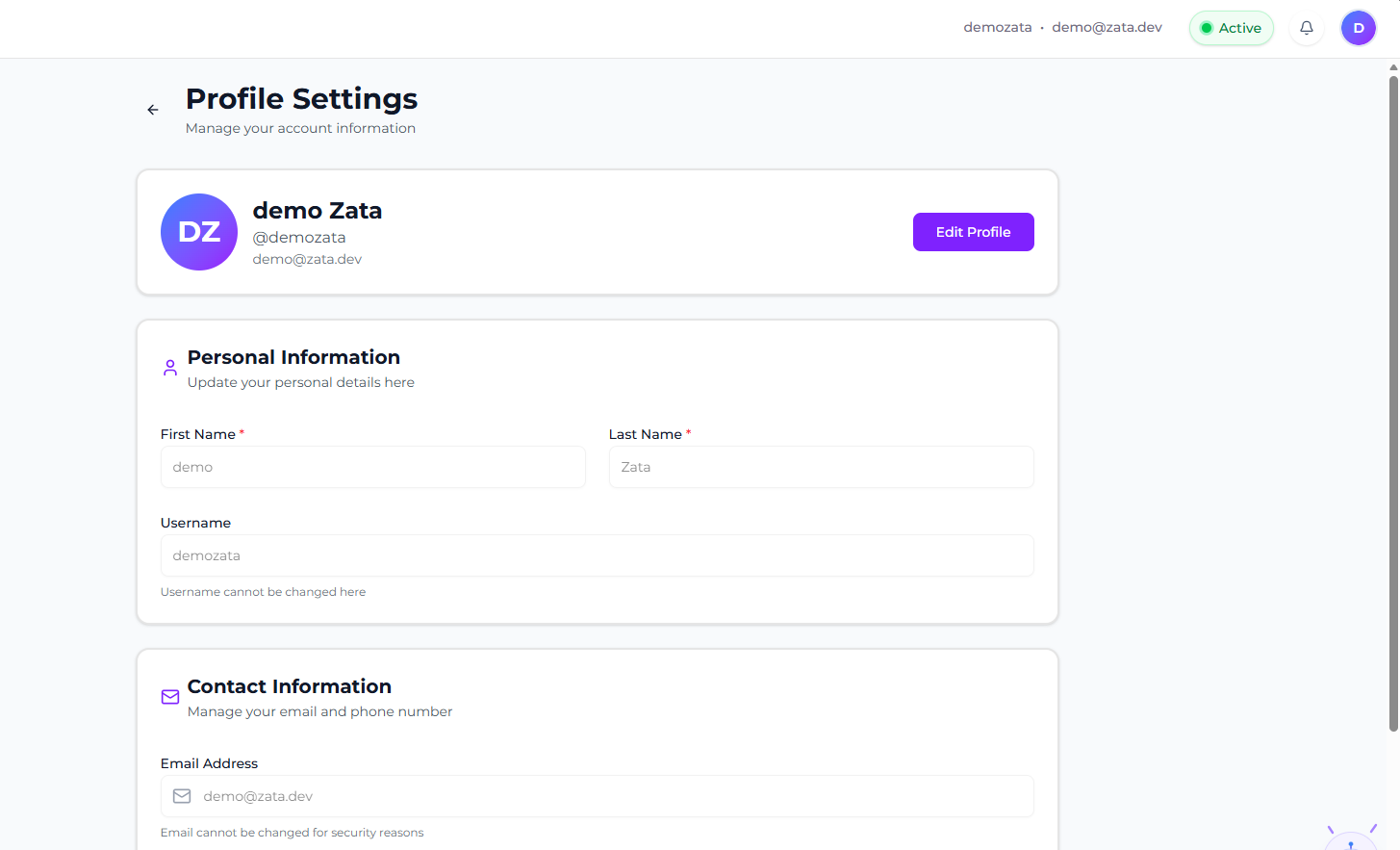
You can't change your Username or Email Address here.
Change your password
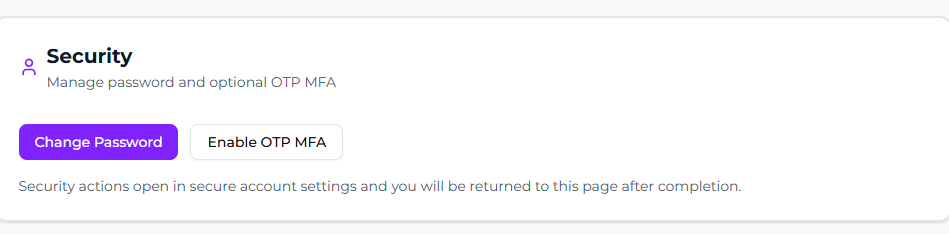
On Profile Settings, go to the Security section and select Change Password.
The secure account settings page opens. Enter your new password there.
When you're done, you're taken back to your profile.
Turn on two-step sign-in (OTP MFA)
With OTP MFA turned on, you enter a code from an authenticator app each time you sign in.
In the Security section, select Enable OTP MFA. The Mobile Authenticator Setup page opens.
Install Google Authenticator, Microsoft Authenticator or FreeOTP on your phone.
Open the app and scan the QR code on the page.
Enter the one-time code that the app shows, give the device a name, and submit. You're taken back to your profile.
To turn it off, select Disable OTP MFA in the Security section.