Delete a bucket
Remove a bucket and everything in it.
Deleting a bucket removes the bucket, all its files and all their versions. It cannot be undone, so copy anything you still need first. Access you gave sub-users to this bucket is removed too. Only the account owner can delete buckets.
Delete a bucket
In the Zata console, open Buckets and select the bin icon (Delete Bucket) in the bucket's row. Inside a bucket, you can also use Delete Bucket in the Bucket Details panel.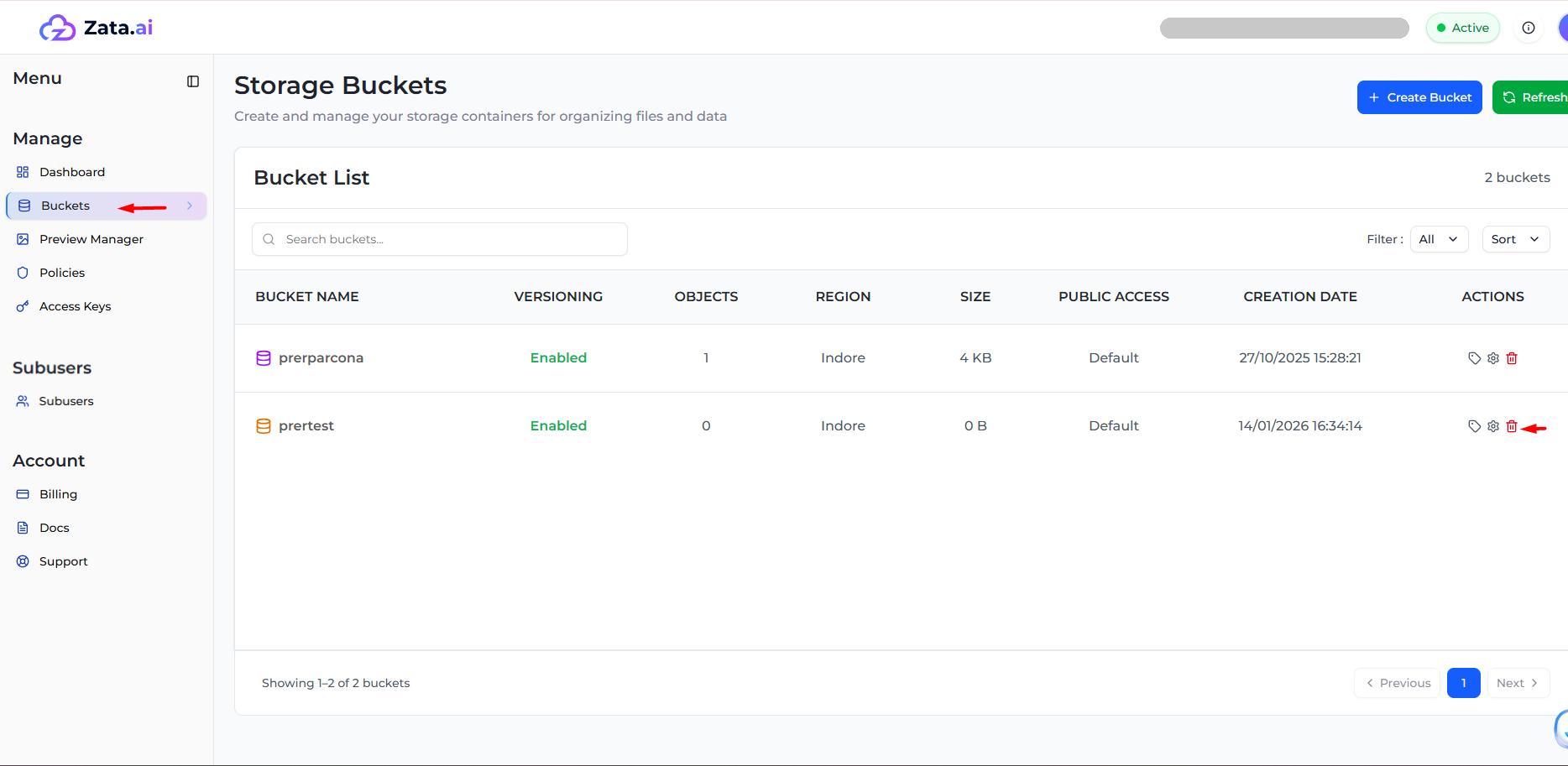
Type the bucket name exactly as shown and select Delete Bucket.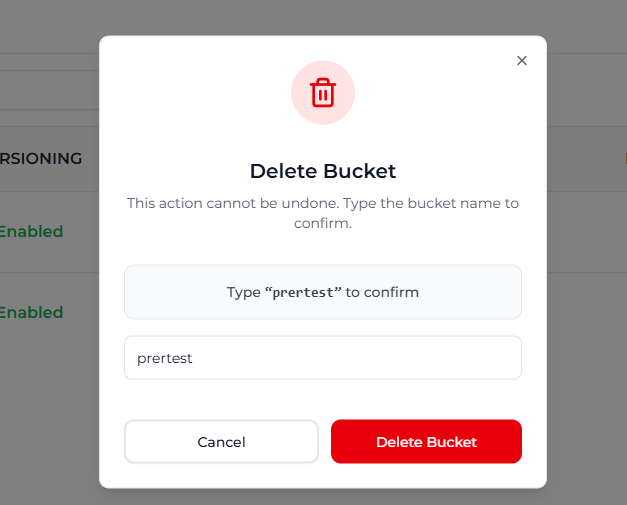
If the bucket still holds files, the console shows Force Delete Required. Select Delete All Contents to delete every file and every version, then the bucket.
If the bucket will not delete
| You see | Why | What to do |
|---|---|---|
| Cannot delete bucket while uploads are in progress | The bucket has an unfinished multipart upload. Uploads that were stopped and never cancelled count too. | Wait for running uploads to finish. Remove stopped ones with a lifecycle rule (Discard unfinished uploads) or with an S3 tool (below). |
| This bucket has Object Lock enabled, so it cannot be force-deleted | Delete All Contents is not available for buckets with Object Lock | Delete the files yourself (locked versions only after their lock ends), then delete the empty bucket |
| The deletion fails or takes too long | The bucket holds a very large number of files | Empty it first: see Delete a large bucket |
Cancel unfinished uploads
With the AWS CLI and the bucket owner's key, list the unfinished uploads, then cancel each one with its Key and UploadId from the list:
aws s3api list-multipart-uploads --bucket my-bucket --profile zata
aws s3api abort-multipart-upload --bucket my-bucket --key KEY --upload-id UPLOAD_ID --profile zata
After a bucket is deleted, its name can be used again.