Delete and restore files
Delete a file, and get it back when versioning is on.
What happens when you delete a file depends on the bucket's versioning:
| Versioning | What Delete does | Can you get the file back? |
|---|---|---|
| Never turned on | Removes the file for good | No |
| On, or turned off after being on | Hides the file behind a delete marker. Its versions are kept. | Yes, by removing the delete marker |
Delete a file
In the bucket, open the ⋮ menu in the file's row and select Delete.
In Delete File, select Delete.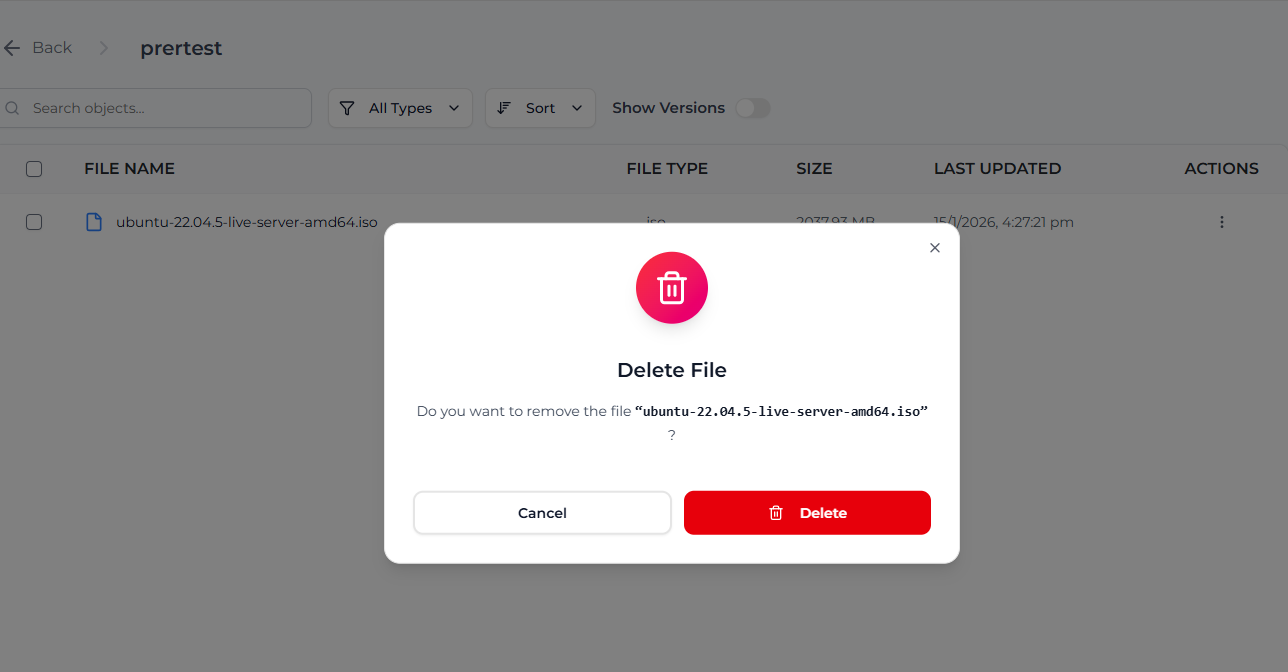
To delete a folder and everything in it, select Delete in the folder's ⋮ menu, then Delete Folder.
If Show Versions is on when you delete a folder, the console deletes every version of every file in it, permanently. With Show Versions off, the files can still be restored.
Restore a deleted file
This works when versioning is or was on.
In the bucket, turn on Show Versions. The deleted file appears with a row of type Delete Marker above its older versions.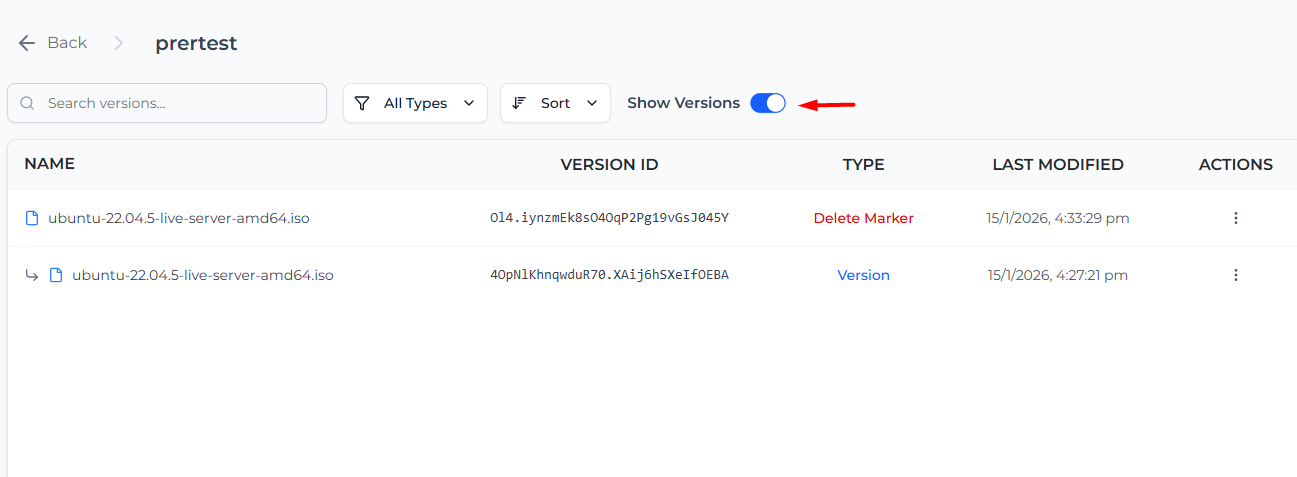
Open the ⋮ menu of the Delete Marker row and select Remove Marker. Confirm with Remove Marker.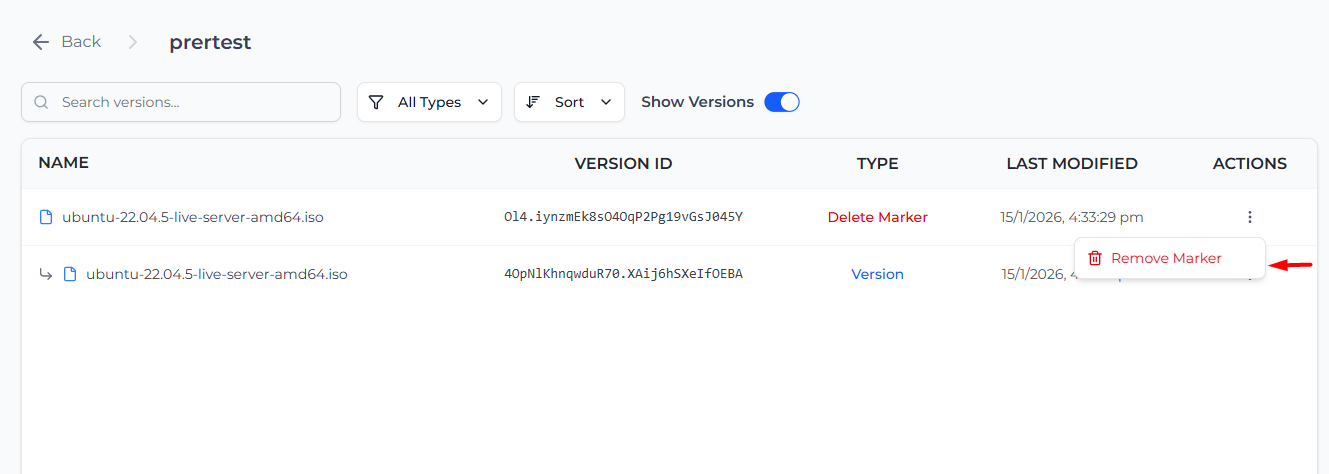
The file is back in the file list as its newest version.
Go back to an older version
With Show Versions on, every version has its own ⋮ menu with Share, Download and Delete. To use an older version again, either:
- Download it and upload it again, so it becomes the newest version, or
- Delete the newer versions. The newest remaining version becomes the current file.
Delete a version for good
With Show Versions on, open the ⋮ menu of a version, select Delete and confirm. This removes that one version permanently.
Old versions and delete markers use storage until you delete them. To clean them up automatically, add a lifecycle rule with Clear old versions and Tidy delete markers.
In a bucket with Object Lock, a locked version cannot be deleted until its lock ends.