Handy Backup
Back up files, folders and databases to Zata with Handy Backup.
Handy Backup is Windows backup software for files, folders, databases and system images. It stores backup tasks in a Zata bucket through its S3 Cloud storage option.
Before you start
- A bucket for the backups. See Create a bucket.
- An access key from the same region as the bucket. See Access keys.
- Handy Backup installed.
Connection settings
| Setting | Value |
|---|---|
| Server name | idr01.zata.ai for Indore, bom01.zata.ai for Mumbai |
| Access Key / Secret Key | From Access Keys in the Zata console. The key must be from the same region as the bucket. |
| Region | us-east-1 (Zata does not check the region name, so any value in the list works) |
Set up Handy Backup
Click New. In Choose a Task Type, select Backup and click Next.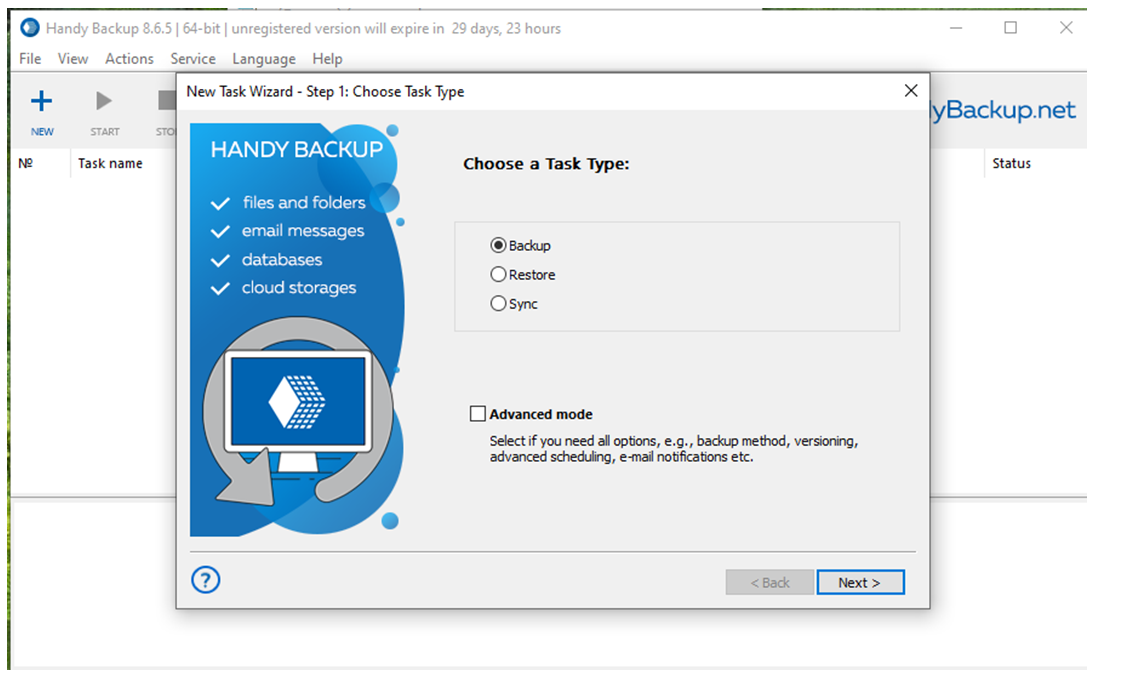
Tick the files and folders you want to back up and click Next.
In Select Where to Store your Backup, choose S3 Cloud and click Create a connection.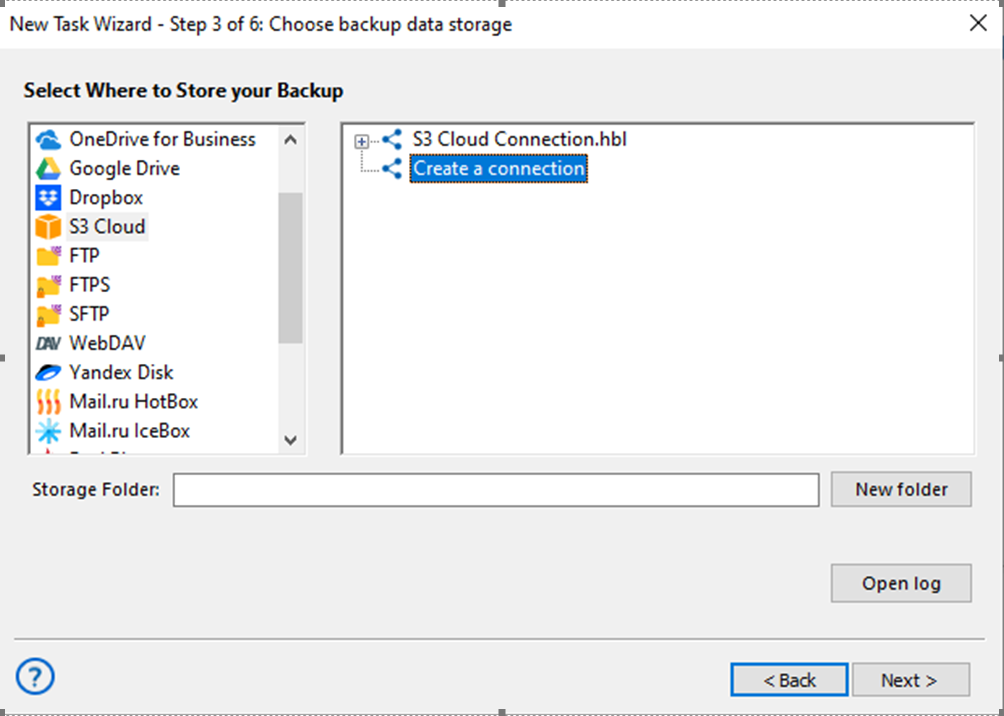
Enter a Connection Title and fill in the fields from the table above. Click Test connection, then OK.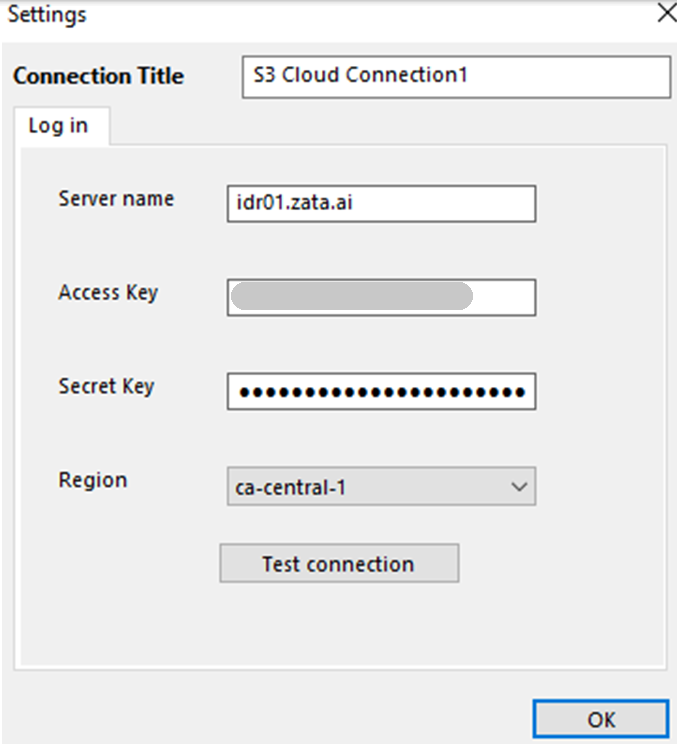
Expand the new connection, select your bucket (or a folder in it), and check the Storage Folder field. Click Next.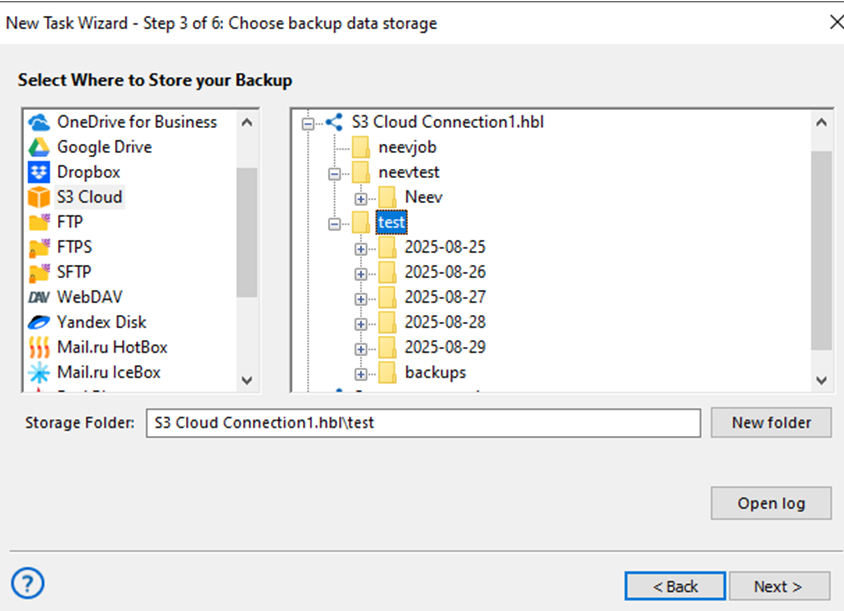
Set the schedule and other options if you want them, and click Finish.
Test it
Run the task by hand with a small file selected. Check that the file appears in your bucket in the Zata console, then restore it with Handy Backup to confirm it can be recovered.
Troubleshooting
| Problem | Fix |
|---|---|
| Test connection fails | Check that Server name is only the host name and matches the bucket's region. |
| Access denied or invalid credentials | Copy the keys again from Access Keys, without extra spaces, and check that the key is active. |
For other errors, see Signature errors and Endpoint and region.