rclone on Linux
Copy, sync, back up and mount Zata buckets from a Linux server with rclone.
rclone is a free command-line tool that copies and syncs files between your computer and cloud storage. On Linux you can also use it to run scheduled backups to Zata and to mount a bucket as a folder.
Before you start
- A bucket. See Create a bucket.
- An access key and secret key from the same region as the bucket. See Access keys.
Connection settings
| Setting | Value |
|---|---|
provider | Other |
endpoint | https://idr01.zata.ai for Indore, https://bom01.zata.ai for Mumbai |
region | us-east-1 |
access_key_id / secret_access_key | from Access Keys in the Zata console. The key must be from the same region as the bucket. |
force_path_style | true |
no_check_bucket | true (needed for sub-user keys) |
sign_accept_encoding | false (rclone v1.70 or newer) |
Without sign_accept_encoding = false, every command fails with SignatureDoesNotMatch. rclone v1.71 and newer also offer Zata as a provider, but it still needs no_check_bucket = true and sign_accept_encoding = false.
Install rclone
curl https://rclone.org/install.sh | sudo bash
rclone version
Other ways to install are on the rclone install page.
sudo apt install rclone on Ubuntu gives an old version (v1.53) that works with Zata but has no sign_accept_encoding setting, so leave it out. The setting needs rclone v1.70 or newer — on anything older, update rclone.
Create the Zata remote
A remote is rclone's name for a saved connection. Create one called zata, either with one command or with the wizard.
- One command
- Wizard
Replace the keys with yours. For Mumbai, use https://bom01.zata.ai.
rclone config create zata s3 provider=Other access_key_id=YOUR_ACCESS_KEY secret_access_key=YOUR_SECRET_KEY region=us-east-1 endpoint=https://idr01.zata.ai force_path_style=true no_check_bucket=true sign_accept_encoding=false
On the old v1.53, write the settings with spaces instead of =, and leave out sign_accept_encoding:
rclone config create zata s3 provider Other access_key_id YOUR_ACCESS_KEY secret_access_key YOUR_SECRET_KEY region us-east-1 endpoint https://idr01.zata.ai no_check_bucket true
Run rclone config and answer each question:
| When rclone asks | Type |
|---|---|
n/s/q> | n |
name> | zata |
Storage> | s3 (Amazon S3 Compliant Storage Providers) |
provider> | Other |
env_auth> | press Enter |
access_key_id> | your access key |
secret_access_key> | your secret key |
region> | us-east-1 |
endpoint> | https://idr01.zata.ai (Mumbai: https://bom01.zata.ai) |
location_constraint>, acl> | press Enter |
Edit advanced config? | y |
no_check_bucket> | true |
sign_accept_encoding> | false |
| every other advanced question | press Enter |
Keep this "zata" remote? | y |
e/n/d/r/c/s/q> | q to leave the wizard |
At each question, type only the value (for example true), not setting=value.
The numbers in the lists change between rclone versions, so type the value (s3, Other) instead of a number.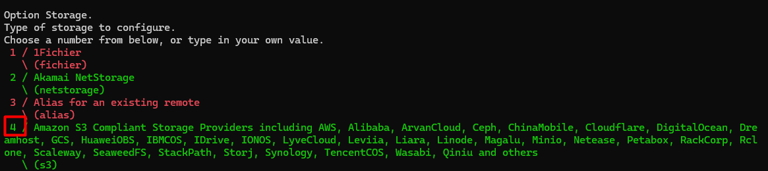

Check the saved settings:
rclone config show zata
The remote looks like this in rclone.conf (rclone config file shows where the file is):
[zata]
type = s3
provider = Other
access_key_id = YOUR_ACCESS_KEY
secret_access_key = YOUR_SECRET_KEY
region = us-east-1
endpoint = https://idr01.zata.ai
force_path_style = true
no_check_bucket = true
sign_accept_encoding = false
To fix an existing remote without the wizard:
rclone config update zata no_check_bucket=true sign_accept_encoding=false
Test it
Replace my-bucket with your bucket name:
rclone ls zata:my-bucket
rclone copy ./myfile.txt zata:my-bucket/ --progress

rclone lsd zata: lists your buckets. A sub-user's key may show none; use the bucket name directly.
Copy, sync or move
All three skip files that are already the same in the bucket (same size and modification time).
| Command | What it does in the bucket |
|---|---|
rclone copy ./folder zata:my-bucket/folder | Adds new and changed files. Never deletes: files that exist only in the bucket are kept. |
rclone sync ./folder zata:my-bucket/folder | Makes the bucket folder an exact copy. Also deletes files in the bucket that are not in the local folder. |
rclone move ./folder zata:my-bucket/folder | Uploads, then deletes the local files that were uploaded. |
Before a sync, add --dry-run to see what it would delete.
To download, swap the two sides:
rclone copy zata:my-bucket /path/to/local/folder --progress

Very large files
rclone uploads large files in parts by itself, and makes the parts bigger when needed. To copy one file under an exact name, use copyto (copy treats the target as a folder). These options make it faster and more patient on a slow or unstable link:
rclone copyto /path/to/bigfile.iso zata:my-bucket/bigfile.iso --s3-chunk-size 64M --s3-upload-concurrency 8 --retries 5 --low-level-retries 20 -P
| Option | What it does (default) |
|---|---|
--s3-chunk-size 64M | Size of each part (5Mi). Bigger parts mean fewer requests but more memory (chunk size × concurrency). |
--s3-upload-concurrency 8 | Parts of one file uploaded at the same time (4) |
--transfers 8 | Files uploaded at the same time (4) |
--retries 5 / --low-level-retries 20 | Retries of the whole copy (3) and of single requests (10) |
--timeout 10m | How long a stalled connection waits before retrying (5m) |
-P | Shows progress |
If an upload stops half way, run the same command again: files already in the bucket are skipped.
Check that a backup is complete
rclone check ./folder zata:my-bucket/folder --one-way
It ends with 0 differences found when every local file is in the bucket with the same content. Each missing or changed file is listed as an error. --one-way ignores files that exist only in the bucket. Files that other tools uploaded in parts have no MD5 to compare: add --download to compare their content (slower, because it downloads them).
Schedule a backup
- cron
- systemd timer
Run crontab -e and add one line. This one runs at 02:00 every night. Use the full path to rclone and give its config file, because cron runs with almost no environment. Replace YOUR_LINUX_USER with your Linux user name.
0 2 * * * /usr/bin/rclone copy /home/YOUR_LINUX_USER/data zata:my-bucket/backup --config /home/YOUR_LINUX_USER/.config/rclone/rclone.conf --log-file /home/YOUR_LINUX_USER/zata-backup.log --log-level INFO
Keep it on one line: crontab does not accept lines split with \.
A service on its own runs only once. The timer runs it on a schedule.
sudo nano /etc/systemd/system/zata-backup.service
[Unit]
Description=Back up a folder to Zata with rclone
Wants=network-online.target
After=network-online.target

[Service]
Type=oneshot
User=YOUR_LINUX_USER
ExecStart=/usr/bin/rclone copy /home/YOUR_LINUX_USER/data zata:my-bucket/backup --log-file /home/YOUR_LINUX_USER/zata-backup.log --log-level INFO
sudo nano /etc/systemd/system/zata-backup.timer
[Unit]
Description=Run the Zata backup every night at 02:00

[Timer]
OnCalendar=*-*-* 02:00:00
Persistent=true

[Install]
WantedBy=timers.target
Turn it on and check it:
sudo systemctl daemon-reload
sudo systemctl enable --now zata-backup.timer
systemctl list-timers zata-backup.timer
If which rclone is not /usr/bin/rclone, use that path instead.
Mount a bucket as a folder
Install FUSE first:
sudo apt install -y fuse3
Then mount the bucket:
mkdir -p ~/zata
rclone mount zata:my-bucket ~/zata --vfs-cache-mode writes
The mount runs in the foreground: press Ctrl+C to unmount (or run fusermount -u ~/zata). Add --daemon to run it in the background. Files are uploaded a few seconds after they are closed.
To mount the bucket again after every reboot, create a service. Replace YOUR_LINUX_USER and my-bucket:
sudo nano /etc/systemd/system/rclone-zata.service
[Unit]
Description=Mount Zata bucket with rclone
Wants=network-online.target
After=network-online.target

[Service]
Type=notify
User=YOUR_LINUX_USER
ExecStart=/usr/bin/rclone mount zata:my-bucket /home/YOUR_LINUX_USER/zata --vfs-cache-mode writes
ExecStop=/bin/fusermount -u /home/YOUR_LINUX_USER/zata
Restart=on-failure

[Install]
WantedBy=multi-user.target
sudo systemctl daemon-reload
sudo systemctl enable --now rclone-zata.service
systemctl status rclone-zata.service
ls ~/zata
The service runs as your user, so it uses your own rclone config.
Two regions, or Zata and another provider
Make one remote per endpoint. Each Zata access key works in one region only, so a Mumbai remote needs a key created for Mumbai:
rclone config create zata-mumbai s3 provider=Other access_key_id=YOUR_MUMBAI_ACCESS_KEY secret_access_key=YOUR_MUMBAI_SECRET_KEY region=us-east-1 endpoint=https://bom01.zata.ai force_path_style=true no_check_bucket=true sign_accept_encoding=false
Another provider gets its own remote with that provider's settings (run rclone config). Then copy between any two remotes:
rclone copy zata:my-bucket/folder zata-mumbai:other-bucket/folder -P
To move millions of objects, run copy (safe to repeat) while the old storage is still in use, then one last sync (preview it with --dry-run) when you switch over. --fast-list lists a whole bucket with far fewer requests but uses more memory, and --transfers 16 --checkers 32 works on more files at once:
rclone copy oldremote:bucket zata:my-bucket --fast-list --transfers 16 --checkers 32 -P
Download links
rclone link does not work with Zata (it fails with not found: FixupRequest). Make a temporary download link with the AWS CLI instead, or share the file from the console (Share a file):
aws s3 presign s3://my-bucket/file.zip --expires-in 3600 --profile zata
Troubleshooting
| Problem | Fix |
|---|---|
SignatureDoesNotMatch or 403 Forbidden on every command | Set sign_accept_encoding = false (rclone v1.70 or newer; update rclone if older). |
AccessDenied when uploading or copying (rclone tries to create the bucket first) | Set no_check_bucket = true. |
rclone lsd zata: shows no buckets | A sub-user's key cannot list buckets. Use the bucket name: rclone ls zata:my-bucket. |
fusermount: not found, or the mount fails | Install FUSE: sudo apt install -y fuse3. |
| The mount service fails at boot | journalctl -u rclone-zata.service shows why. Usually a wrong user name, path or remote name. |
| Works in the terminal, fails in cron | Use full paths and --config as shown in Schedule a backup. |
To see what rclone sends, add -vv. For other errors, see Signature errors and Access denied.