CrossFTP
Upload, download and manage files with CrossFTP.
CrossFTP is an FTP and cloud storage client for Windows, macOS and Linux. Its S3/HTTPS protocol connects to Zata, so you can manage bucket files the same way as files on an FTP server.
Before you start
- A bucket — see Create a bucket.
- An access key from the same region as the bucket — see Access keys.
- CrossFTP installed — download CrossFTP.
Connection settings
| Setting | Value |
|---|---|
| Protocol | S3/HTTPS |
| Host | idr01.zata.ai for Indore, bom01.zata.ai for Mumbai — no https:// |
| Port | 443 |
| Access Key / Secret | from Access Keys in the Zata console — the key must be from the same region as the bucket |
Set up CrossFTP
Open CrossFTP and select Sites → Site Manager. Select New Site, then set Protocol to S3/HTTPS.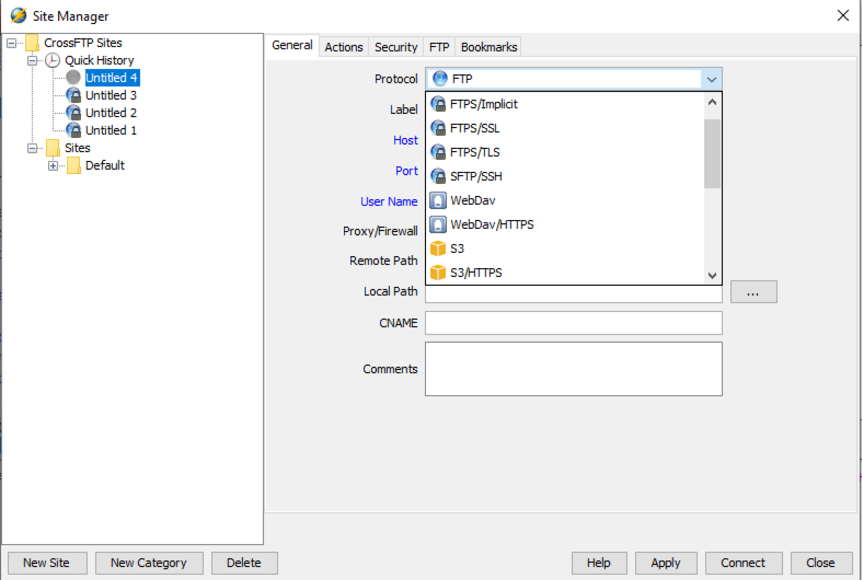
Enter the Host, Port, Access Key and Secret from the table above. You can also give the site a Label. Select Apply, then Connect.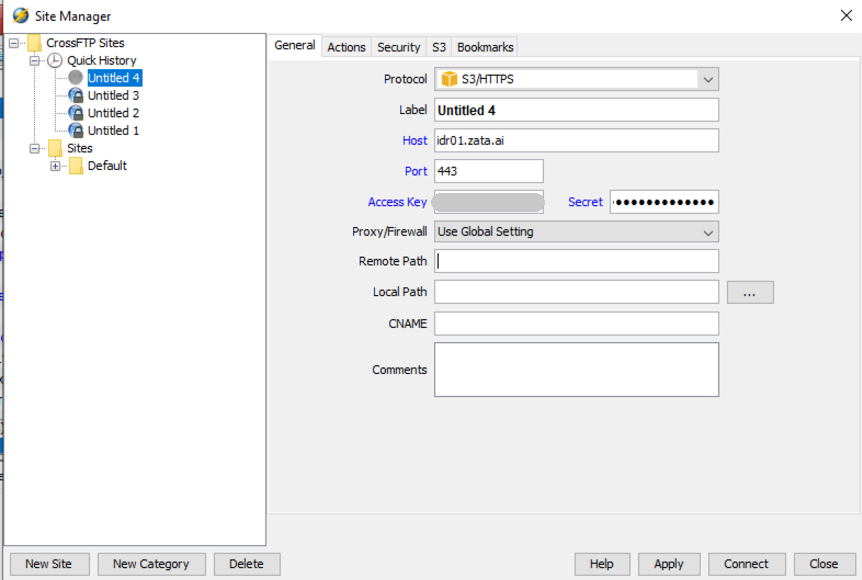
Your buckets appear in the right-hand pane. Your local files are on the left.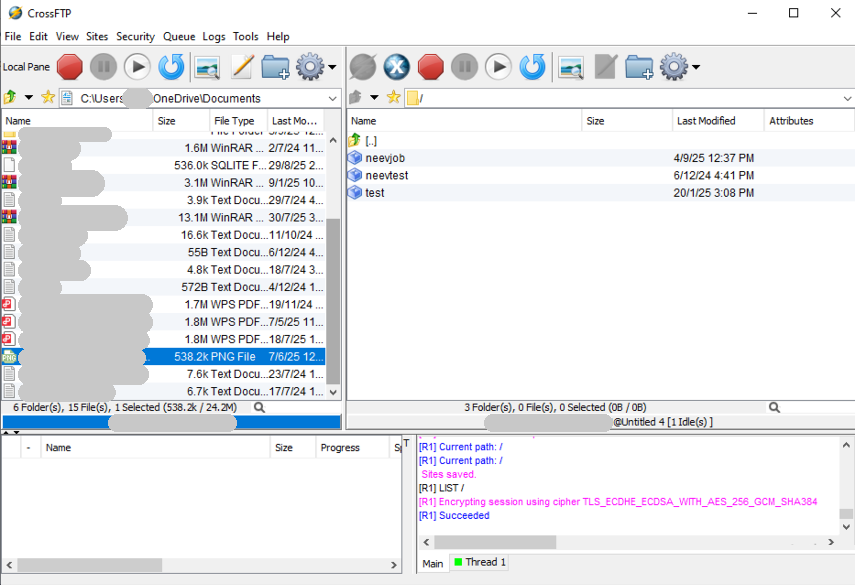
Test it
Drag a small file from the left pane into a bucket. Check that it appears in the same bucket in the Zata console under Buckets. Then drag it back, or use the right-click menu, to download it.
Troubleshooting
| Problem | Fix |
|---|---|
| Cannot connect | Check that Host matches the region of your key, Port is 443 and Protocol is S3/HTTPS. |
| Access denied or invalid credentials | Copy the keys again from Access Keys, without extra spaces. |
| CrossFTP asks for a region | Use us-east-1. Zata does not check the region name. |
| Not sure what went wrong | Read the log at the bottom of the CrossFTP window. |
For other errors, see Access denied and Endpoint and region.