SmartFTP
Drag-and-drop transfers with SmartFTP on Windows.
SmartFTP is a file transfer app for Windows. Its S3 protocol connects to Zata, so you can drag and drop files to and from a bucket.
Before you start
- A bucket — see Create a bucket.
- An access key from the same region as the bucket — see Access keys.
- SmartFTP installed — download SmartFTP.
Connection settings
| Setting | Value |
|---|---|
| Protocol | S3, with Custom in the list below it |
| Host | idr01.zata.ai for Indore, bom01.zata.ai for Mumbai — no https:// |
| Port | 443 |
| Path | optional — /my-bucket to open one bucket directly. Needed for sub-user keys. |
| Access Key Id / Secret Access Key | from Access Keys in the Zata console — the key must be from the same region as the bucket |
Set up SmartFTP
Open SmartFTP and start a new connection (File → Connection, or press Ctrl+N).
Set Protocol to S3 and the list below it to Custom. Enter the Host, Port, Access Key Id and Secret Access Key. To open one bucket directly, enter it in Path, for example /my-bucket. Select OK.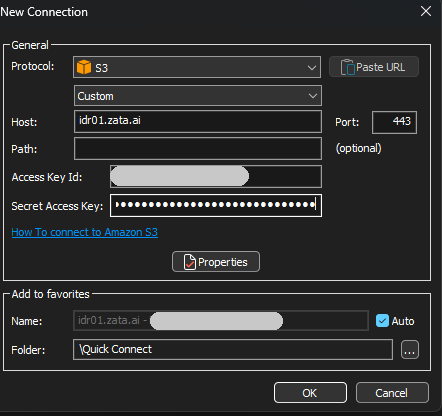
SmartFTP connects and shows your buckets, or the bucket from Path.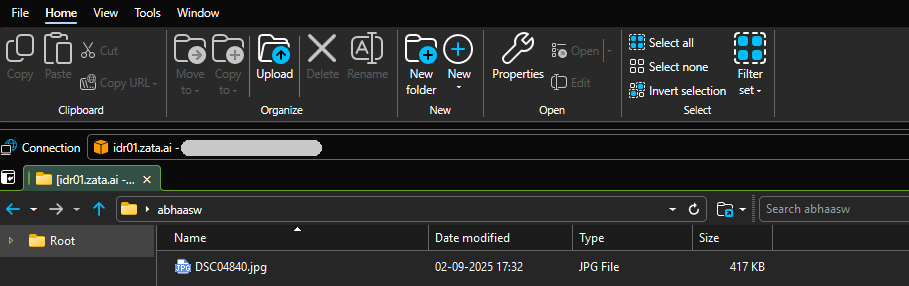
Test it
Select Upload, or drag a small file into the bucket. Check that it appears in the same bucket in the Zata console under Buckets. Then drag it back to a local folder to check that downloads work.
Troubleshooting
| Problem | Fix |
|---|---|
| Error listing buckets, or access denied at the top level | Your key cannot list all buckets (for example a sub-user key). Set Path to /my-bucket. |
| Cannot connect | Check that Host matches the region of your key and Port is 443. |
| Invalid credentials | Copy the keys again from Access Keys, without extra spaces. |
For other errors, see Access denied and Endpoint and region.