CloudMounter
Mount a bucket as a drive on macOS or Windows.
CloudMounter mounts a Zata bucket as a drive on macOS and Windows. It connects with its Amazon S3 connection type.
Before you start
- A bucket — see Create a bucket.
- An access key from the same region as the bucket — see Access keys.
- CloudMounter installed — download CloudMounter for macOS or Windows.
Connection settings
| Setting | Value |
|---|---|
| Connection type | Amazon S3 |
| Server endpoint | https://idr01.zata.ai for Indore, https://bom01.zata.ai for Mumbai |
| Access Key / Secret Key | from Access Keys in the Zata console — the key must be from the same region as the bucket |
| Use path-style URLs to access buckets | On (recommended — needed if your bucket name has dots) |
| Bucket | your bucket name |
Set up CloudMounter
Open CloudMounter and select Amazon S3.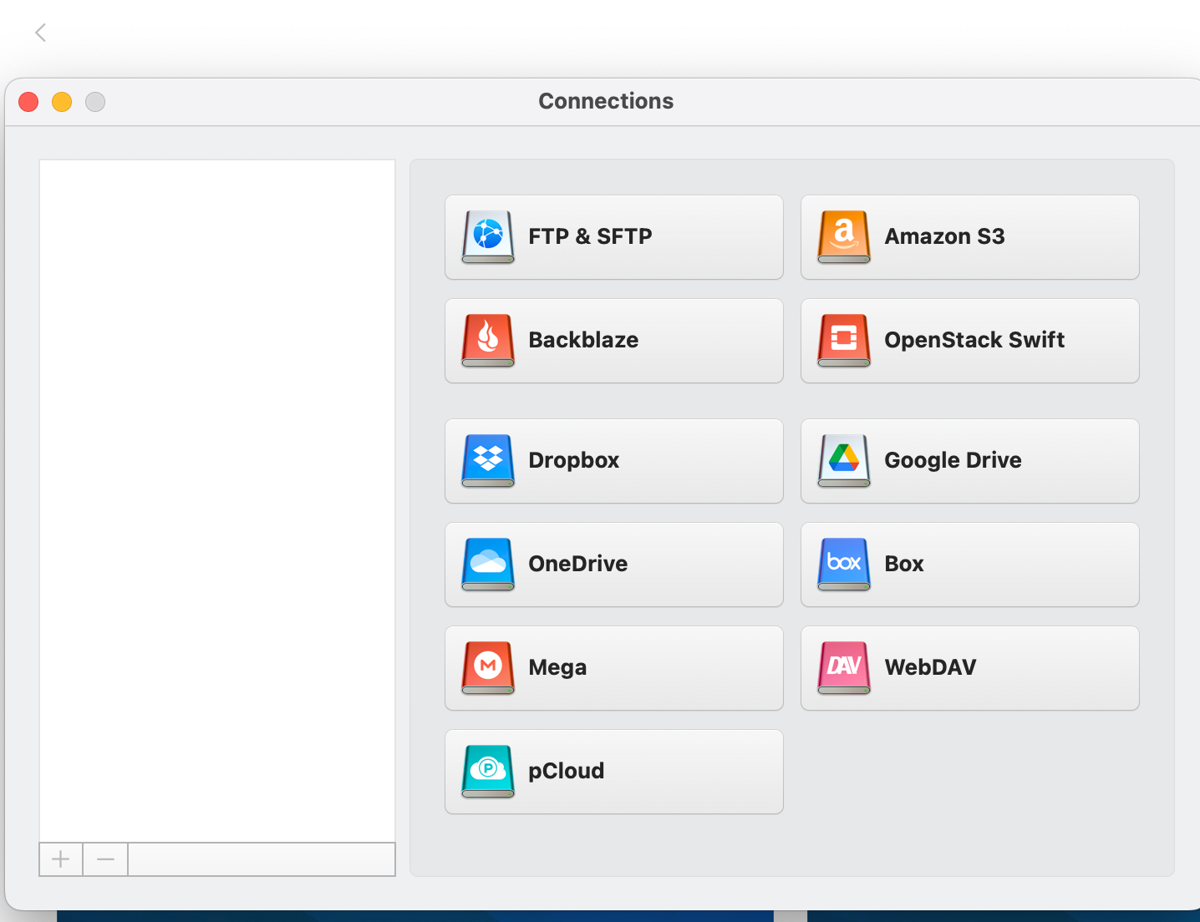
Enter a Name such as zata, your Access Key and Secret Key, and set Server endpoint to https://idr01.zata.ai for Indore (https://bom01.zata.ai for Mumbai). Tick Use path-style URLs to access buckets, enter your Bucket, and select Mount.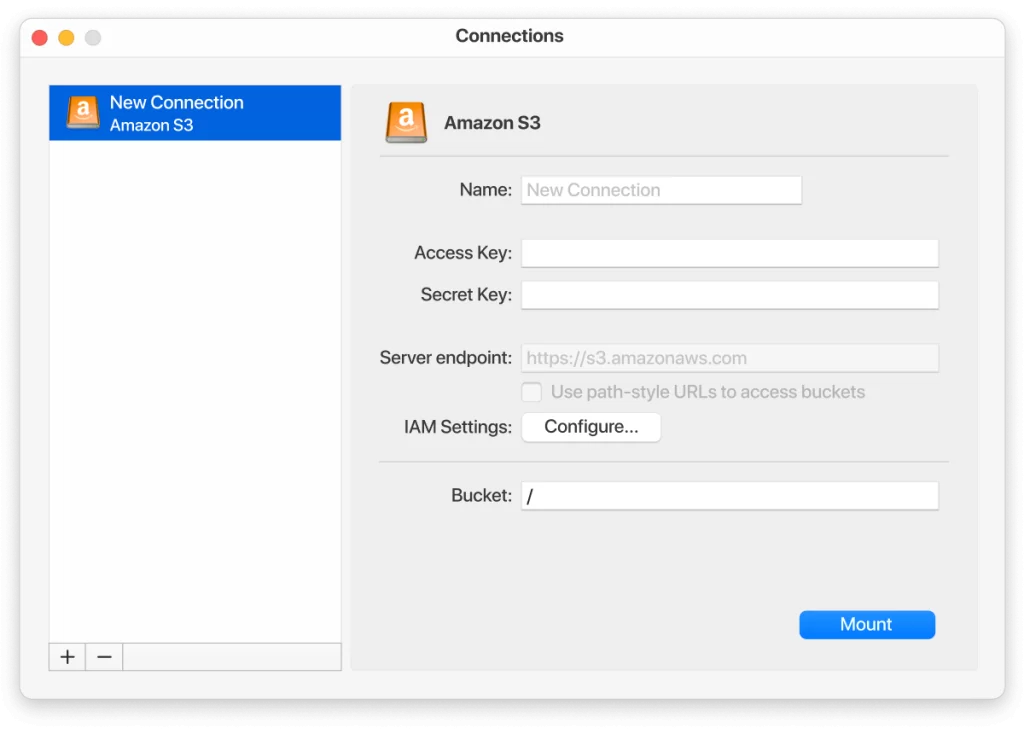
The bucket appears as a mounted drive — in Finder on macOS, or in File Explorer on Windows. Check the status icon in CloudMounter to see when a transfer is done.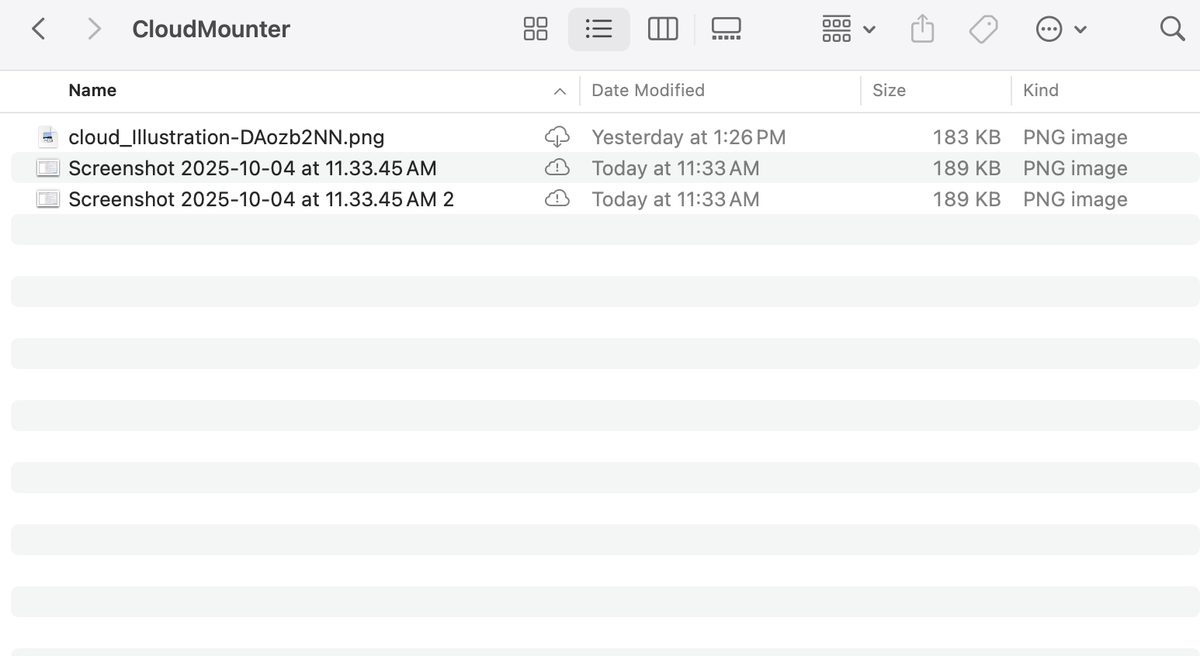
Test it
Drag a small file onto the drive and wait until the CloudMounter status icon shows the upload is done. Check that the file appears in the bucket in the Zata console under Buckets. Then copy it back to a local folder and open it.
Troubleshooting
| Problem | Fix |
|---|---|
| Mount fails | Check that Server endpoint matches the region of your bucket and key, and that the bucket name is exact. |
| TLS or certificate error with a bucket name that has dots | Tick Use path-style URLs to access buckets. |
| Access denied or invalid credentials | Copy the keys again from Access Keys, and check that the key can use this bucket. |
| The file is not in the bucket yet | Watch the CloudMounter status icon until the transfer is done. |
For other errors, see Access denied and Endpoint and region.