odrive
Reach Zata and your other cloud storage from one place.
odrive brings many cloud storage services together in one place on Windows and macOS. You can link a Zata bucket to it as S3 Compatible storage and browse it next to your other storage.
Before you start
- A bucket — see Create a bucket.
- An access key from the same region as the bucket — see Access keys.
- odrive installed and signed in — see the odrive usage guide. After you install it, select GET STARTED; a browser page opens where you sign in or sign up.
Connection settings
| Setting | Value |
|---|---|
| Storage | Amazon S3/S3 Compatible |
| HOST | idr01.zata.ai for Indore, bom01.zata.ai for Mumbai |
| BUCKET NAME | your bucket name |
| ACCESS KEY ID / SECRET ACCESS KEY | from Access Keys in the Zata console — the key must be from the same region as the bucket |
| DEFAULT STORAGE CLASS | STANDARD — Zata has one storage class only |
| DIRECTORY STRUCTURE | SIMPLE '/' DELIMITED |
Set up odrive
In odrive, on the STORAGE tab, select Link Storage.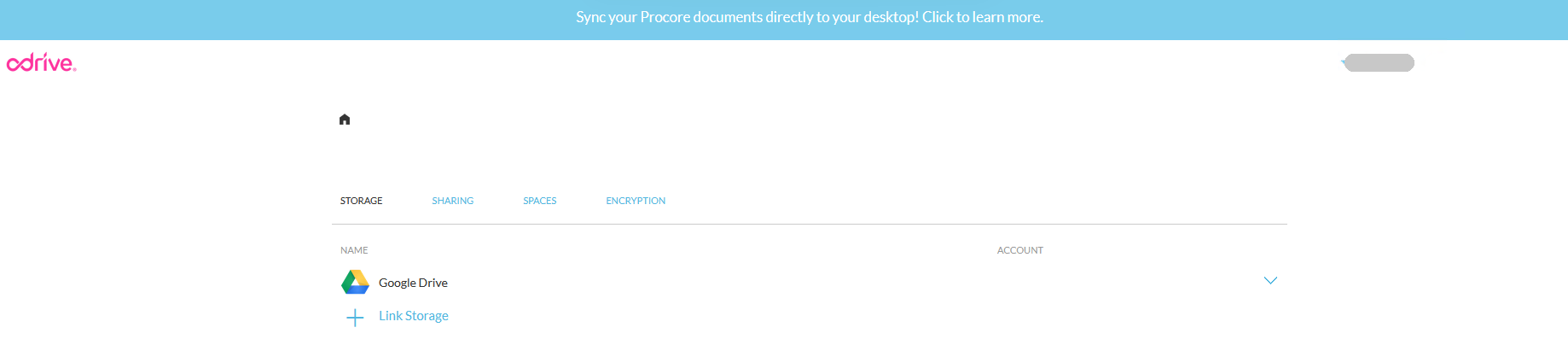
In Pick a Storage, select Amazon S3/S3 Compatible.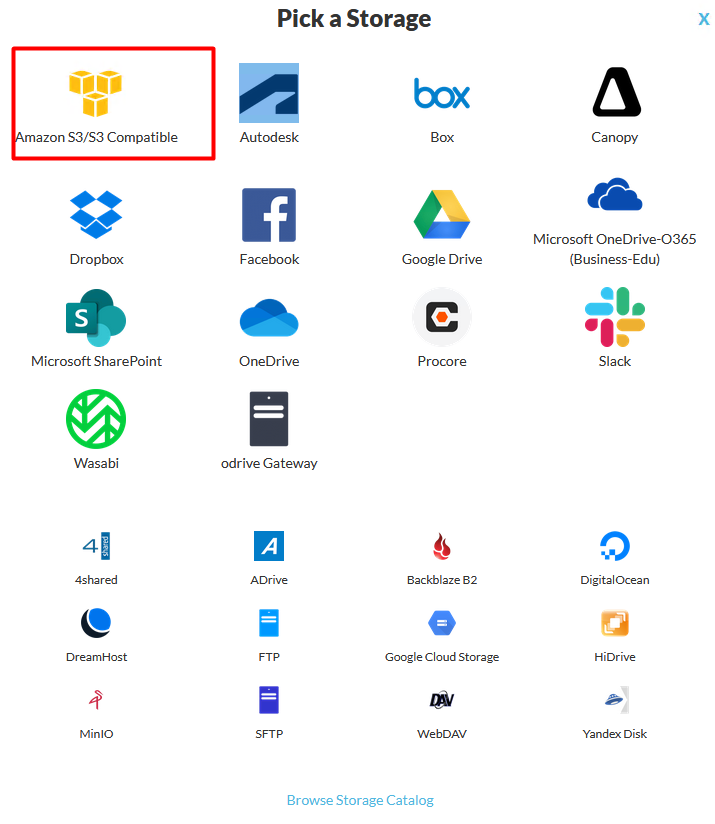
Enter a NAME such as zata, then the HOST, BUCKET NAME, ACCESS KEY ID and SECRET ACCESS KEY. Keep DEFAULT STORAGE CLASS at STANDARD and DIRECTORY STRUCTURE at SIMPLE '/' DELIMITED. Select LINK.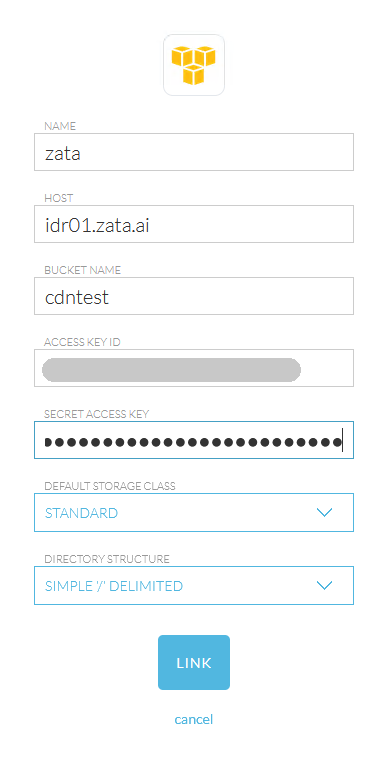
The new storage appears in your list, with the bucket name under ACCOUNT. Open it to see the files in your bucket.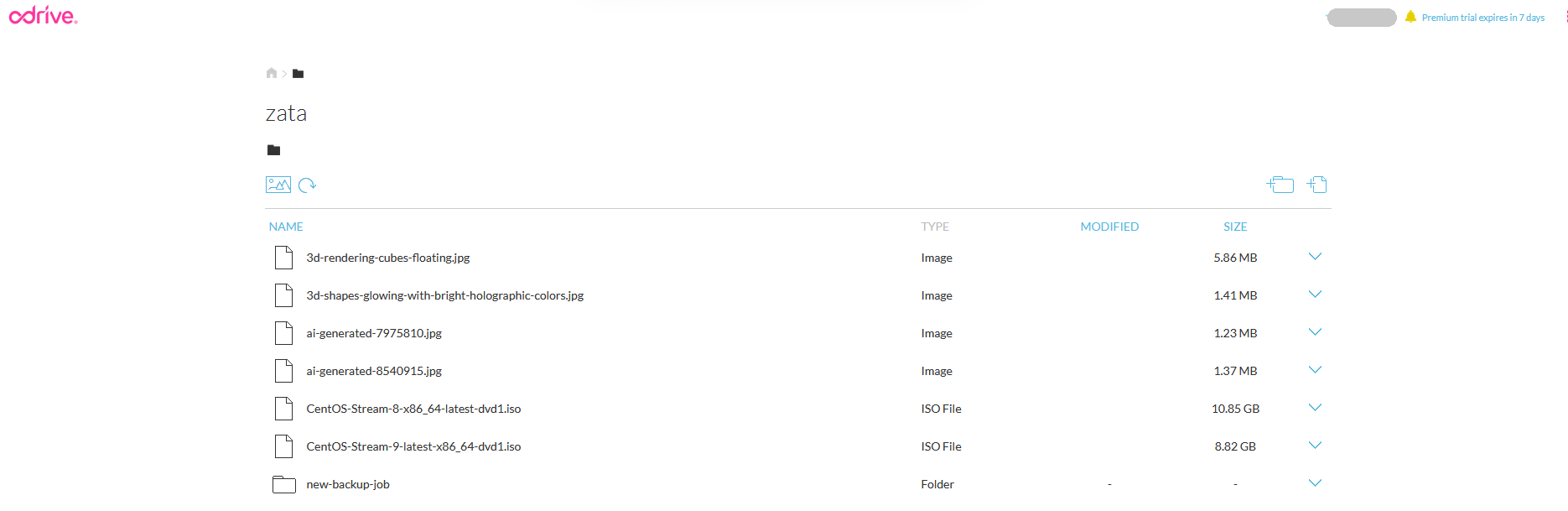
Test it
Add a small file to the linked Zata storage in odrive. Check that it appears in the bucket in the Zata console under Buckets. Then download it again from odrive.
Troubleshooting
| Problem | Fix |
|---|---|
| Linking fails | Check that HOST is idr01.zata.ai or bom01.zata.ai for the bucket's region, and that BUCKET NAME is exact. |
| Access denied or invalid credentials | Copy the keys again from Access Keys, without extra spaces, and check that the key can use the bucket. |
Uploads fail with InvalidArgument | Set DEFAULT STORAGE CLASS to STANDARD. Zata rejects other storage classes. |
For other errors, see Access denied and Endpoint and region.