QNAP NAS
Back up a QNAP NAS to a Zata bucket with HBS 3 Hybrid Backup Sync.
A QNAP NAS backs up to Zata with the HBS 3 Hybrid Backup Sync app. You add Zata as an S3 Compatible storage space, then create a backup job that uses it.
Before you start
- A bucket for the backups. See Create a bucket.
- An access key from the same region as the bucket. See Access keys.
- Admin access to the QNAP NAS.
Connection settings
| Setting | Value |
|---|---|
| Service provider | S3 Compatible |
| Server address | idr01.zata.ai for Indore, bom01.zata.ai for Mumbai (no https://) |
| Signature version | v2. Zata also accepts v4 if your HBS 3 version offers it. |
| Access key / Secret key | From Access Keys in the Zata console. The key must be from the same region as the bucket. |
| Use specific bucket | Leave unticked to pick the bucket later. Tick it and type the bucket name if you use a sub-user's key, which cannot list buckets. |
| Use SSL connection | Ticked |
| Validate SSL certificate | Ticked. Zata has a valid public certificate. |
Set up HBS 3
Open App Center, go to Backup/ Sync, and install HBS 3 Hybrid Backup Sync. Then click Open.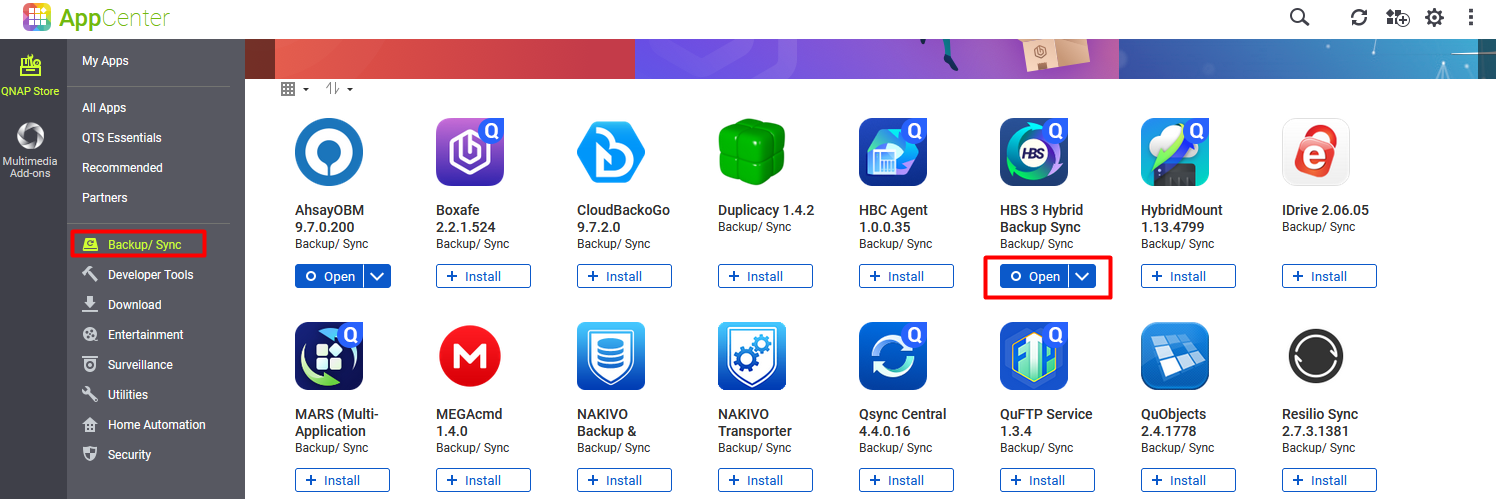
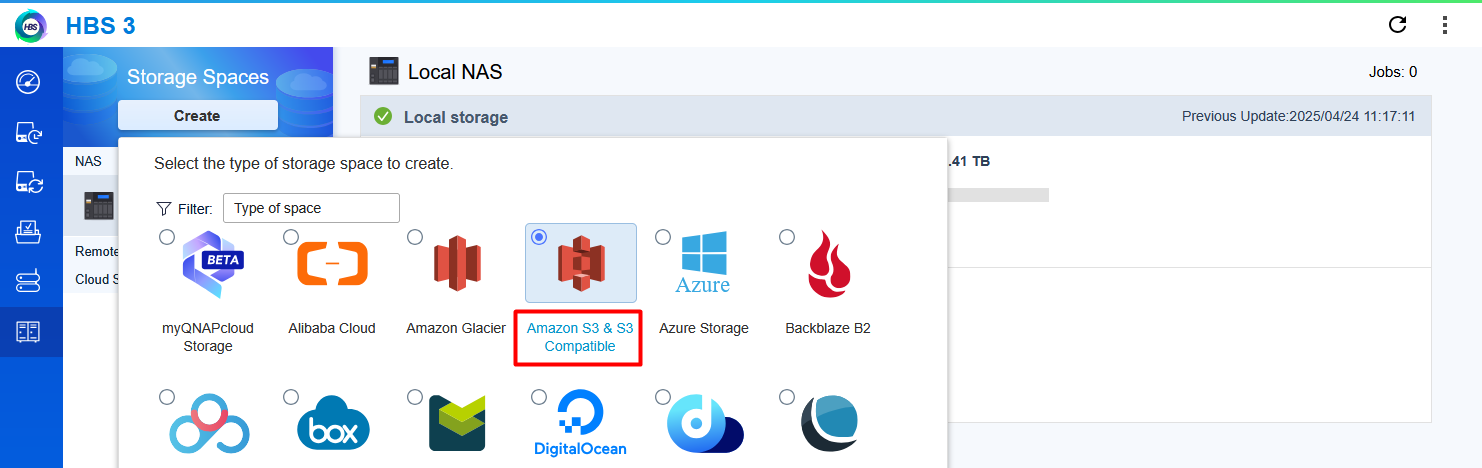
In HBS 3, open Storage Spaces and click Create. Select Amazon S3 & S3 Compatible.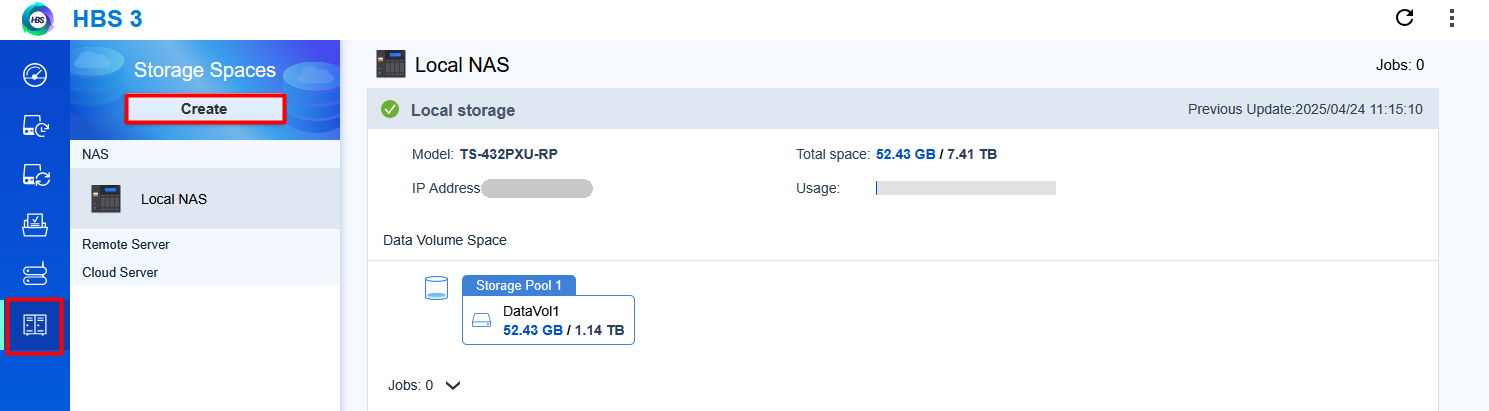
In Create a Storage Space, enter a Name and fill in the fields from the table above. Click Create.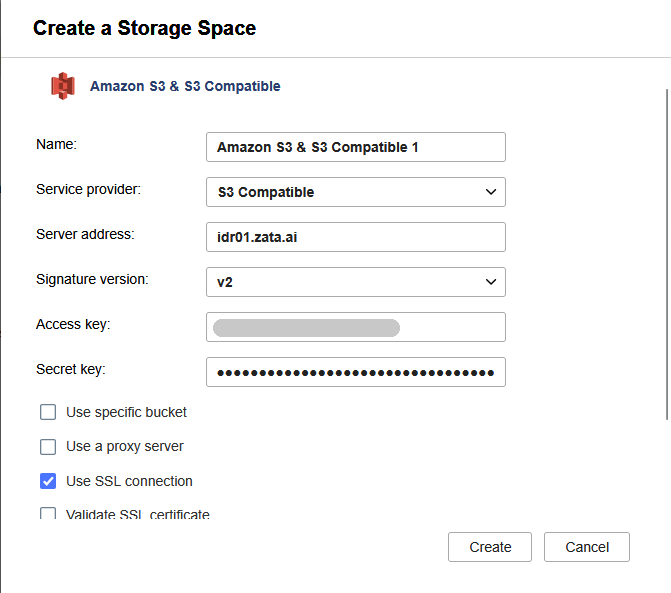
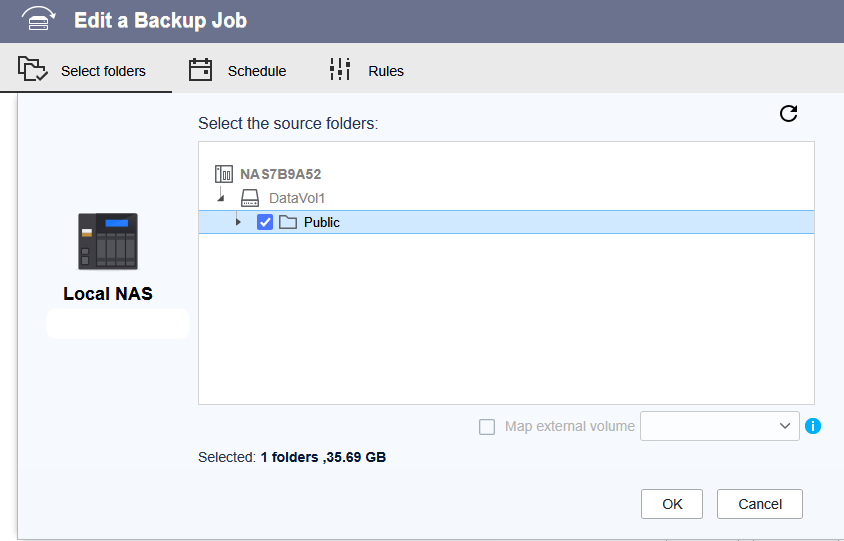
Open Backup & Restore, click Back Up Now, and select New backup job. Select the source folders and click OK.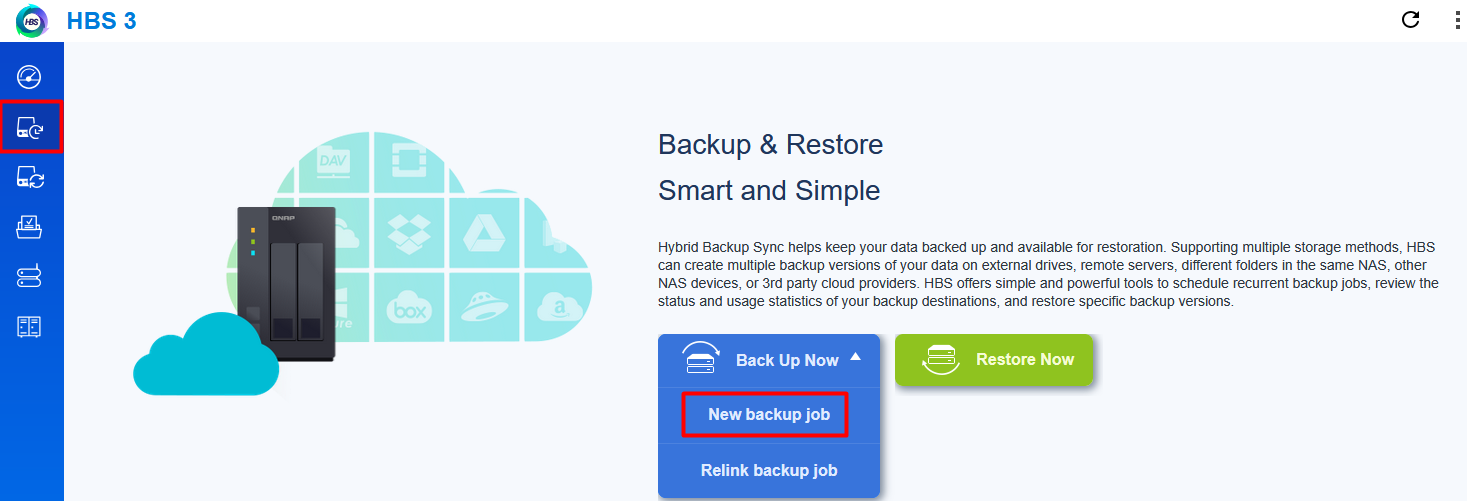
Under Cloud Server, select Amazon S3 & S3 Compatible and click Select. Choose your Zata storage space and your bucket under Bucket name, then click Select.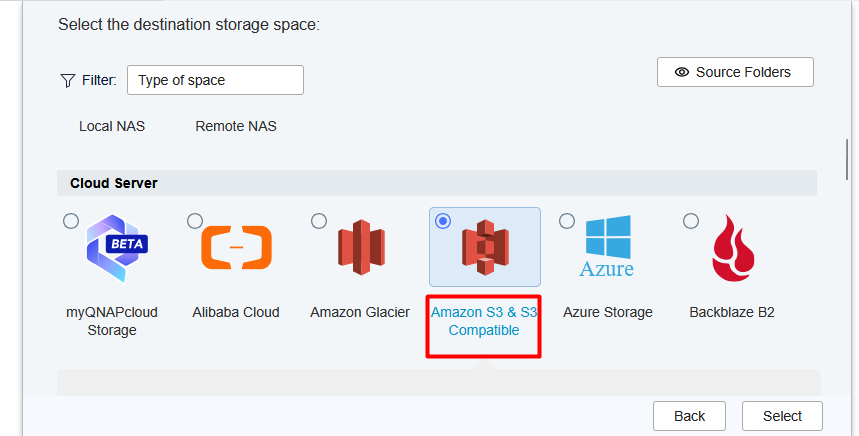
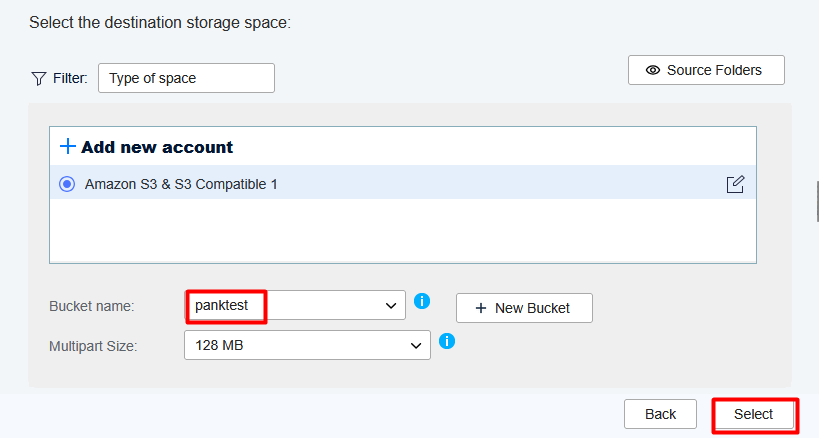
Select or create a folder in the bucket and click OK. Check the job name and click Next.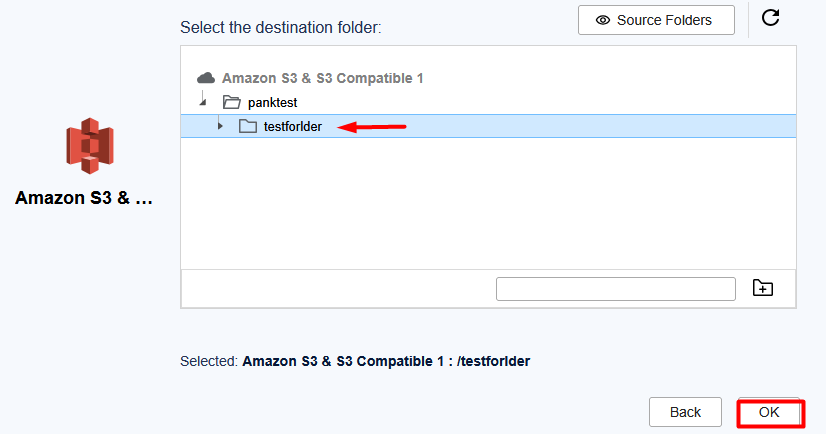
Set the schedule and click Next. Set any rules, such as filters, and click Next.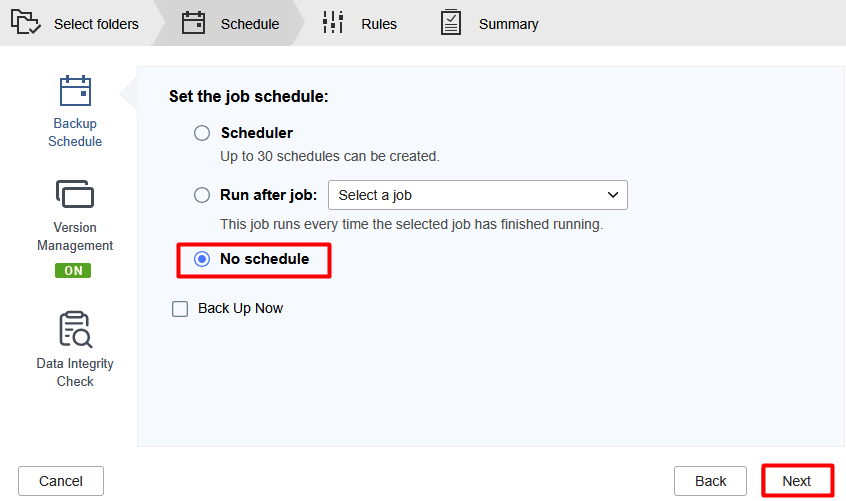
Review the Summary and click Create.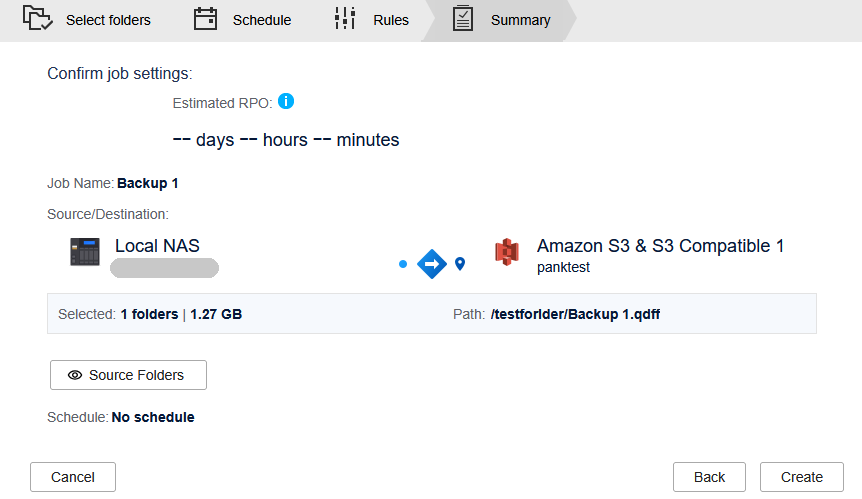
Test it
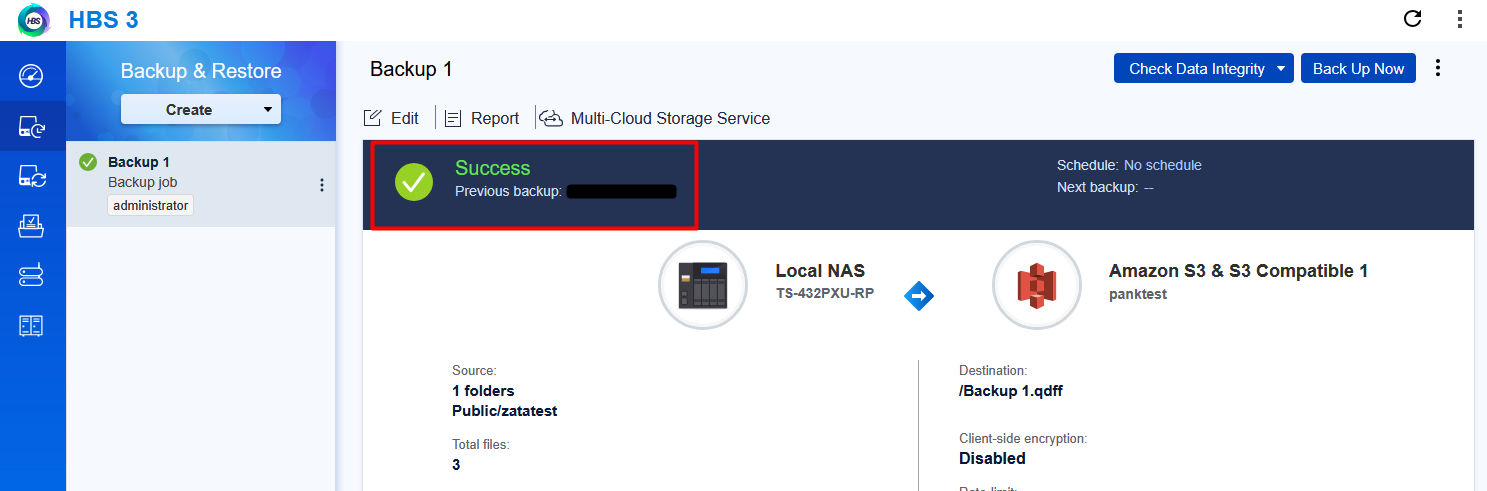
Run the job on a folder with a small file. When it shows Success, check that backup data appears in your bucket in the Zata console. Then use Restore Now in Backup & Restore to restore the file. An upload alone does not prove that the backup can be recovered.
Troubleshooting
| Problem | Fix |
|---|---|
| Creating the storage space fails | Check that Server address is only the host name and matches the bucket's region. |
| Access denied or invalid key | Copy the keys again from Access Keys and check that the key can use the bucket. |
| The bucket is not listed | The key must be from the same region as the server address. For a sub-user's key, tick Use specific bucket and type the bucket name. |
| SSL or certificate error | Check that Server address is exactly idr01.zata.ai or bom01.zata.ai, and that the NAS date and time are correct. Keep certificate checking on. See Network and certificates. |
| Signature error | Copy the secret key again. If you chose v4, try v2. |