WordPress (UpdraftPlus)
Back up a WordPress site to a Zata bucket with the UpdraftPlus plugin.
UpdraftPlus is a WordPress backup plugin. It can send backups of your site's files and database to a Zata bucket through its S3-Compatible (Generic) remote storage.
Before you start
- A bucket for the backups, for example
wp-backups. See Create a bucket. - An access key from the same region as the bucket. See Access keys.
- Admin access to your WordPress site.
Connection settings
| Setting | Value |
|---|---|
| S3 access key / S3 secret key | From Access Keys in the Zata console. The key must be from the same region as the bucket. |
| S3 location | Your bucket name only, for example wp-backups (or wp-backups/site1 for a folder). The box already shows s3generic:// in front, so do not type it. |
| S3 end-point | idr01.zata.ai for Indore, bom01.zata.ai for Mumbai (no https://) |
| Bucket access style | Path style |
| Signature version | SigV4 |
Set up UpdraftPlus
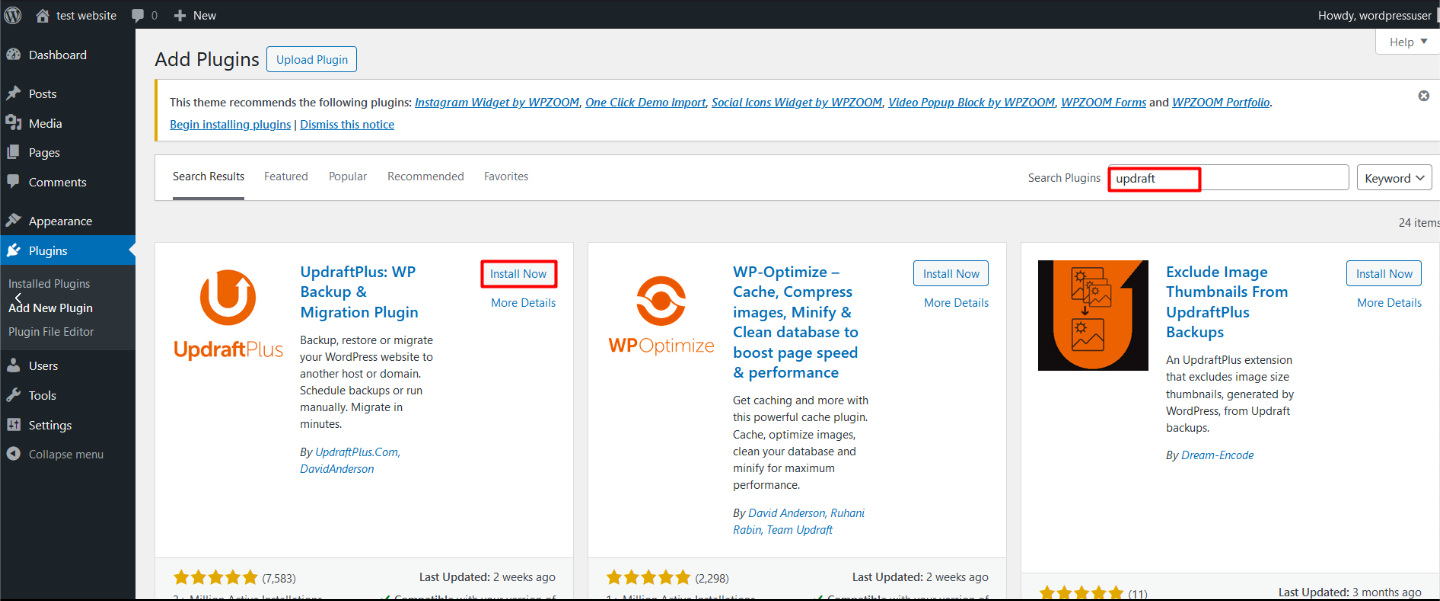
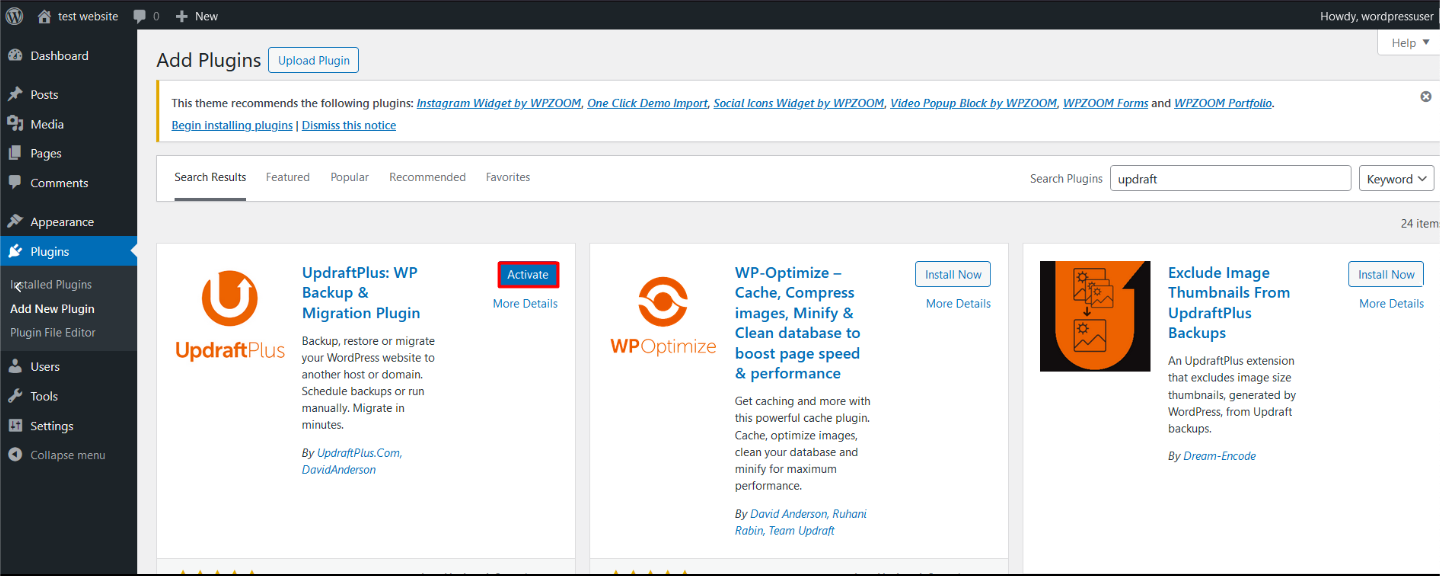
In WordPress admin, open Plugins → Add New Plugin. Search for UpdraftPlus and click Install Now on UpdraftPlus: WP Backup & Migration Plugin. Then click Activate.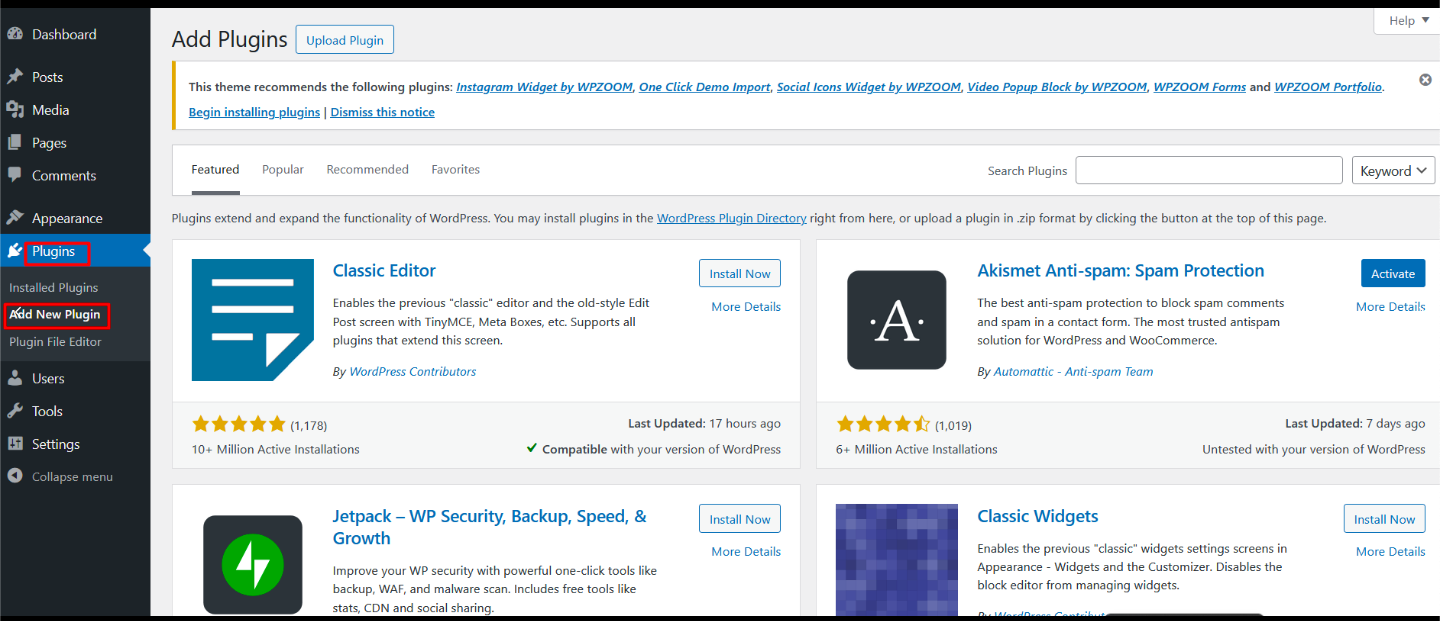
Open Settings → UpdraftPlus Backups and select the Settings tab. Under Choose your remote storage, select S3-Compatible (Generic).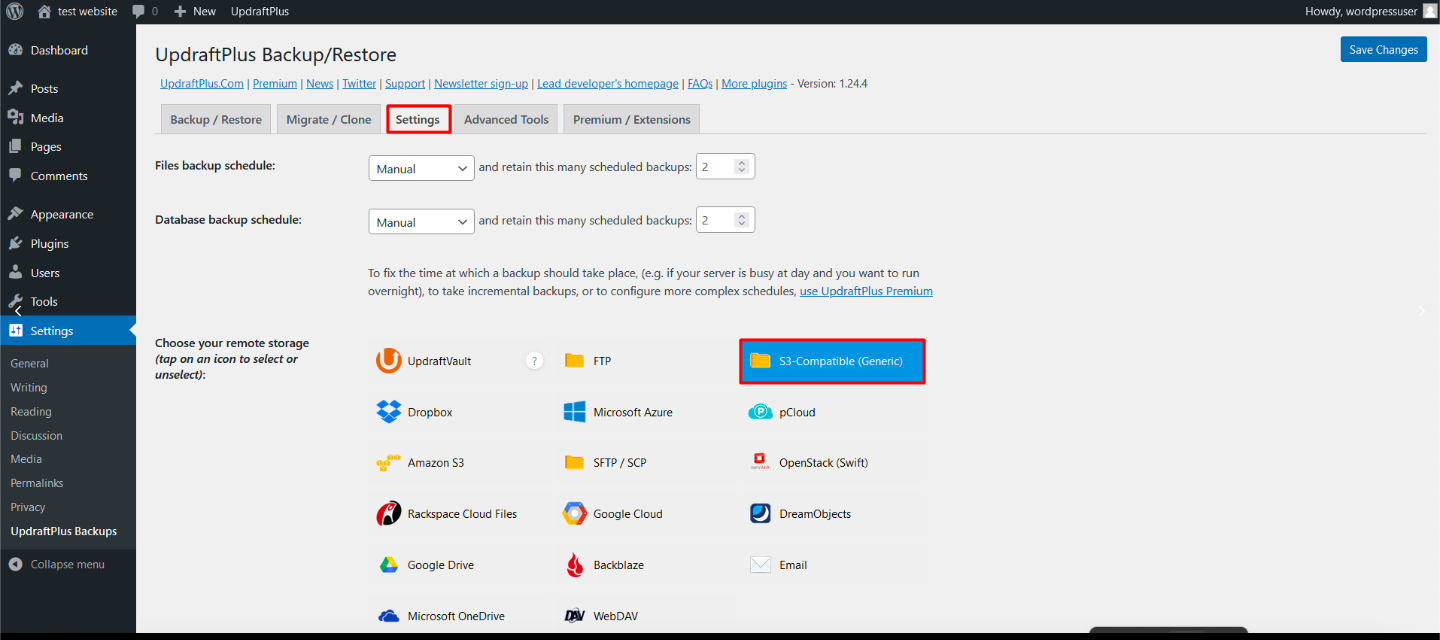
Fill in the fields from the table above and click Test S3-Compatible (Generic) Settings. A success message means WordPress can reach your bucket.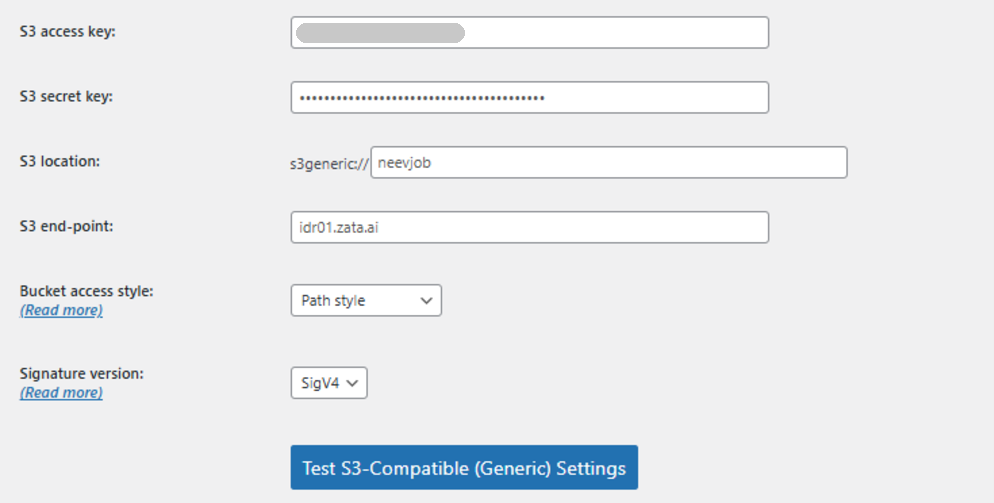
On the same tab, set Files backup schedule and Database backup schedule, and how many scheduled backups to keep. Click Save Changes.
Test it
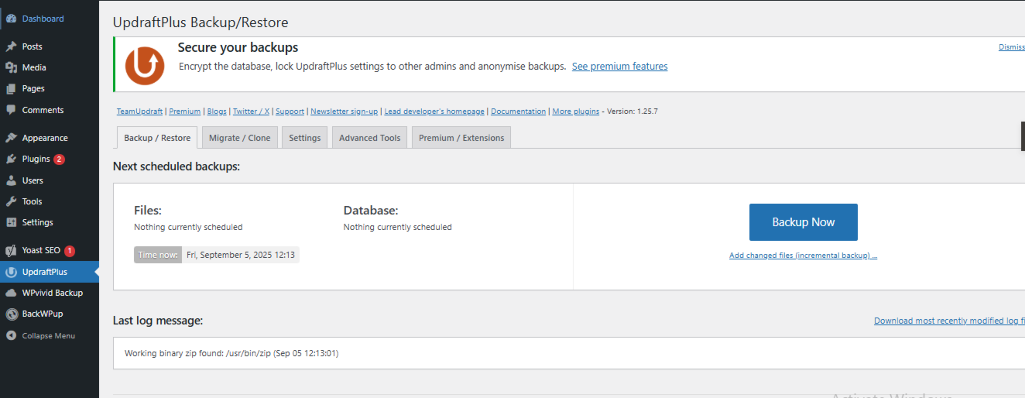
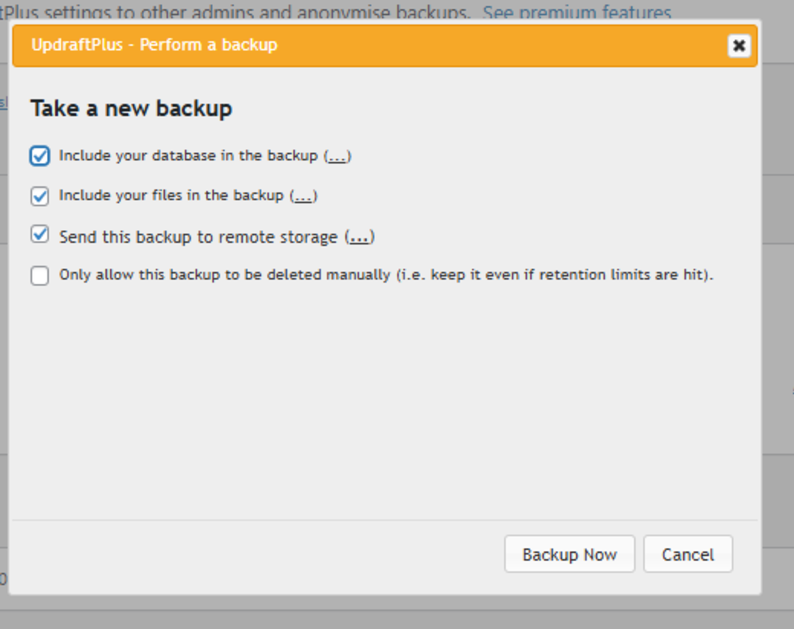
Open the Backup / Restore tab and click Backup Now. Tick Include your database in the backup, Include your files in the backup and Send this backup to remote storage, then click Backup Now.
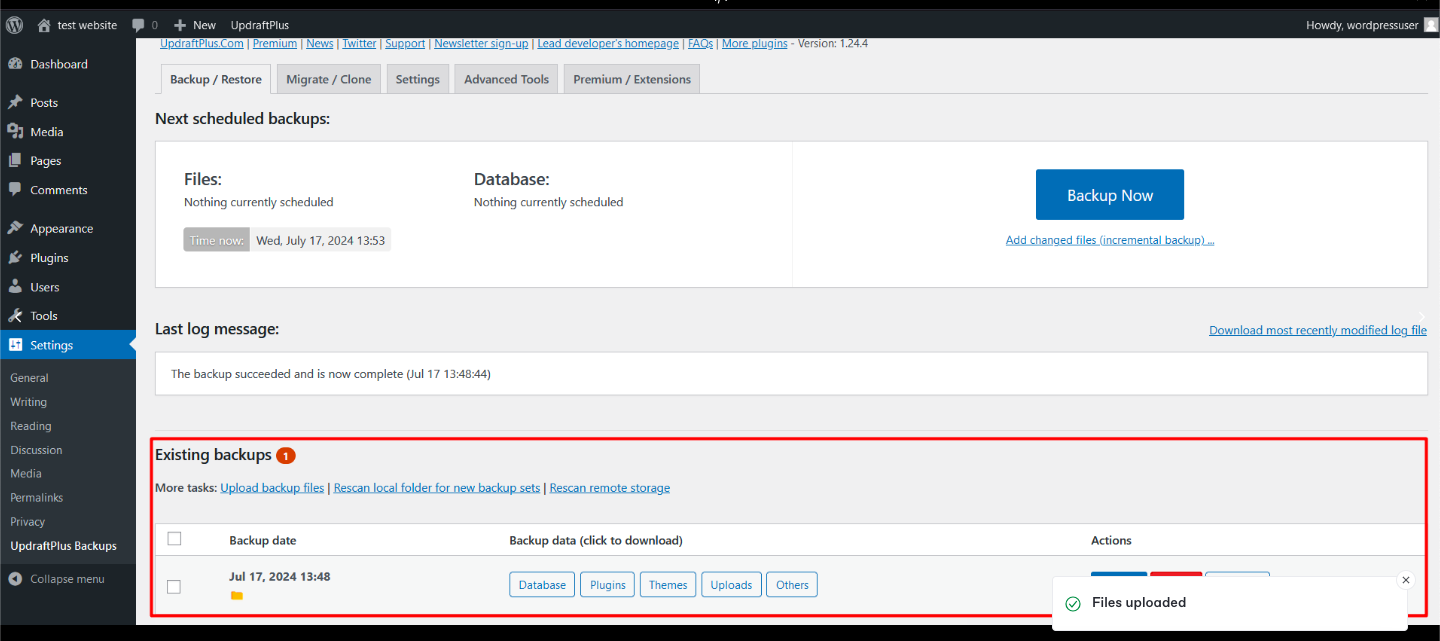
When it finishes, the backup shows under Existing backups. Check that the backup files are in your bucket in the Zata console, and try a restore from the Backup / Restore tab before you rely on it.
Troubleshooting
| Problem | Fix |
|---|---|
| The test fails | Check the keys and the S3 end-point, and that S3 location is only the bucket name (no s3generic://, no https://). |
| Access denied | Check that the key can use the bucket and that the end-point matches the bucket's region. |
| The backup stays only on the server | Tick Send this backup to remote storage in the Backup Now dialog. |
| Other errors | Read the UpdraftPlus log (Download most recently modified log file on the Backup / Restore tab). |
For other errors, see Signature errors and Access denied.