> For the complete documentation index, see [llms.txt](https://docs.zata.ai/llms.txt). Markdown versions of documentation pages are available by appending `.md` to page URLs; this page is available as [Markdown](https://docs.zata.ai/knowledgebase/access-specific-bucket-through-subuser-in-s3-browser.md).
# Access Specific Bucket through Subuser in S3 Browser
## Step 1: Download and Install S3 Browser
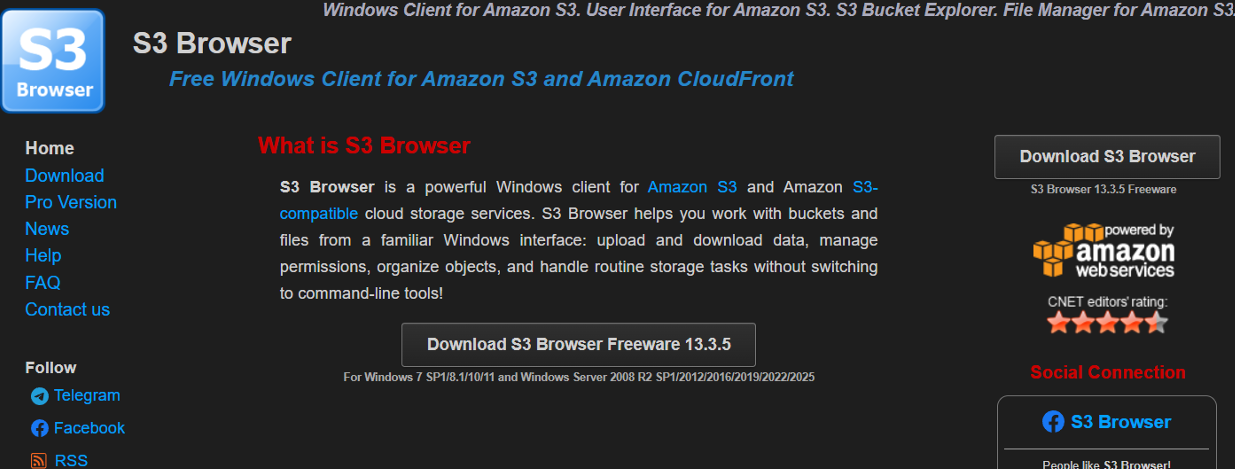
* Go to the official S3 Browser website and download the application.
* Install S3 Browser on your system (Windows).
* Open S3 Browser after installation is complete.
## Step 2: Get Subuser Credentials from Zata.ai
* Log in to the Zata.ai dashboard.
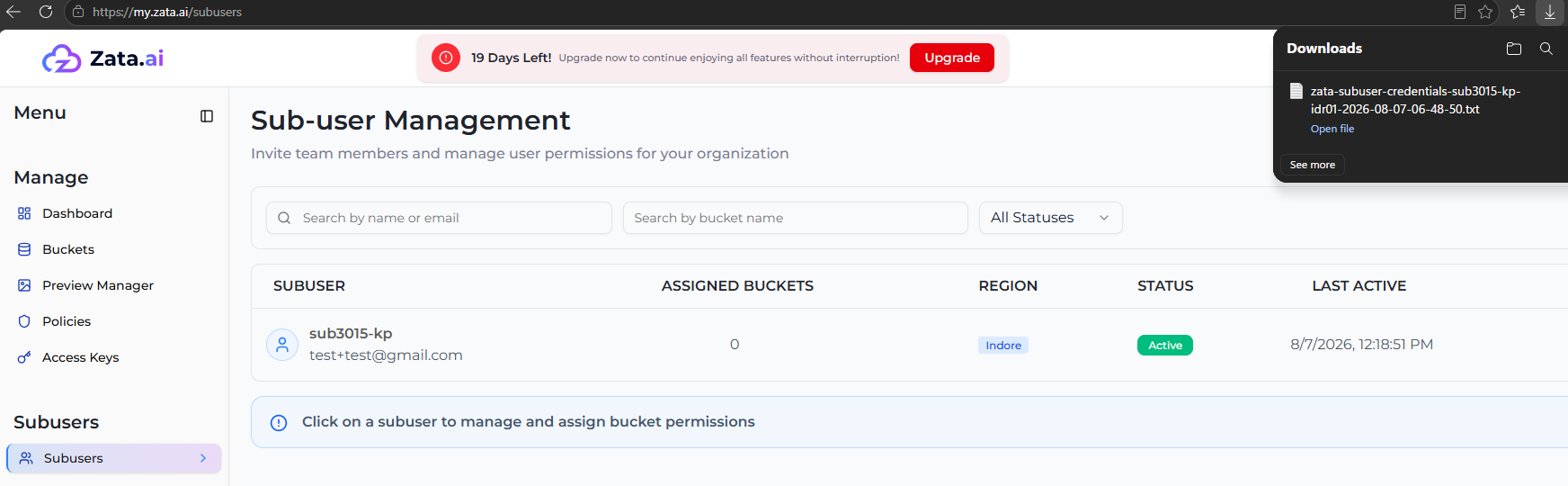
* Go to **Subusers → Subusers** from the left sidebar.
* Locate the Subuser you want to connect and open the downloaded credentials file (Access Key and Secret Key).
> **Note:** A subuser gets a separate Access Key/Secret Key pair for each region it's assigned to. Make sure you use the key pair and REST endpoint for the same region — a key from one region will not work against another region's endpoint. If the credentials file is lost, a new key must be generated for that region and the old key deleted, as the Secret Key cannot be retrieved again.
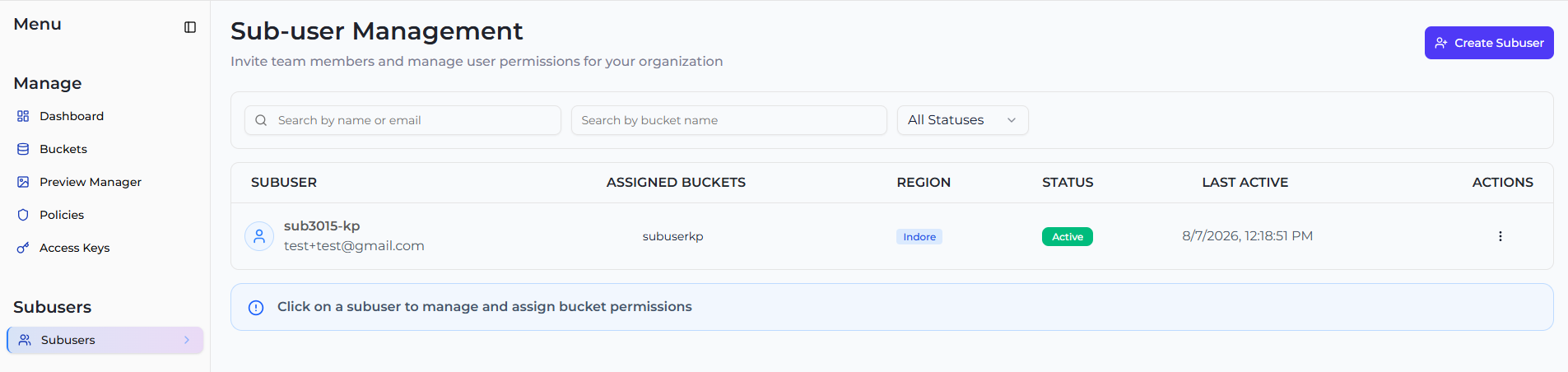
* On the same Subuser Management page, look under the **ASSIGNED BUCKETS** column. Make sure to note down the exact name of the bucket assigned to this subuser, as you will need it later.
## Step 3: Add a New Account in S3 Browser
* Open S3 Browser.
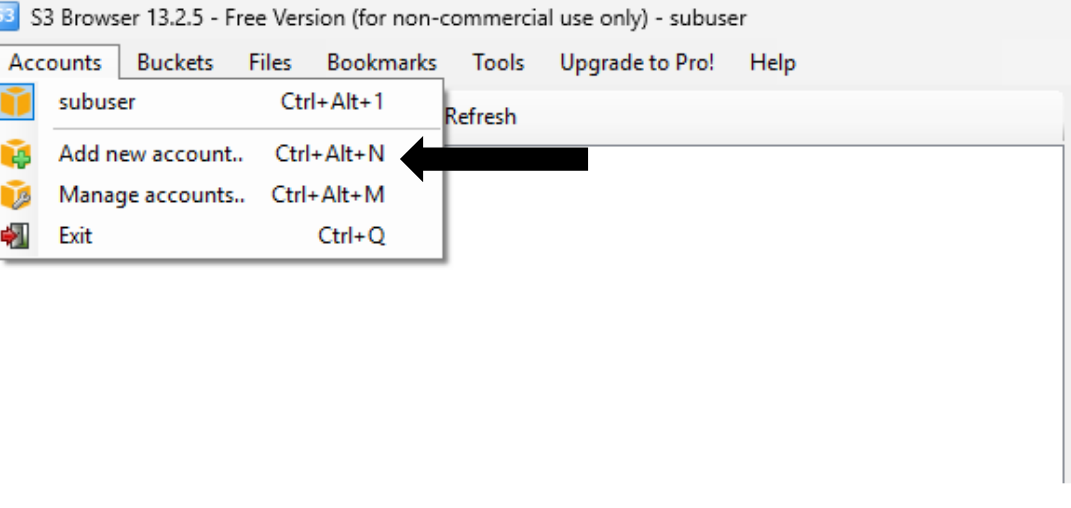
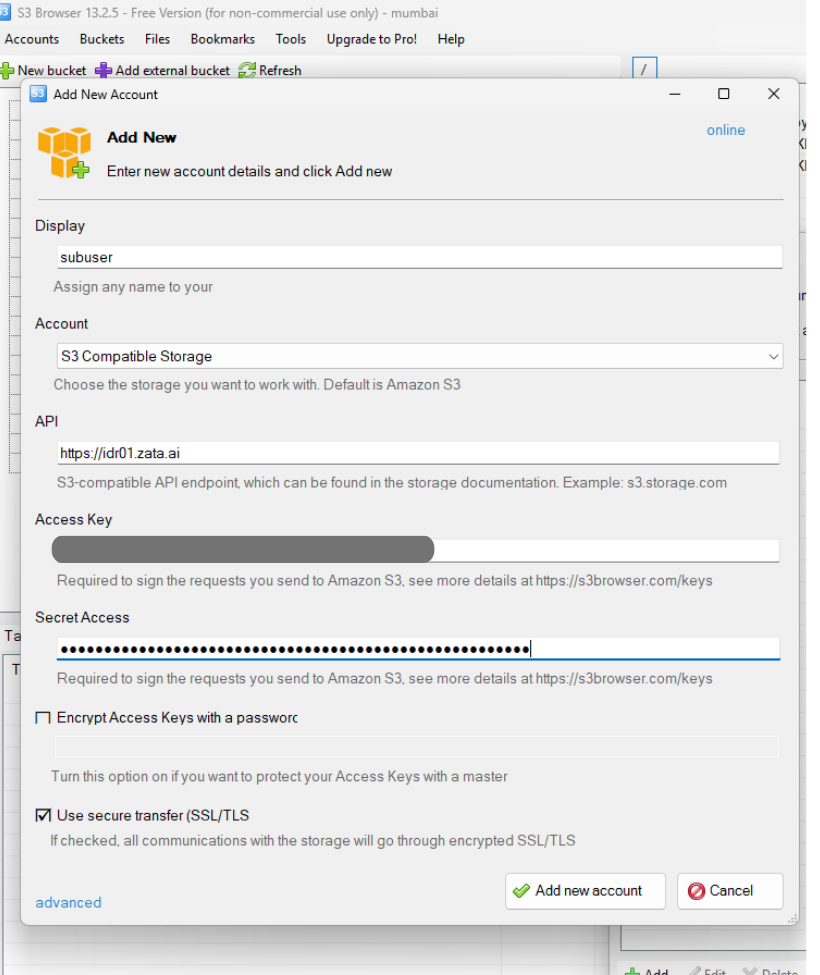
* Click on **Accounts → Add New Account**.
* A popup will open: Add New Account.
## Step 4: Configure Account Settings
**Required Fields**
* **Account Name:** Enter any recognizable name for this connection.
* **Account Type:** Select “S3 Compatible Storage”.
* **REST Endpoint:** Enter the Zata.ai S3-compatible endpoint URL (region: Indore).
* **Access Key ID:** Enter the Access Key from the Subuser credentials file.
* **Secret Access Key:** Enter the Secret Key from the Subuser credentials file.
## Step 5: Test and Save the Connection
* Click on **Test Connection** to verify the credentials and endpoint are correct.
* Once the connection is successful, click **Save/OK** to add the account.
## Step 6: Add the Bucket as an External Bucket
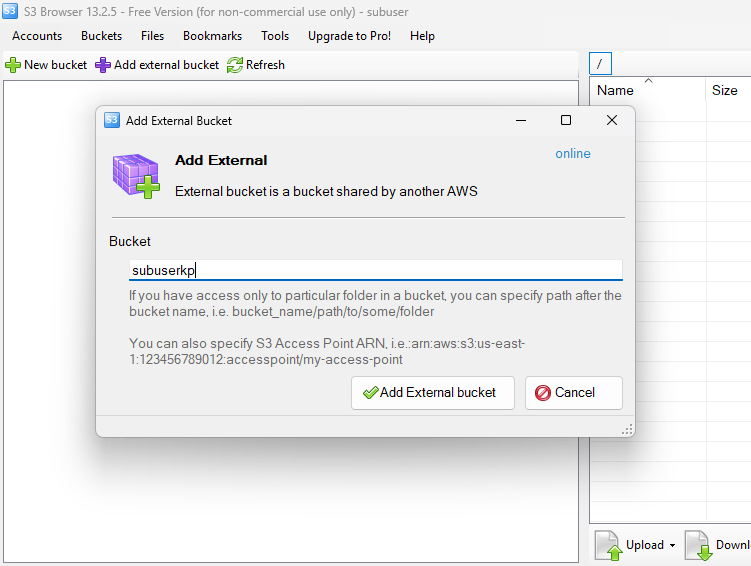
> **Note:** A Subuser does not have permission to list all buckets. The bucket list will appear empty, so the specific bucket must be added manually as an External Bucket.
* In S3 Browser, right-click on the buckets (or go to Buckets menu) and select **Add External Bucket**.
* A popup will open asking for the bucket name.
* Enter the exact bucket name that was assigned to the Subuser in Zata.ai.
* Click **Add/OK**.
## Step 7: Select the Bucket to Access
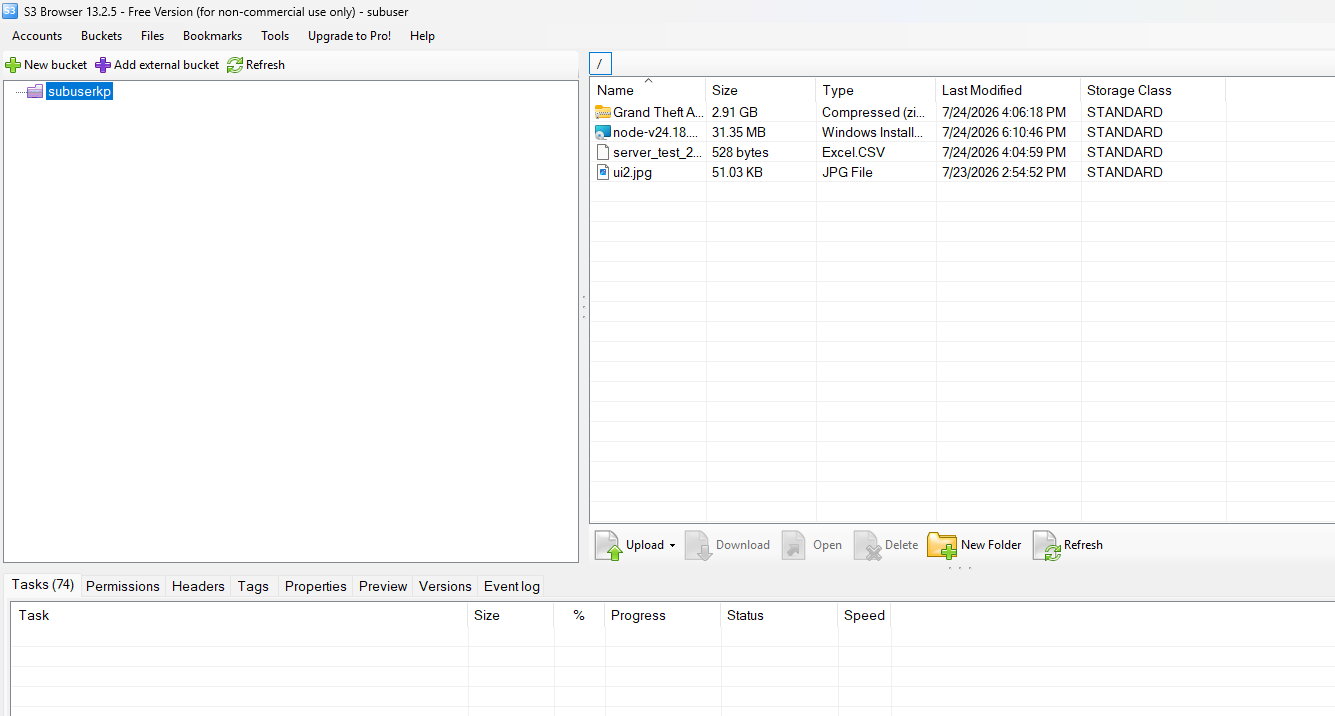
* Click on the bucket name from the list to open it.
* The bucket contents (folders/files) will be displayed based on the permission assigned to the Subuser.
## Step 8: Perform Actions Based on Assigned Permission
The available actions depend on the permission set for the Subuser on this bucket:
| Permission | Allowed Action in S3 Browser |
| ------------- | -------------------------------------------------- |
| View Only | Browse and download files only |
| Upload Only | Upload files to the bucket only |
| View & Upload | Browse, download, and upload files |
| Full Access | Upload, download, rename, and delete files/folders |
## Step 9: Troubleshooting Common Connection Issues
* **Access Denied error:** Verify the correct bucket is assigned to the Subuser in Zata.ai.
* **Connection failed:** Re-check the REST Endpoint URL and region (Indore).
* **Invalid credentials:** Re-confirm Access Key and Secret Key are copied correctly with no extra spaces.
## Step 10: Final Verification
* Confirm the bucket is visible and accessible in S3 Browser.
* Confirm actions (view/upload/full access) work as per the assigned permission.
* Subuser access through S3 Browser is now successfully configured.
*Bucket access via Subuser using S3 Browser (integrated with Zata.ai, S3-compatible) is now successfully completed.*