# Connect Acronis Backup Gateway With Zata.ai

#### Prerequisites <a href="#pre-requisites" id="pre-requisites"></a>

* Zata.ai S3-Storage Account
  * Zata.ai Bucket - See our Bucket Creation Guide
  * Access & Secret Key Pair - See our Access Keys Guide
* Acronis Cyber Protect Cloud Partner account - [Acronis Partner Page](https://www.acronis.com/en-us/partners/)
* Acronis Backup Gateway (VM or Bare Metal) - [Acronis Backup Gateway Guide](https://dl.acronis.com/u/storage2/html/AcronisStorage_2_quick_start_guide_en-US/index.html)
* Acronis Agent installed on a VM or Server you wish to protect - [Acronis Agent Install Guide](https://kb.acronis.com/content/55052)

***Note:** your specific backup software handles the restoration process. As many potential variables will affect your unique environment, it is strongly recommended that you seek the guidance of your backup software's technical support team if you encounter difficulty, or have application-specific inquiries.*

#### Reference Architecture <a href="#reference-architecture" id="reference-architecture"></a>

<figure><img src="https://2683631041-files.gitbook.io/~/files/v0/b/gitbook-x-prod.appspot.com/o/spaces%2FPPVG4W649TwXN8OejRhb%2Fuploads%2FlVQNNi6Hp0tXJBukHG8L%2FAcronis%20_Zata.png?alt=media&#x26;token=32fc96c4-3f82-452d-b90a-98ca3608d051" alt="Intregate Zata.ai to Acronis"><figcaption></figcaption></figure>

#### Create Backup Storage <a href="#id-3-create-backup-storage" id="id-3-create-backup-storage"></a>

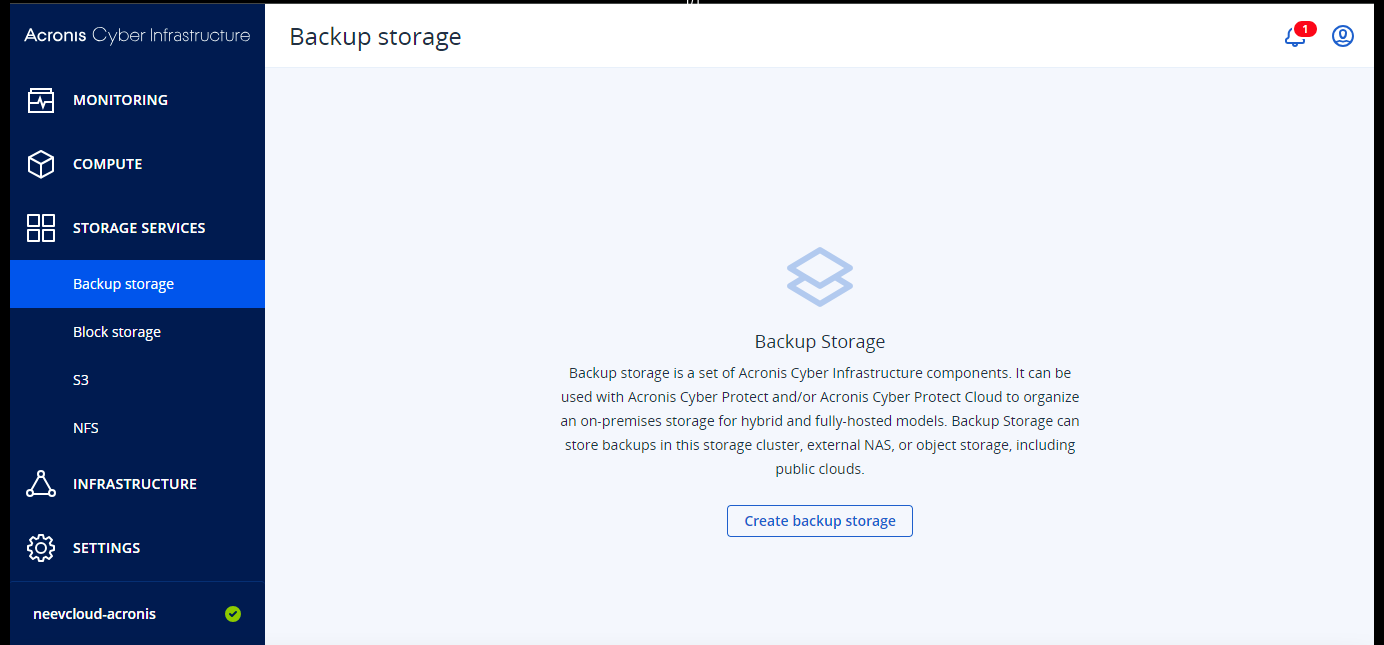
1.1 Click “Storage Services > Backup Storage”, then click “Create backup storage”.

<figure><img src="https://2683631041-files.gitbook.io/~/files/v0/b/gitbook-x-prod.appspot.com/o/spaces%2FPPVG4W649TwXN8OejRhb%2Fuploads%2FoEBN65ANHaZ9s1IqDePX%2FScreenshot%202024-08-02%20at%207.07.10%20PM.png?alt=media&#x26;token=5bc231c7-fb66-4dc8-a6e8-0995516dd630" alt=""><figcaption></figcaption></figure>

1.2 Choose “Public Cloud”, then click “Next”.

<figure><img src="https://2683631041-files.gitbook.io/~/files/v0/b/gitbook-x-prod.appspot.com/o/spaces%2FPPVG4W649TwXN8OejRhb%2Fuploads%2FmIRoY0dcYJjNZ5ECwJ2S%2FScreenshot%202024-08-02%20at%207.07.25%20PM.png?alt=media&#x26;token=65dcfca8-d6d5-4f7a-b3ea-ab3f65a659fb" alt=""><figcaption></figcaption></figure>

1.3 Check the box for your storage node, then click “Next”.

<figure><img src="https://2683631041-files.gitbook.io/~/files/v0/b/gitbook-x-prod.appspot.com/o/spaces%2FPPVG4W649TwXN8OejRhb%2Fuploads%2Fc7LoWymbuaB7qD0AeNL3%2FScreenshot%202024-08-02%20at%207.07.33%20PM.png?alt=media&#x26;token=89d9ba42-5e78-4b6d-91dd-275d3e591bd0" alt=""><figcaption></figcaption></figure>

1.4 Select S3 Compatible storage like `“`AuthV2 compatible (S3)`”` in the dropdown.

<figure><img src="https://2683631041-files.gitbook.io/~/files/v0/b/gitbook-x-prod.appspot.com/o/spaces%2FPPVG4W649TwXN8OejRhb%2Fuploads%2FIY5hmaBucYxgDYEDK5h2%2FScreenshot%202024-08-02%20at%207.07.42%20PM.png?alt=media&#x26;token=586d7bad-5c36-4cc4-a6b8-96a395cc500e" alt=""><figcaption></figcaption></figure>

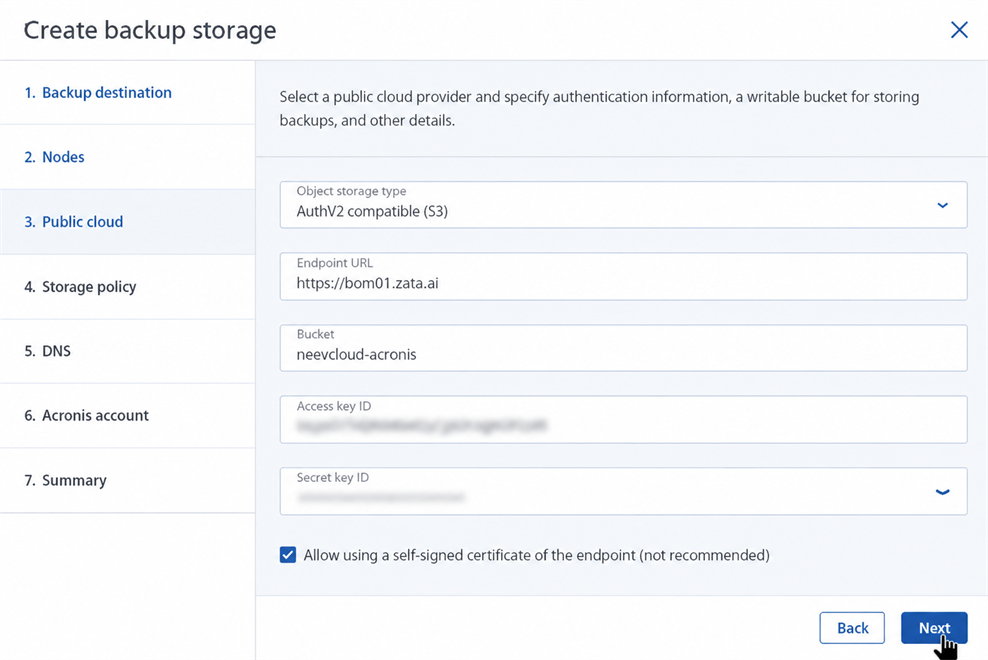
1.5 Enter the Endpoint URL, Bucket Name, Access Key, and Secret Key, then click `“Next”`.

* Endpoint URL:  **<https://idr01.zata.ai>**
* Bucket Name: Your bucket name.
* Access Key, and Secret Key: Create.

<figure><img src="https://2683631041-files.gitbook.io/~/files/v0/b/gitbook-x-prod.appspot.com/o/spaces%2FPPVG4W649TwXN8OejRhb%2Fuploads%2FsfYPwaLWkYCQtZhoEMHK%2FScreenshot%202024-08-02%20at%207.07.51%20PM.png?alt=media&#x26;token=b2d73e2c-7ee4-4668-ab0c-b0699f2ac37f" alt=""><figcaption></figcaption></figure>

1.6 Choose appropriate redundancy settings in accordance with your organization’s policies, then click “Next”.

**Note:** *For the sake of this example we have chosen "No Redundancy" . Get in touch with your Acronis Representative to determine an appropriate redundancy level and hardware configuration for your Cyber Protect Infrastructure cluster.*

<figure><img src="https://2683631041-files.gitbook.io/~/files/v0/b/gitbook-x-prod.appspot.com/o/spaces%2FPPVG4W649TwXN8OejRhb%2Fuploads%2FBktvrzB9WluUTL08Wc2u%2FScreenshot%202024-08-02%20at%207.07.59%20PM.png?alt=media&#x26;token=de0ca535-e20b-4c2c-a2bb-9cb2f6a57ddc" alt=""><figcaption></figcaption></figure>

1.7 Enter a Domain Name for the backup server, then click “Next”.

***Note:** This must be a real DNS address that is resolvable to the IP of your Acronis Cyber Infrastructure gateway, also the server must be able to accept inbound connections on port 44445.*

<figure><img src="https://2683631041-files.gitbook.io/~/files/v0/b/gitbook-x-prod.appspot.com/o/spaces%2FPPVG4W649TwXN8OejRhb%2Fuploads%2F4vkWBgQ5QJ0ykDo2EQtP%2FScreenshot%202024-08-02%20at%207.08.07%20PM.png?alt=media&#x26;token=6de357ad-56dd-44cc-97de-1aa41f097444" alt=""><figcaption></figcaption></figure>

1.8 To register your Cyber Protect Infrastructure, enter your Acronis Partner Credentials, then click `“`Next”.

<figure><img src="https://2683631041-files.gitbook.io/~/files/v0/b/gitbook-x-prod.appspot.com/o/spaces%2FPPVG4W649TwXN8OejRhb%2Fuploads%2FZAxfQSuZj9HmDofrLPjp%2FScreenshot%202024-08-02%20at%207.08.16%20PM.png?alt=media&#x26;token=1c20ea22-bb02-4dc1-9f68-0781f77e5931" alt=""><figcaption></figcaption></figure>

1.9 Review the “Summary”, then click “Create”.

<figure><img src="https://2683631041-files.gitbook.io/~/files/v0/b/gitbook-x-prod.appspot.com/o/spaces%2FPPVG4W649TwXN8OejRhb%2Fuploads%2FAL01wushHl3ewj1Gzjto%2FScreenshot%202024-08-02%20at%207.08.24%20PM.png?alt=media&#x26;token=cdab7f2c-be89-4231-853a-8aaf95225cee" alt=""><figcaption></figcaption></figure>

1.10 You are presented with the “Backup storage Overview" page.

<figure><img src="https://docs.neevcloud.com/~gitbook/image?url=https%3A%2F%2F1876135298-files.gitbook.io%2F%7E%2Ffiles%2Fv0%2Fb%2Fgitbook-x-prod.appspot.com%2Fo%2Fspaces%252FEC5NwtFshv6EATOemuUn%252Fuploads%252FKH8aY8few6uNDPOft2nd%252Fimage.png%3Falt%3Dmedia%26token%3D055fcf86-be72-4538-984e-0c7a9e3eaa8d&#x26;width=768&#x26;dpr=4&#x26;quality=100&#x26;sign=9390005d&#x26;sv=1" alt=""><figcaption></figcaption></figure>

1.11 Confirm Registration by clicking the “Registration” Tab.

<figure><img src="https://docs.neevcloud.com/~gitbook/image?url=https%3A%2F%2F1876135298-files.gitbook.io%2F%7E%2Ffiles%2Fv0%2Fb%2Fgitbook-x-prod.appspot.com%2Fo%2Fspaces%252FEC5NwtFshv6EATOemuUn%252Fuploads%252FyPE8CR6SZfvRZfEZEgRV%252Fimage.png%3Falt%3Dmedia%26token%3Daee7ce4b-6d54-42c2-ac41-815d26d5dcdf&#x26;width=768&#x26;dpr=4&#x26;quality=100&#x26;sign=189df0b0&#x26;sv=1" alt=""><figcaption></figcaption></figure>

1.12 Log in to your Acronis Cyber Protect Cloud Partner account, and confirm that the location is available by clicking “Settings > Locations”.

<figure><img src="https://docs.neevcloud.com/~gitbook/image?url=https%3A%2F%2F1876135298-files.gitbook.io%2F%7E%2Ffiles%2Fv0%2Fb%2Fgitbook-x-prod.appspot.com%2Fo%2Fspaces%252FEC5NwtFshv6EATOemuUn%252Fuploads%252FGHTBBbCy1YgpXUuK80te%252Fimage.png%3Falt%3Dmedia%26token%3D6b6c5003-4448-45e0-abad-5337016bcf01&#x26;width=768&#x26;dpr=4&#x26;quality=100&#x26;sign=1ab4fce6&#x26;sv=1" alt=""><figcaption></figcaption></figure>

Now you are ready to attach this storage to your New Customers in Acronis Cyber Protect account and push the backup Verify the backup by checking in you Zata.ai account.