> For the complete documentation index, see [llms.txt](https://docs.zata.ai/llms.txt). Markdown versions of documentation pages are available by appending `.md` to page URLs; this page is available as [Markdown](https://docs.zata.ai/knowledgebase/integration/connect-ahsay-cloud-backup-suite-acbs-with-zata.ai.md).

# Connect Ahsay cloud backup suite(ACBS) with Zata.ai

## Connect Ahsay cloud backup suite(ACBS) with Zata.ai

**AhsayCBS** stands for Ahsay Cloud Backup Suite, a comprehensive backup software solution designed for managed service providers and IT professionals. It provides data backup and restore capabilities for virtual machines, databases, servers, and desktops, supporting multiple platforms and storage options.

Download the ACBS in Windows by following this [link](https://www.ahsay.com/en/download).

<figure><img src="https://2683631041-files.gitbook.io/~/files/v0/b/gitbook-x-prod.appspot.com/o/spaces%2FPPVG4W649TwXN8OejRhb%2Fuploads%2Fj3r6dCF1l30lJYGprbJi%2FScreenshot%202024-08-03%20at%203.29.06%20PM.png?alt=media&amp;token=50324d4a-182a-4945-a1de-78a2be9f21b8" alt=""><figcaption></figcaption></figure>

After downloading ACBS on Windows, click on AhsayCBS to start the installation.

<figure><img src="https://2683631041-files.gitbook.io/~/files/v0/b/gitbook-x-prod.appspot.com/o/spaces%2FPPVG4W649TwXN8OejRhb%2Fuploads%2FisZ6dLuh9u0xyLhWCSmX%2FScreenshot%202024-08-03%20at%203.29.36%20PM.png?alt=media&amp;token=e1527158-d2d4-41f5-9ea9-d019c3806ef3" alt=""><figcaption></figcaption></figure>

Choose the language, and then click ok to continue

<figure><img src="https://docs.neevcloud.com/~gitbook/image?url=https%3A%2F%2F1876135298-files.gitbook.io%2F%7E%2Ffiles%2Fv0%2Fb%2Fgitbook-x-prod.appspot.com%2Fo%2Fspaces%252FEC5NwtFshv6EATOemuUn%252Fuploads%252FNgl6wAHa1z5QWk4T1saZ%252Fimage.png%3Falt%3Dmedia%26token%3D7c298172-5617-4e0f-9463-8990df395680&#x26;width=768&#x26;dpr=4&#x26;quality=100&#x26;sign=680e9e4c&#x26;sv=1" alt=""><figcaption></figcaption></figure>

Click next to continue

<figure><img src="https://2683631041-files.gitbook.io/~/files/v0/b/gitbook-x-prod.appspot.com/o/spaces%2FPPVG4W649TwXN8OejRhb%2Fuploads%2Fpah7fsYfxb4u7RIq71PP%2FScreenshot%202024-08-03%20at%203.30.20%20PM.png?alt=media&amp;token=ddfcb22a-6af2-4eec-88e5-0f5f0caf65a3" alt=""><figcaption></figcaption></figure>

Read the license agreement. Select “**I agree on the agreement**” If you agree, then click on \[Next] to continue the installation.

<figure><img src="https://2683631041-files.gitbook.io/~/files/v0/b/gitbook-x-prod.appspot.com/o/spaces%2FPPVG4W649TwXN8OejRhb%2Fuploads%2Fdp8TfOx2KAuwvuDltzPy%2FScreenshot%202024-08-03%20at%203.30.45%20PM.png?alt=media&amp;token=96d80cb3-622b-46f0-8ce3-f2cbf0a02036" alt=""><figcaption></figcaption></figure>

Choose the installation directory, then click next to **continue**.

<figure><img src="https://2683631041-files.gitbook.io/~/files/v0/b/gitbook-x-prod.appspot.com/o/spaces%2FPPVG4W649TwXN8OejRhb%2Fuploads%2F0pkbOth5dBxVTON0Czt6%2FScreenshot%202024-08-03%20at%203.31.02%20PM.png?alt=media&amp;token=b9e40199-4ed0-4f8f-b425-e50551f6c93d" alt=""><figcaption></figcaption></figure>

Click next to **continue**

<figure><img src="https://2683631041-files.gitbook.io/~/files/v0/b/gitbook-x-prod.appspot.com/o/spaces%2FPPVG4W649TwXN8OejRhb%2Fuploads%2FiIw6TgU2gbcPoqJIXLjQ%2FScreenshot%202024-08-03%20at%203.31.39%20PM.png?alt=media&amp;token=c7b10ab7-86f1-4de1-bfb2-239f3bd449ed" alt=""><figcaption></figcaption></figure>

Enter the ports to be used by **AhsayCBS**. By default, the ports are 80 and 443 (Http and Https respectively). If these ports have been used by other applications, eg. Microsoft IIS, Apache or other applications. Please use alternative ports such as 8080, 8443, then click \[Next] to continue.

<figure><img src="https://2683631041-files.gitbook.io/~/files/v0/b/gitbook-x-prod.appspot.com/o/spaces%2FPPVG4W649TwXN8OejRhb%2Fuploads%2FBRWc5asWv8ARy3qWHyI1%2FScreenshot%202024-08-03%20at%203.32.10%20PM.png?alt=media&amp;token=6fd13cef-9e74-4b1f-9c7e-cfb91f543409" alt=""><figcaption></figcaption></figure>

Click to start the installation

<figure><img src="https://2683631041-files.gitbook.io/~/files/v0/b/gitbook-x-prod.appspot.com/o/spaces%2FPPVG4W649TwXN8OejRhb%2Fuploads%2FJNgngP2WPjeI78OR2rGi%2FScreenshot%202024-08-03%20at%203.35.21%20PM.png?alt=media&amp;token=48a20fe3-1825-4ee3-a5be-6e914bc3f123" alt=""><figcaption></figcaption></figure>

Click to complete the installation.

<figure><img src="https://2683631041-files.gitbook.io/~/files/v0/b/gitbook-x-prod.appspot.com/o/spaces%2FPPVG4W649TwXN8OejRhb%2Fuploads%2FUDE2BTwz8h39DtepvDnV%2FScreenshot%202024-08-03%20at%203.42.34%20PM.png?alt=media&amp;token=30869544-6435-4b05-aea3-f917c0de285e" alt=""><figcaption></figcaption></figure>

After clicking "Finish," the service will automatically open in the browser.

Now enter the default credentials ->

**Username: system**

**Password: system**

<figure><img src="https://docs.neevcloud.com/~gitbook/image?url=https%3A%2F%2F1876135298-files.gitbook.io%2F%7E%2Ffiles%2Fv0%2Fb%2Fgitbook-x-prod.appspot.com%2Fo%2Fspaces%252FEC5NwtFshv6EATOemuUn%252Fuploads%252FhEkoFNDMk8VKvMFavTWy%252Fimage.png%3Falt%3Dmedia%26token%3D1fbec53b-8ed1-4037-a514-d86cb9e3369e&#x26;width=768&#x26;dpr=4&#x26;quality=100&#x26;sign=585ad0fd&#x26;sv=1" alt=""><figcaption></figcaption></figure>

Now enter the credentials to change password and press enter

<figure><img src="https://2683631041-files.gitbook.io/~/files/v0/b/gitbook-x-prod.appspot.com/o/spaces%2FPPVG4W649TwXN8OejRhb%2Fuploads%2F55y1tXryOz6JOxQWf4Ho%2FScreenshot%202024-08-03%20at%203.45.31%20PM.png?alt=media&amp;token=71aba3be-4201-4a4c-8d42-442e16ee3d53" alt=""><figcaption></figcaption></figure>

This is a dashboard of **AhsayCBS**

<figure><img src="https://2683631041-files.gitbook.io/~/files/v0/b/gitbook-x-prod.appspot.com/o/spaces%2FPPVG4W649TwXN8OejRhb%2Fuploads%2F6sv9fq8gMRPt5kPgvmGT%2FScreenshot%202024-08-03%20at%203.49.37%20PM.png?alt=media&amp;token=76bb39ad-0e95-4ebd-bd2e-a58405008b00" alt=""><figcaption></figcaption></figure>

Now click on the system settings > **Basic** > Click the Predefined Destinations

<figure><img src="https://2683631041-files.gitbook.io/~/files/v0/b/gitbook-x-prod.appspot.com/o/spaces%2FPPVG4W649TwXN8OejRhb%2Fuploads%2FoXnIyVyzJjUZk9cIzfgg%2FScreenshot%202024-08-03%20at%203.49.55%20PM.png?alt=media&amp;token=20135cd0-7dd7-4ef0-9f63-914c6066f6d0" alt=""><figcaption></figcaption></figure>

Now select the Predefined Destinations to add some details

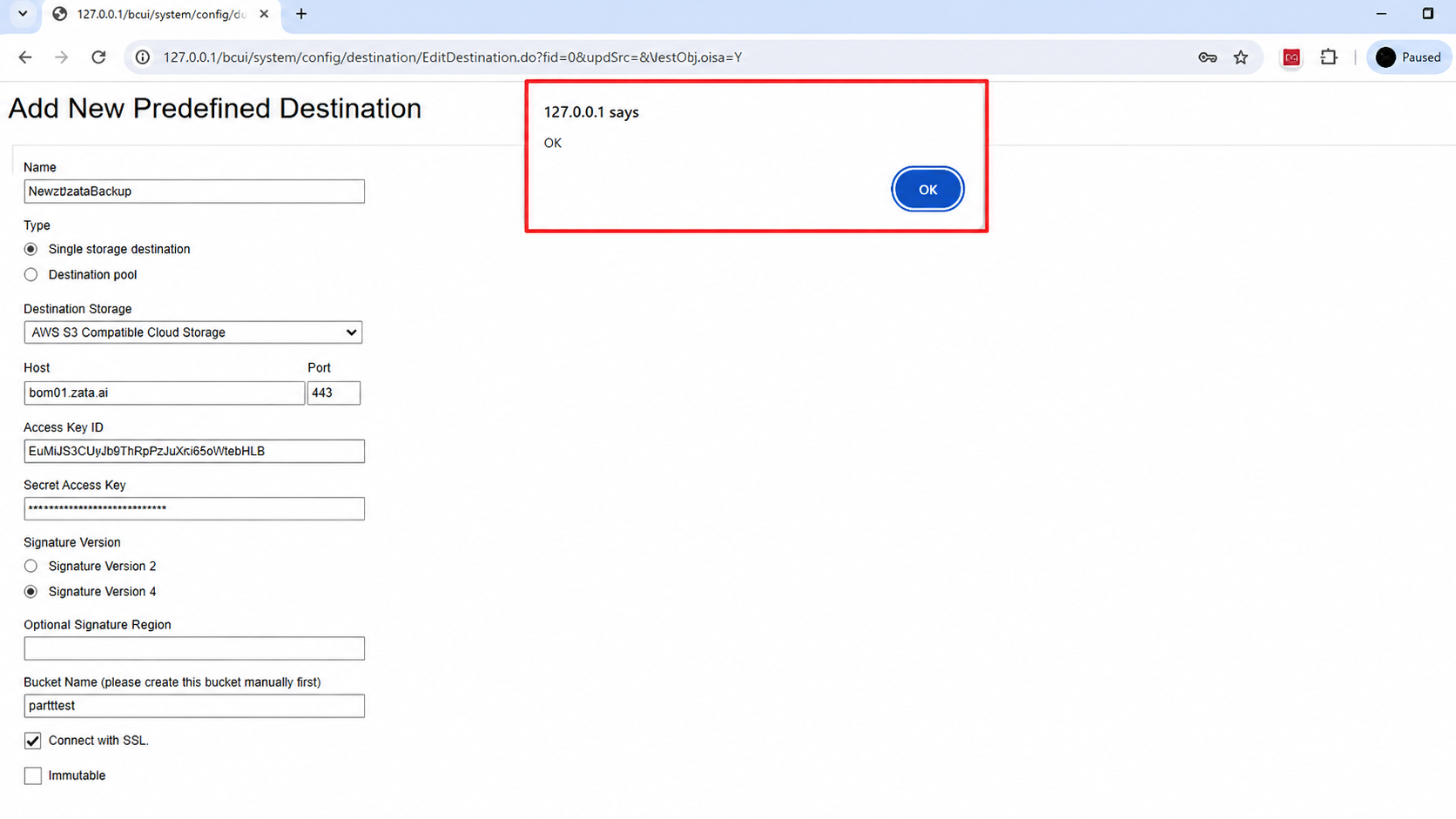
Name: Specify Name accordingly

Type: Single storage destination

Destination storage: AWS S3 Compatible Cloud Storage

Host: **idr01.zata.ai** (Central India) or **bom01.zata.ai** (Southern India)

Port: **443**

Access Key and secret key to follow these [links.](https://docs.neevcloud.com/neevcloud-products/access-details/s3-ec2-credentials/create-s3-ec2-credentials)

Signature version: **Select SV4**

**Instructions**

Provide the bucket name. Make sure the [bucket](https://docs.neevcloud.com/neevcloud-products/storage/object-storage/create-bucket) has already been created on **Zata**.**ai**.

<figure><img src="https://2683631041-files.gitbook.io/~/files/v0/b/gitbook-x-prod.appspot.com/o/spaces%2FPPVG4W649TwXN8OejRhb%2Fuploads%2F9eJhpI58vGaF7tNIVktQ%2Fimage.png?alt=media&amp;token=ab929b66-7193-4962-ae03-7856af494669" alt=""><figcaption></figcaption></figure>

<figure><img src="https://2683631041-files.gitbook.io/~/files/v0/b/gitbook-x-prod.appspot.com/o/spaces%2FPPVG4W649TwXN8OejRhb%2Fuploads%2Fgit-blob-4213958f393271165b43d1bf2ac18e68f375d5ea%2Fconnect-ahsay-cloud-backup-suite-acbs-with-zata.png?alt=media" alt="Ahsay Zata Mumbai Endpoint"><figcaption></figcaption></figure>

Connect with **SSL**:- Click on the connect with **SSL**

Click **Test** to verify your details. After clicking, you will see a popup.

<figure><img src="https://2683631041-files.gitbook.io/~/files/v0/b/gitbook-x-prod.appspot.com/o/spaces%2FPPVG4W649TwXN8OejRhb%2Fuploads%2FiLGoHX9Bnvez2IotWDZY%2FScreenshot%202024-09-06%20150846.png?alt=media&amp;token=575a1f86-add4-4eae-8f6b-be22e6285ef8" alt=""><figcaption></figcaption></figure>

Now save the details

<figure><img src="https://2683631041-files.gitbook.io/~/files/v0/b/gitbook-x-prod.appspot.com/o/spaces%2FPPVG4W649TwXN8OejRhb%2Fuploads%2FNYg2bHcqUbpqlYTqaZyw%2FScreenshot%202024-09-06%20151351.png?alt=media&amp;token=a43db37a-5de2-4fbc-ad9b-68f5b364f4ea" alt=""><figcaption></figcaption></figure>

Now back to the system settings > **Basic** > Click the Predefined Destinations

<figure><img src="https://2683631041-files.gitbook.io/~/files/v0/b/gitbook-x-prod.appspot.com/o/spaces%2FPPVG4W649TwXN8OejRhb%2Fuploads%2FDWMsWcGOuxLl4pgbwJHy%2FScreenshot%202024-08-03%20at%203.51.34%20PM.png?alt=media&amp;token=628180f6-e936-4ca2-b8c5-be485b5a4666" alt=""><figcaption></figcaption></figure>

Navigate to the **Zata.ai** Dashboard, go to **Object Storage**, and select the desired bucket name.

<figure><img src="https://2683631041-files.gitbook.io/~/files/v0/b/gitbook-x-prod.appspot.com/o/spaces%2FPPVG4W649TwXN8OejRhb%2Fuploads%2F9eJhpI58vGaF7tNIVktQ%2Fimage.png?alt=media&amp;token=ab929b66-7193-4962-ae03-7856af494669" alt=""><figcaption></figcaption></figure>