> For the complete documentation index, see [llms.txt](https://docs.zata.ai/llms.txt). Markdown versions of documentation pages are available by appending `.md` to page URLs; this page is available as [Markdown](https://docs.zata.ai/manage/bucket/access-control/object-acl.md).
# Object ACL
Make a single file public or private and copy its public link
The Object ACL decides **who can download one particular file**. You set it on each file, from the file list.
This is the setting that actually puts a file on the internet. The [Bucket ACL](/manage/bucket/access-control/bucket-acl.md) only controls whether people can see your file names.
Every file has two states:
| State | What it means |
| ----------- | --------------------------------------------------------------------------------------------- |
| **Private** | Only you can download it. Every file starts out private. |
| **Public** | Anyone with the link can view and download it. No sign-in needed, and the link never expires. |
> **INFO** Making one file public does not expose the rest of your bucket. Someone with the link gets that one file and nothing else — unless you have also set the bucket to Public read, which lets them browse the file names as well.
***
## Making a file public
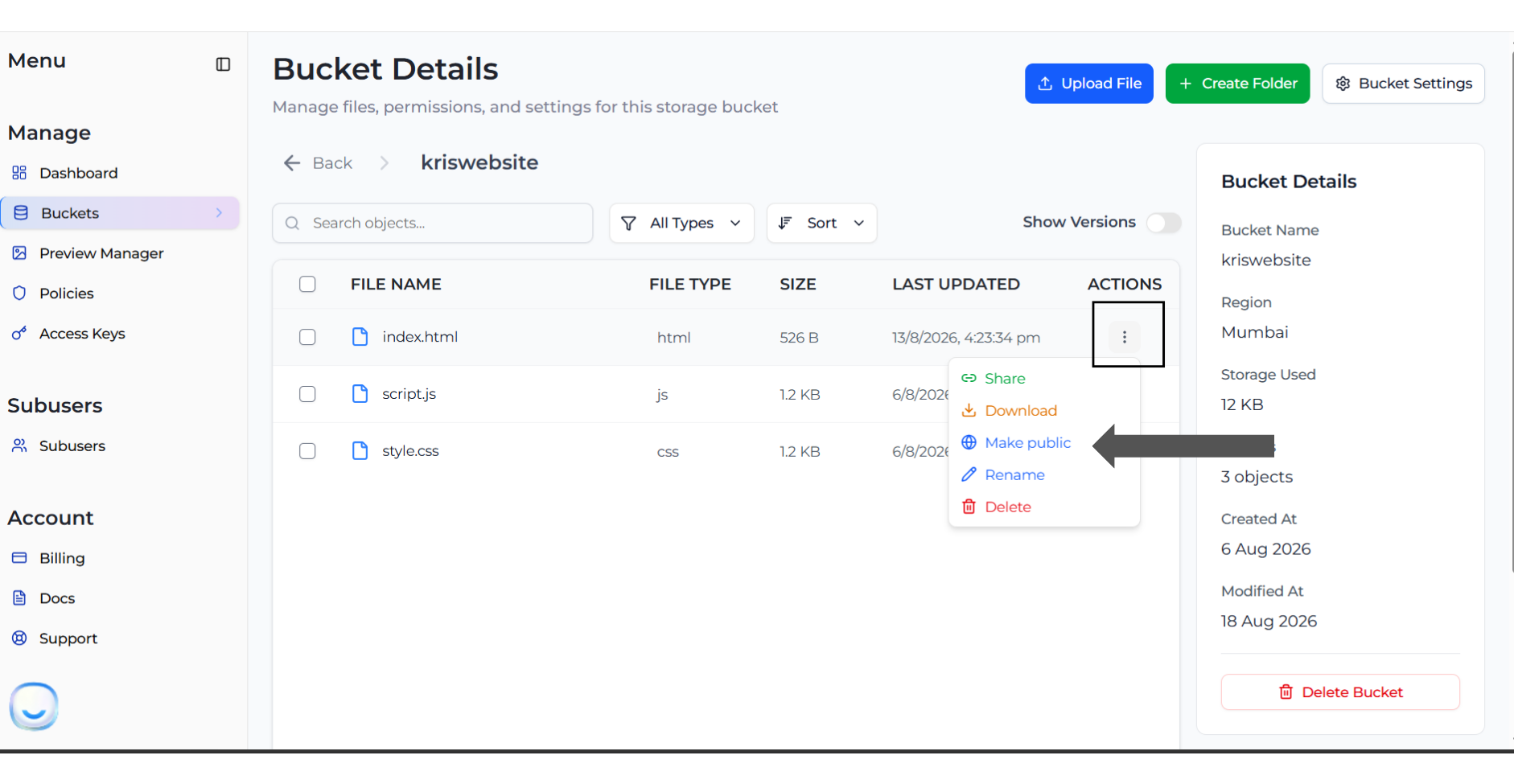
1. Open your bucket to see the **Bucket Details** page. Find your file in the list, click the **Actions (⋮)** menu on its row, and choose **Make public**.
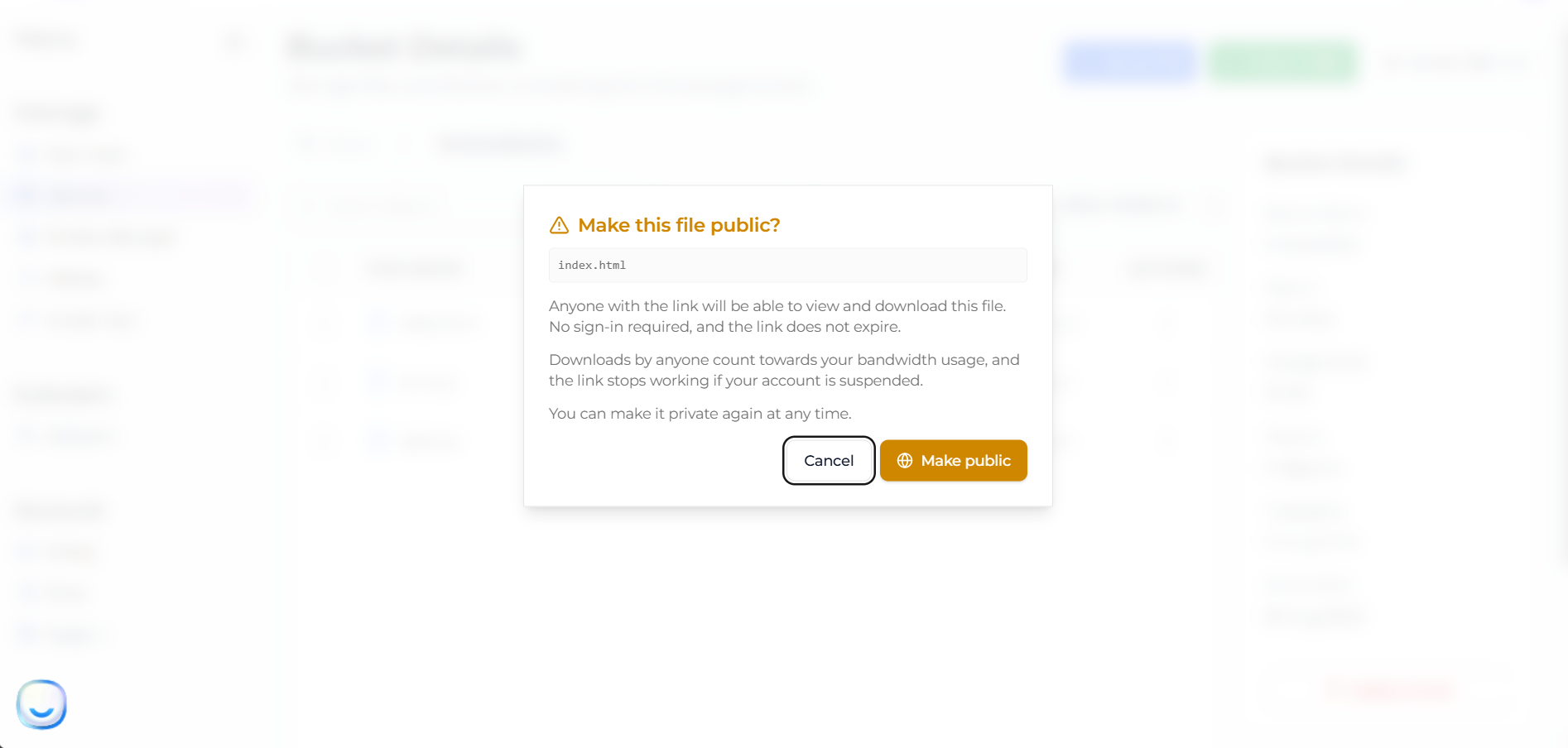
2. A box appears asking **Make this file public?**. It tells you that anyone with the link can view and download the file, that no sign-in is needed, and that the link does not expire. Click **Make public**.
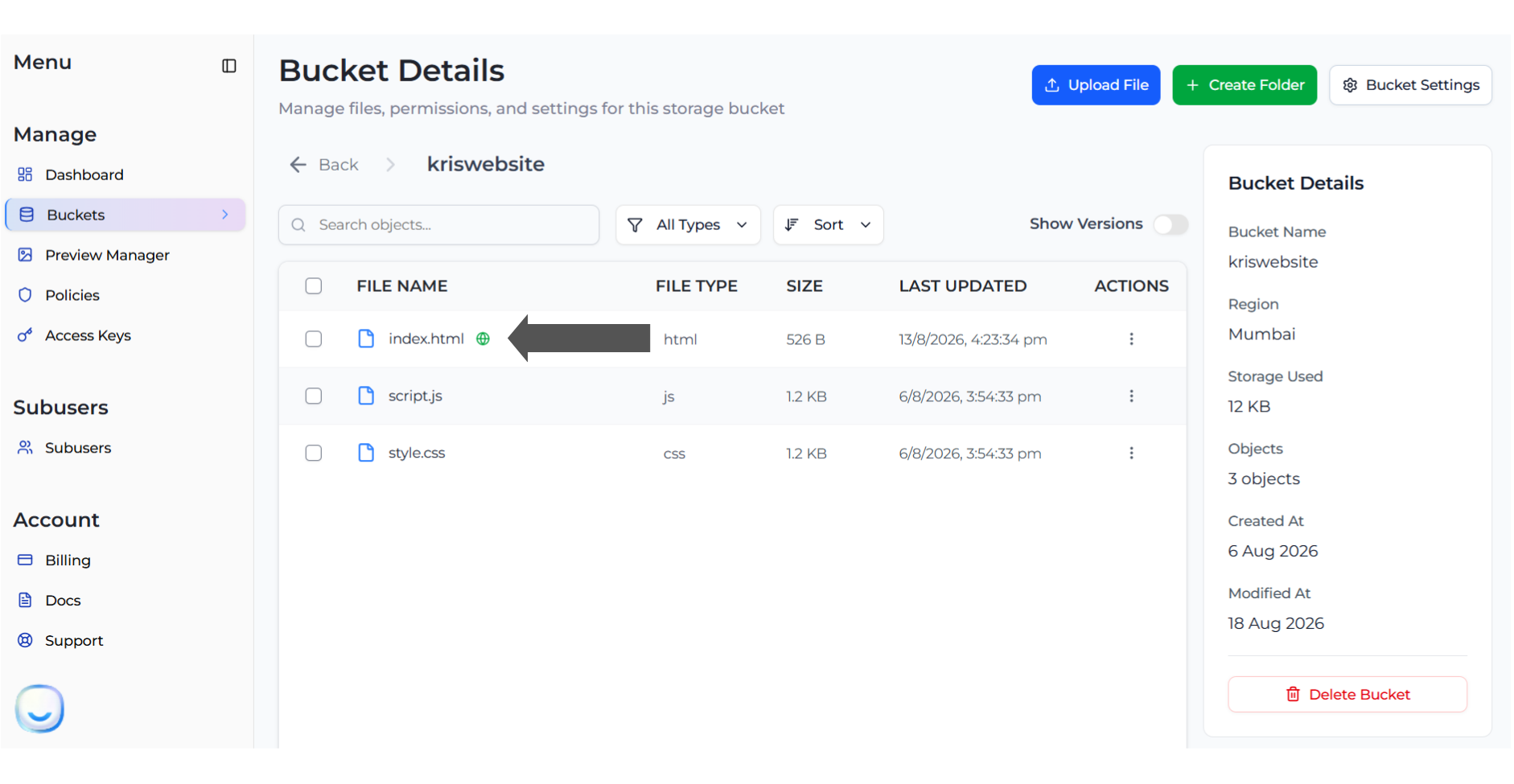
3. A small green globe now appears next to the file name. This is how you spot which files in a bucket are public.
***
## Getting the link
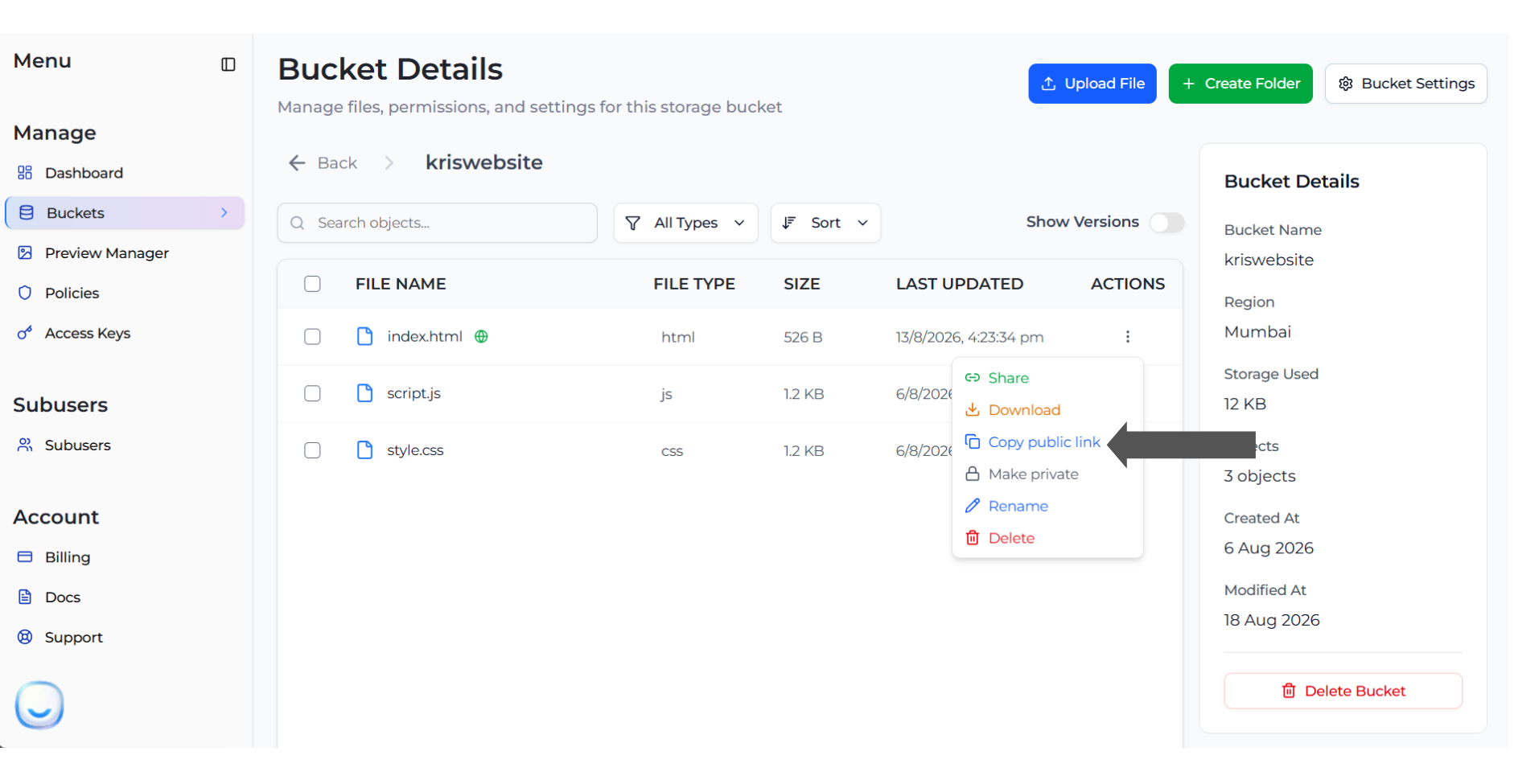
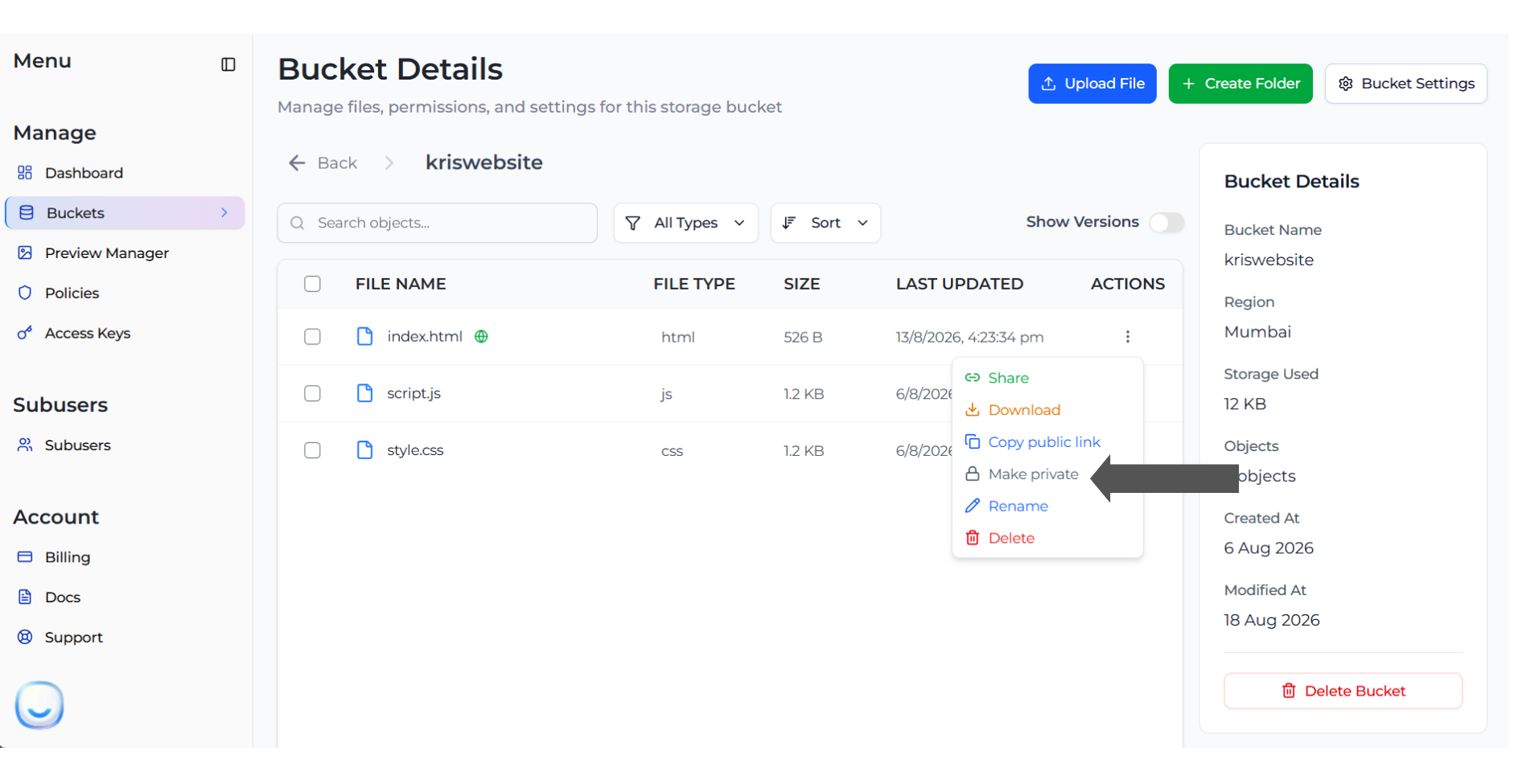
Once a file is public, its **Actions (⋮)** menu changes. **Make public** is replaced by two new items: **Copy public link** and **Make private**.
Click **Copy public link** to copy the link to your clipboard.
The link looks like this:
```
https:////
```
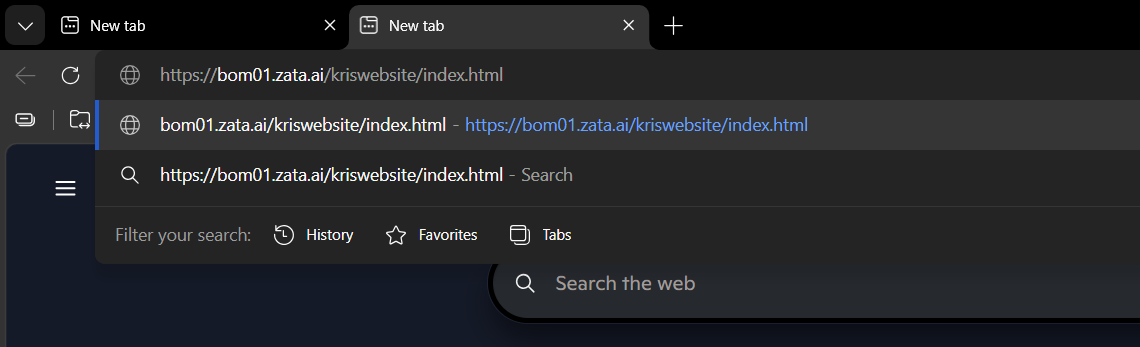
For `index.html` in the `kriswebsite` bucket in Mumbai, that is `https://bom01.zata.ai/kriswebsite/index.html`. Paste it into any browser and the file opens straight away, with no sign-in.
Use the service URL for your bucket's region — `idr01.zata.ai` for Central India, `bom01.zata.ai` for Southern India.
If your file sits inside a folder, include the folder name in the link:
```
https://bom01.zata.ai/kriswebsite/assets/logo.png
```
***
## Making a file private again
1. Open the **Actions (⋮)** menu for the file and choose **Make private**.
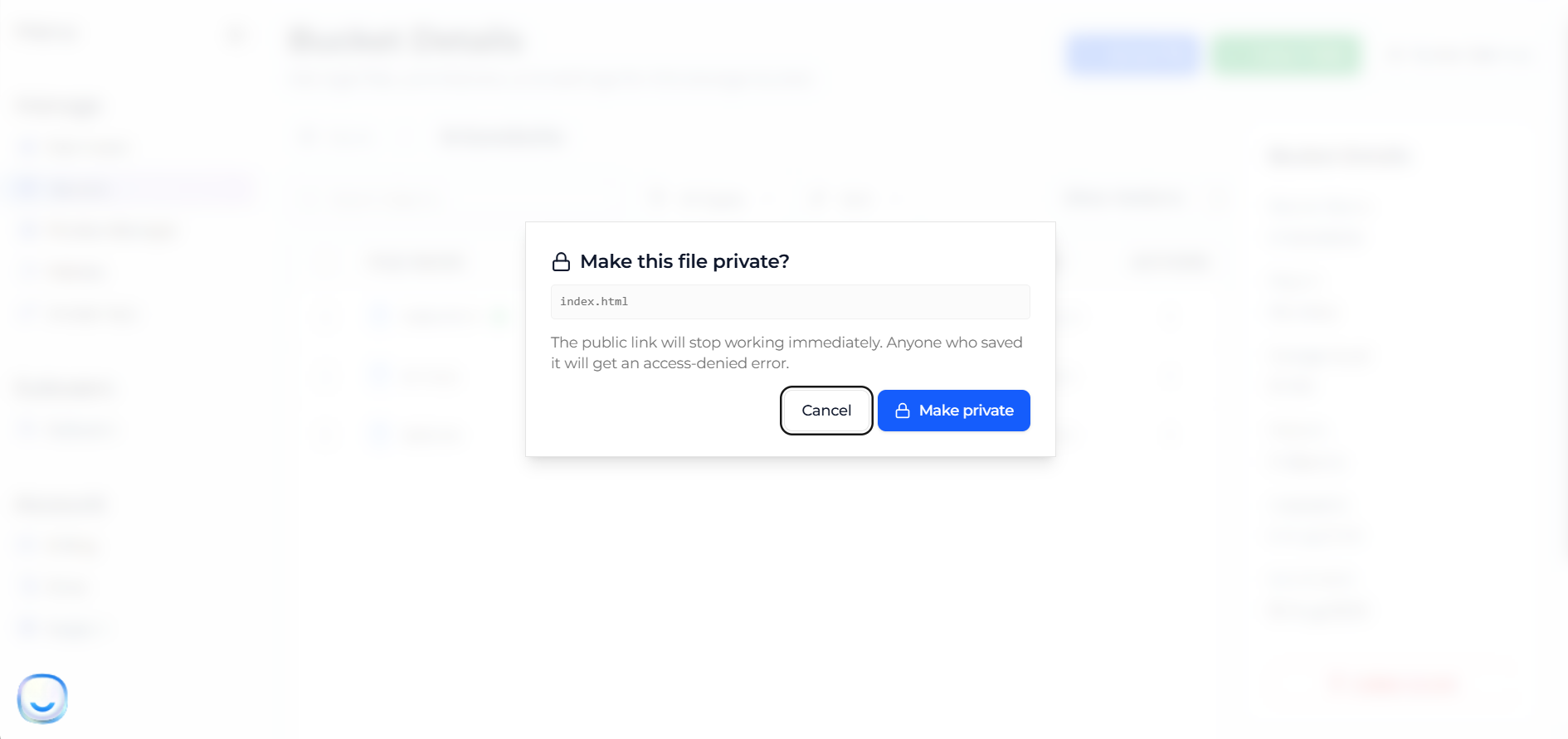
2. A box appears asking **Make this file private?**. It warns you that the link stops working straight away, and that anyone who saved it will now get an access-denied error. Click **Make private**.
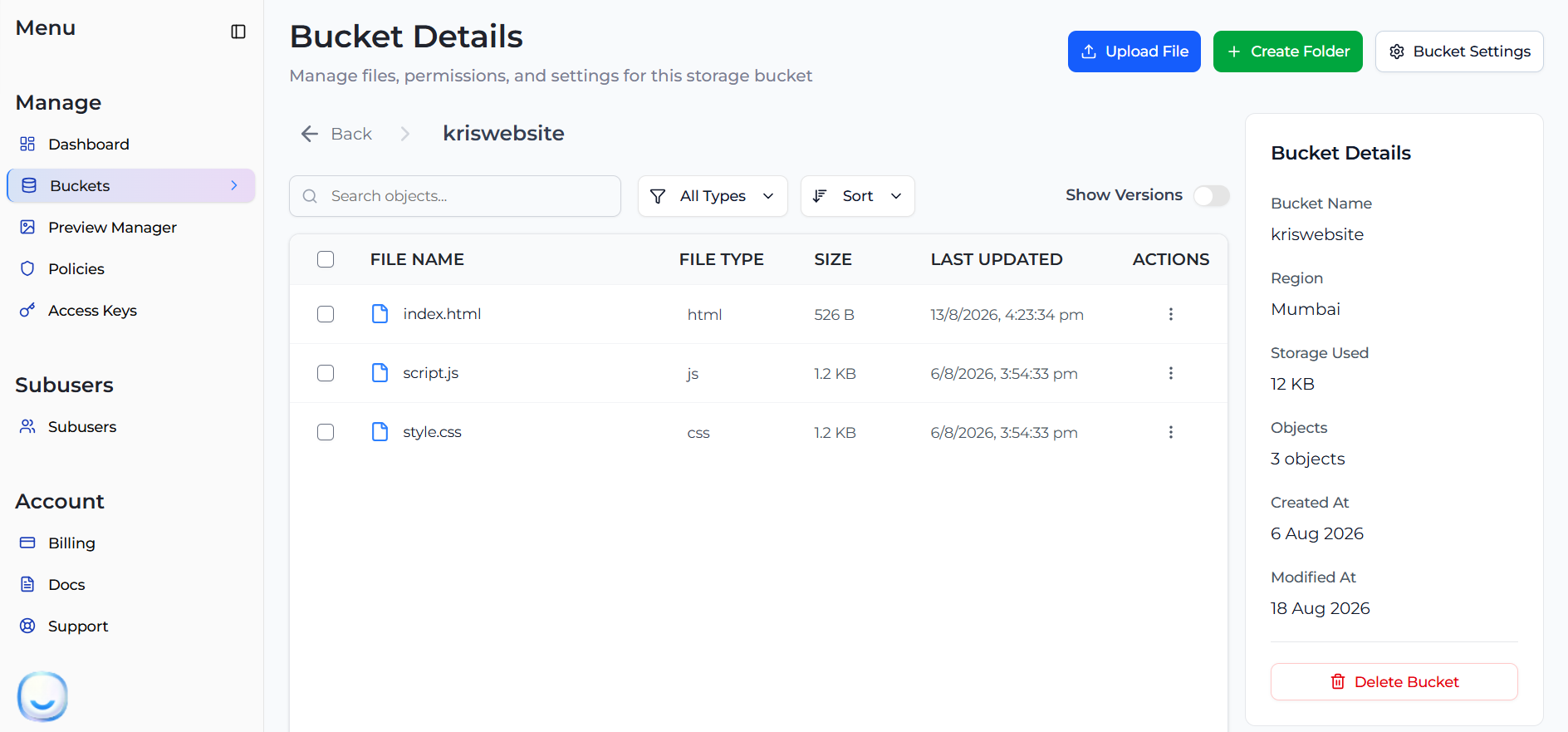
3. The green globe disappears. The file is private again.
This is the only way to switch off a public link. Because the link never expires by itself, **Make private** is what you use if you shared a file by mistake.
***
## Good to know
> **IMPORTANT** A public link works forever until you switch it off. It can be forwarded to other people, found by search engines, or saved by anyone who opens it. If you only want to share a file for a short while, use a [presigned URL](https://docs.zata.ai/manage/bucket/storing-objects-in-a-bucket/sharing-an-object-using-presigned-url) instead — it expires on its own.
* **You set this one file at a time.** There is no single switch that makes every file in a bucket public.
* **New uploads are always private**, even in a bucket set to Public read. Files you add later have to be made public one by one.
* **Making a file private does not delete it.** Its versions and any [Object Lock](https://docs.zata.ai/manage/bucket/object-lock) protection stay exactly as they were.
* Downloads count towards your egress usage, and the link stops working if your account is suspended.