> For the complete documentation index, see [llms.txt](https://docs.zata.ai/llms.txt). Markdown versions of documentation pages are available by appending `.md` to page URLs; this page is available as [Markdown](https://docs.zata.ai/manage/bucket/lifecycle-rules.md).
# Lifecycle Rules
Lifecycle Rules allow you to automate the management of your objects over time, helping you optimize storage costs by cleaning up old data, expiring objects, and removing incomplete uploads.
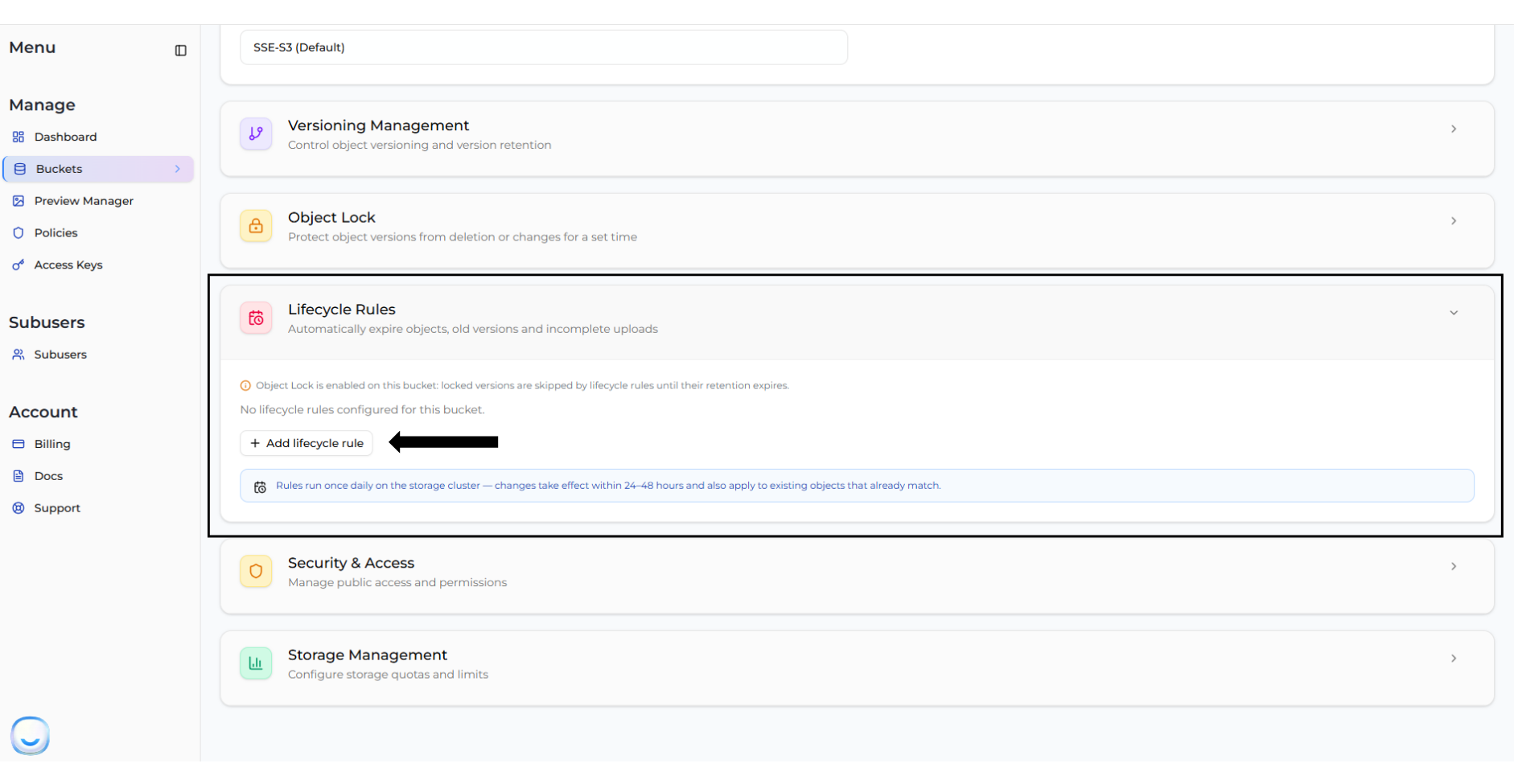
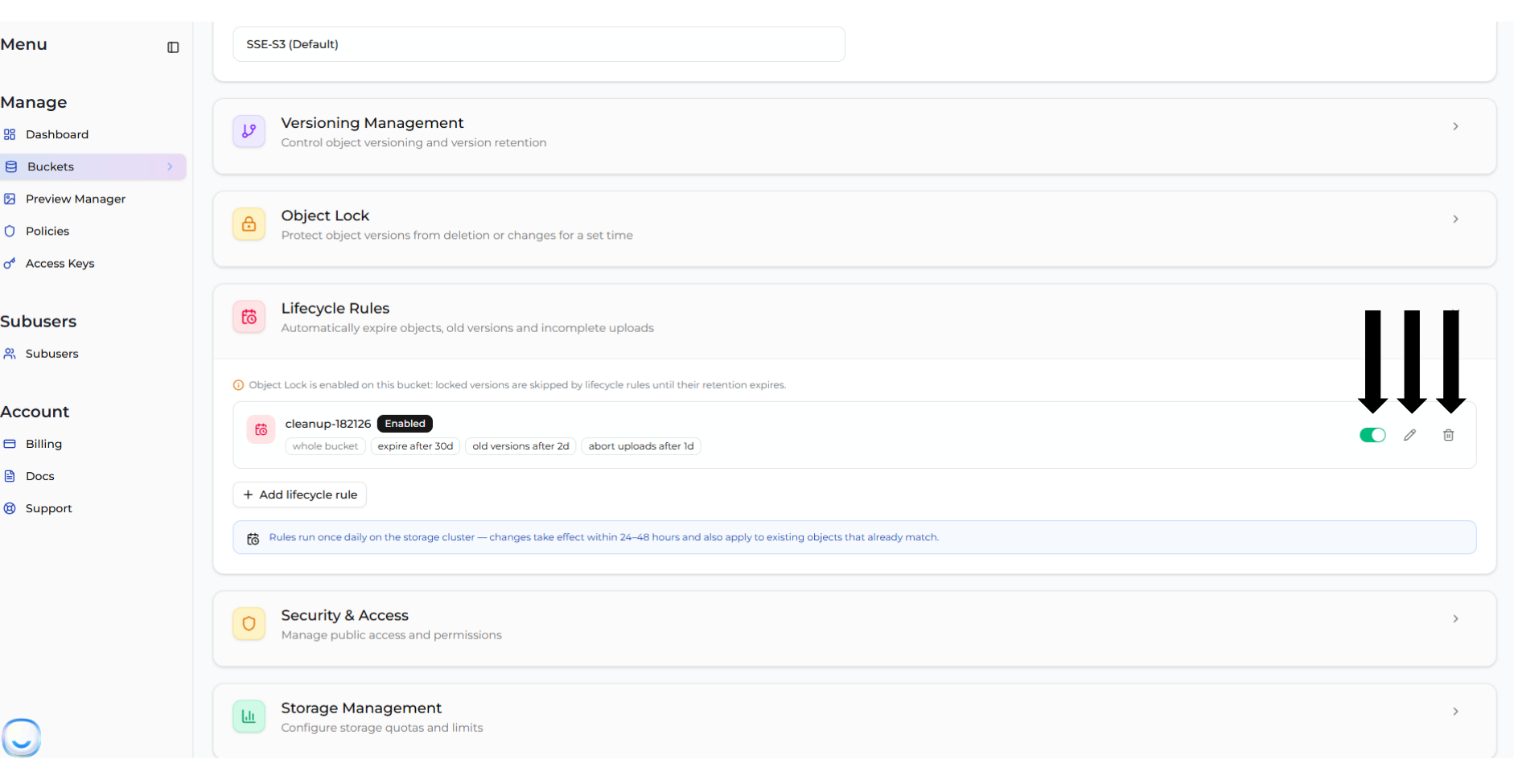
You can manage your lifecycle rules by navigating to **Bucket > Settings > Lifecycle Rules**. From here, you can add new rules, edit existing ones, toggle them ON/OFF, or delete them.
> **INFO** Lifecycle rules run once daily on the storage cluster. Any changes you make to rules take effect within 24–48 hours and will apply to all existing objects that already match the criteria.
***
## Types of Lifecycle Rules
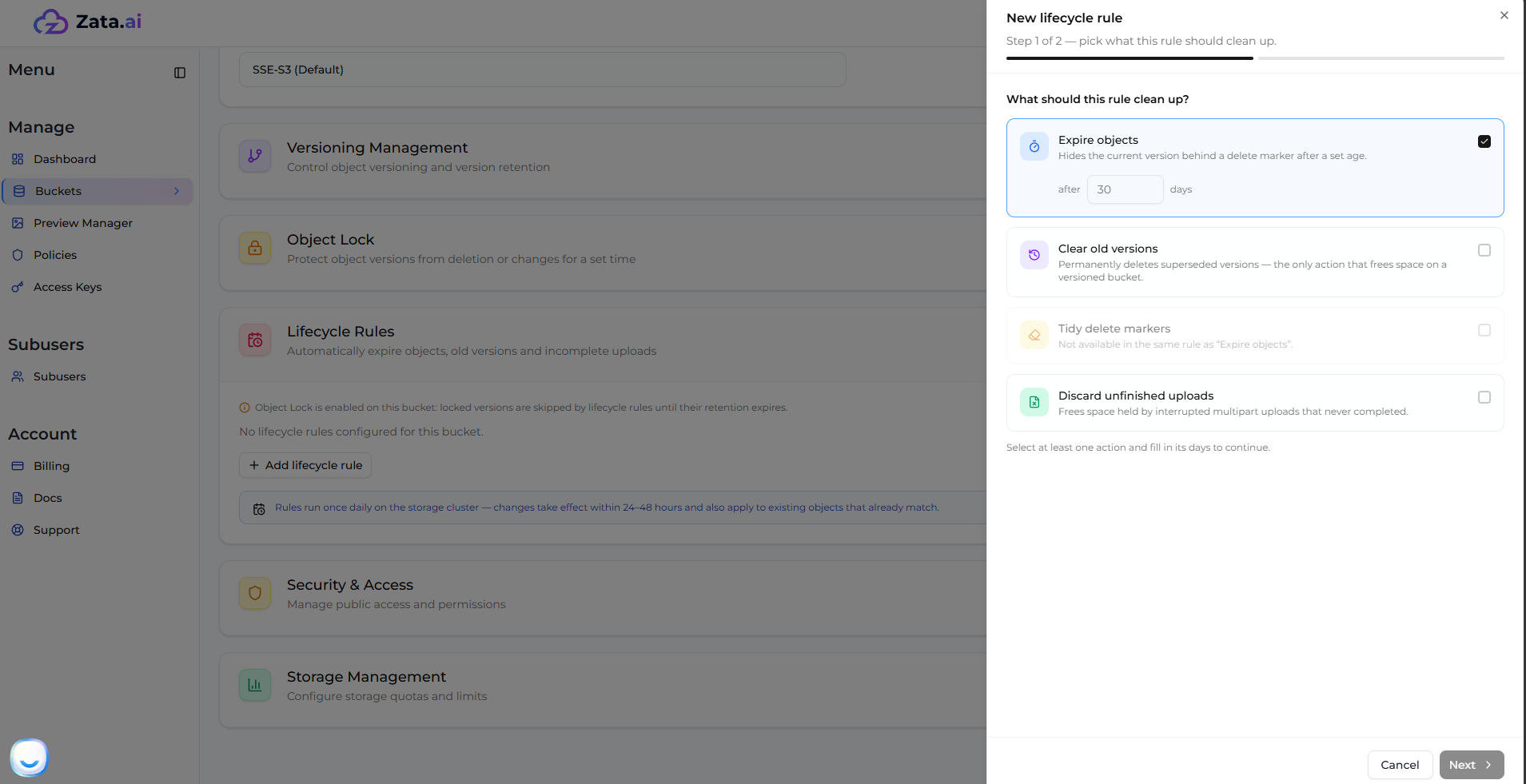
When creating a new rule, you can choose one or more actions to automate bucket cleanup:
### 1. Expire Objects
This rule hides the current version of an object behind a delete marker after it reaches a set age (e.g., 30 days).
* **If Versioning is OFF:** The object is deleted permanently after the set time.
* **If Versioning is ON:** The object is not permanently deleted, but a delete marker is created, hiding the current version. To free up actual storage space on a versioned bucket, use the **Clear Old Versions** rule instead.
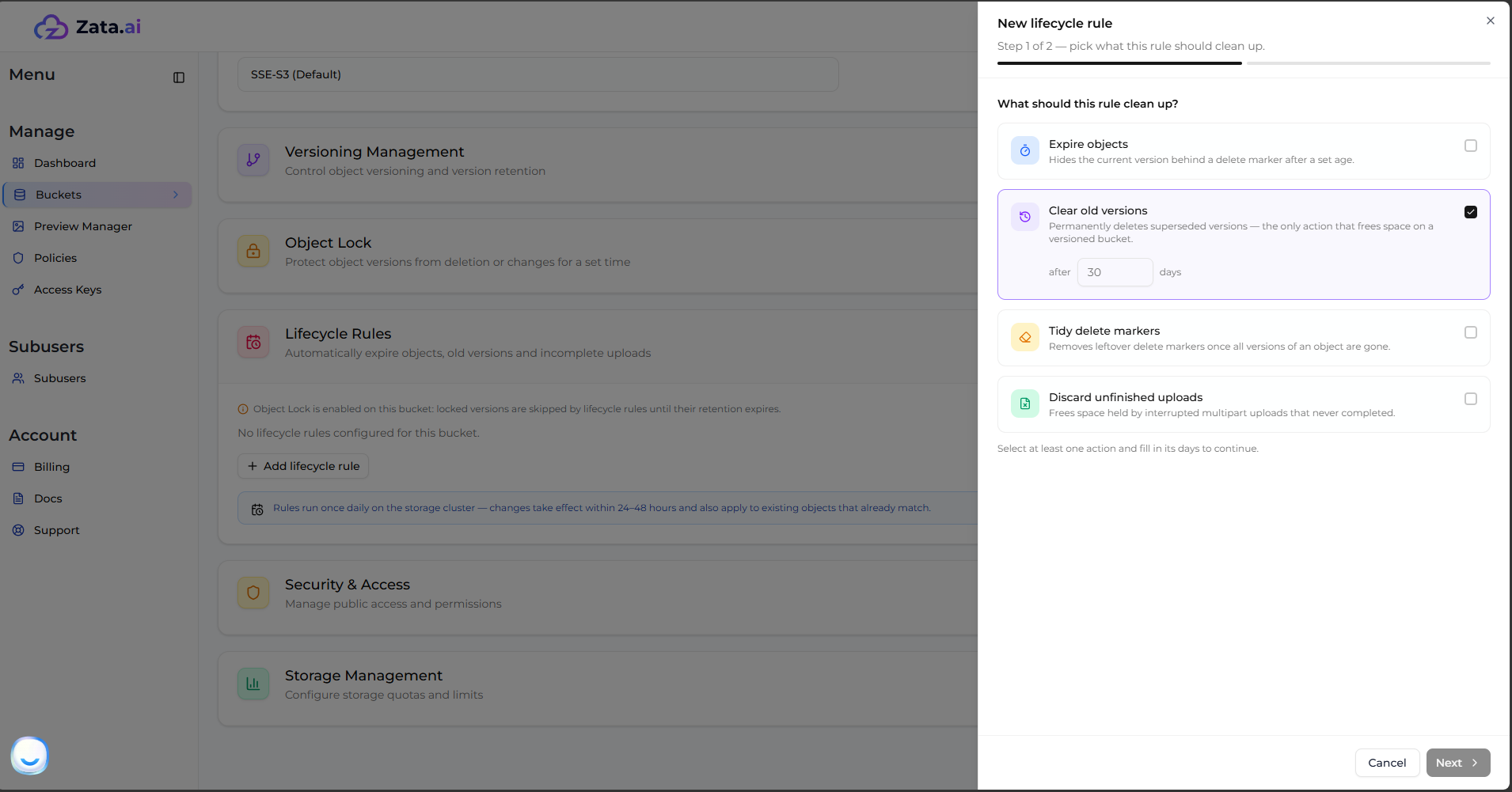
### 2. Clear Old Versions
> **Note:** This rule is only available if **Bucket Versioning is Enabled**. If versioning is off, this option will not appear.
This is the only action that frees up space on a versioned bucket. It permanently deletes superseded (non-current) versions after a set age.
* **Keep Newest Versions (Optional):** You can optionally choose to retain a specific number of the most recent versions. For example, if you set the rule to clear versions after **10 days** but keep the newest **3 versions**, Zata will delete all versions older than 10 days *except* for the 3 most recent ones, ensuring you always have recent backups.
* *Note: The "Keep Newest Versions" feature is currently supported in the **Mumbai** region, but is not supported in the **Indore** region.*
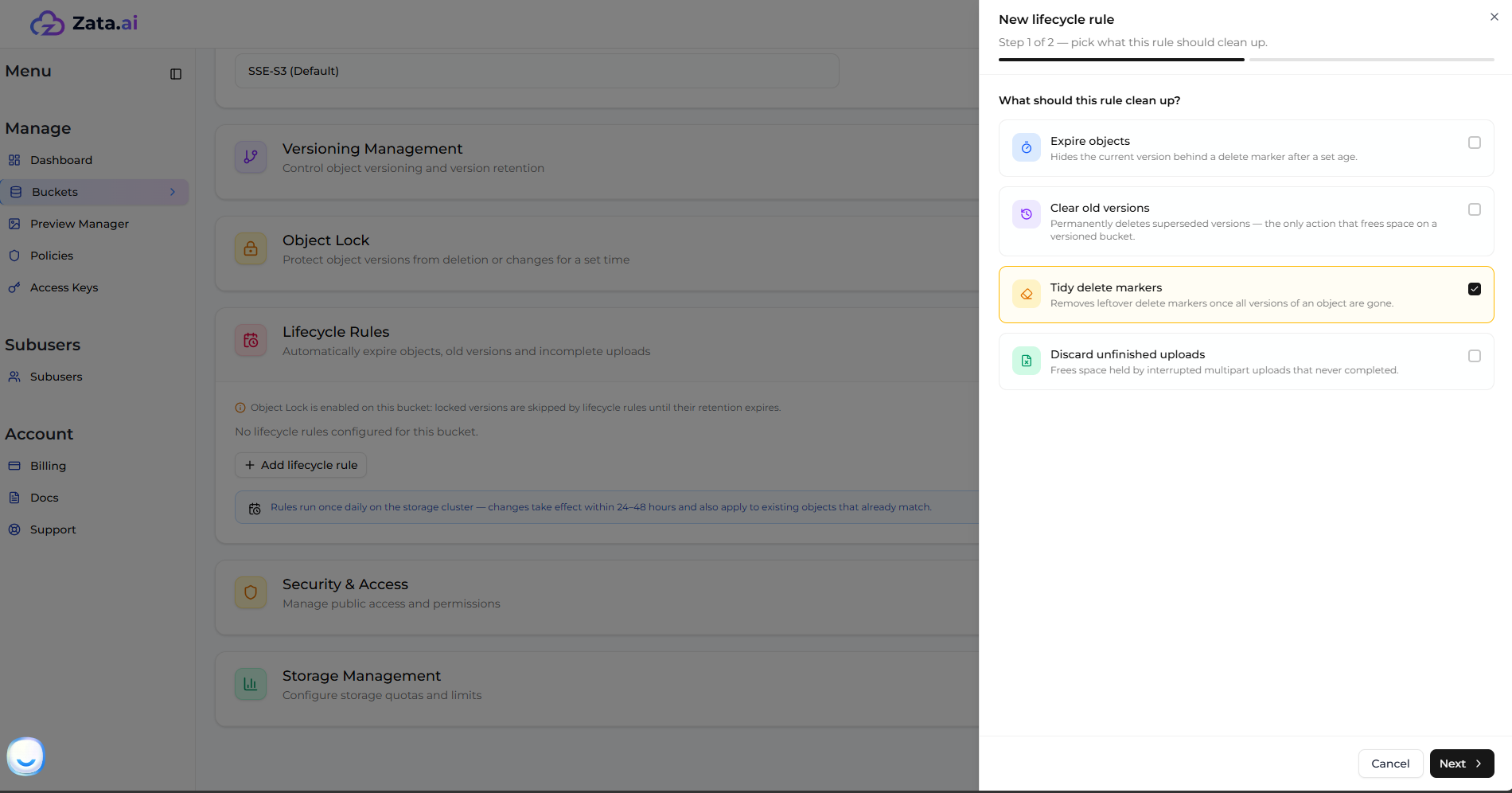
### 3. Tidy Delete Markers
> **Note:** This rule is only available if **Bucket Versioning is Enabled**. If versioning is off, this option will not appear.
This rule automatically cleans up expired object delete markers. If an object has only one version remaining and that version is a delete marker, this rule will permanently remove the delete marker, completely tidying up the object from the bucket.
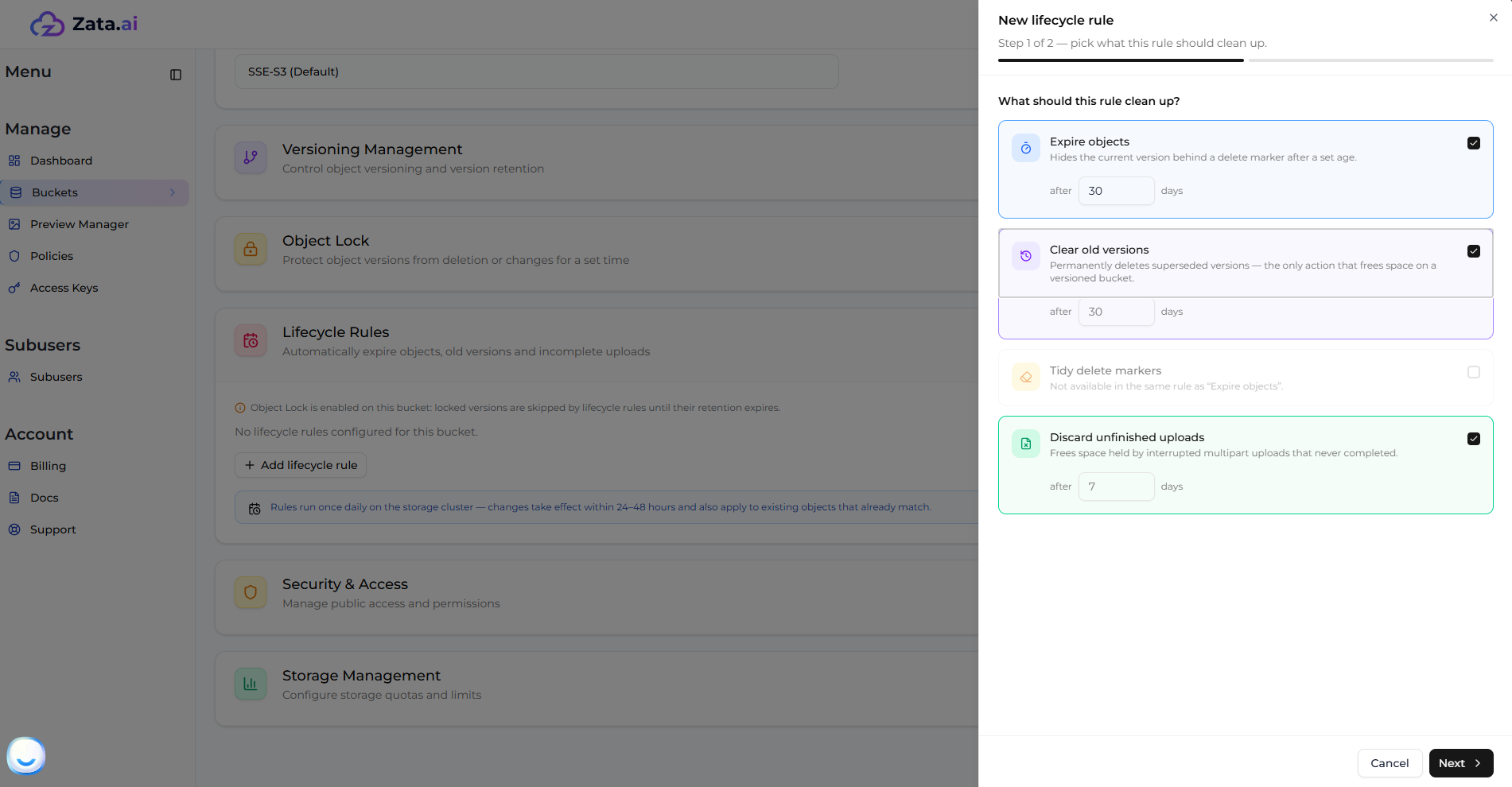
* Note: This option is not available in the same rule as "Expire Objects".
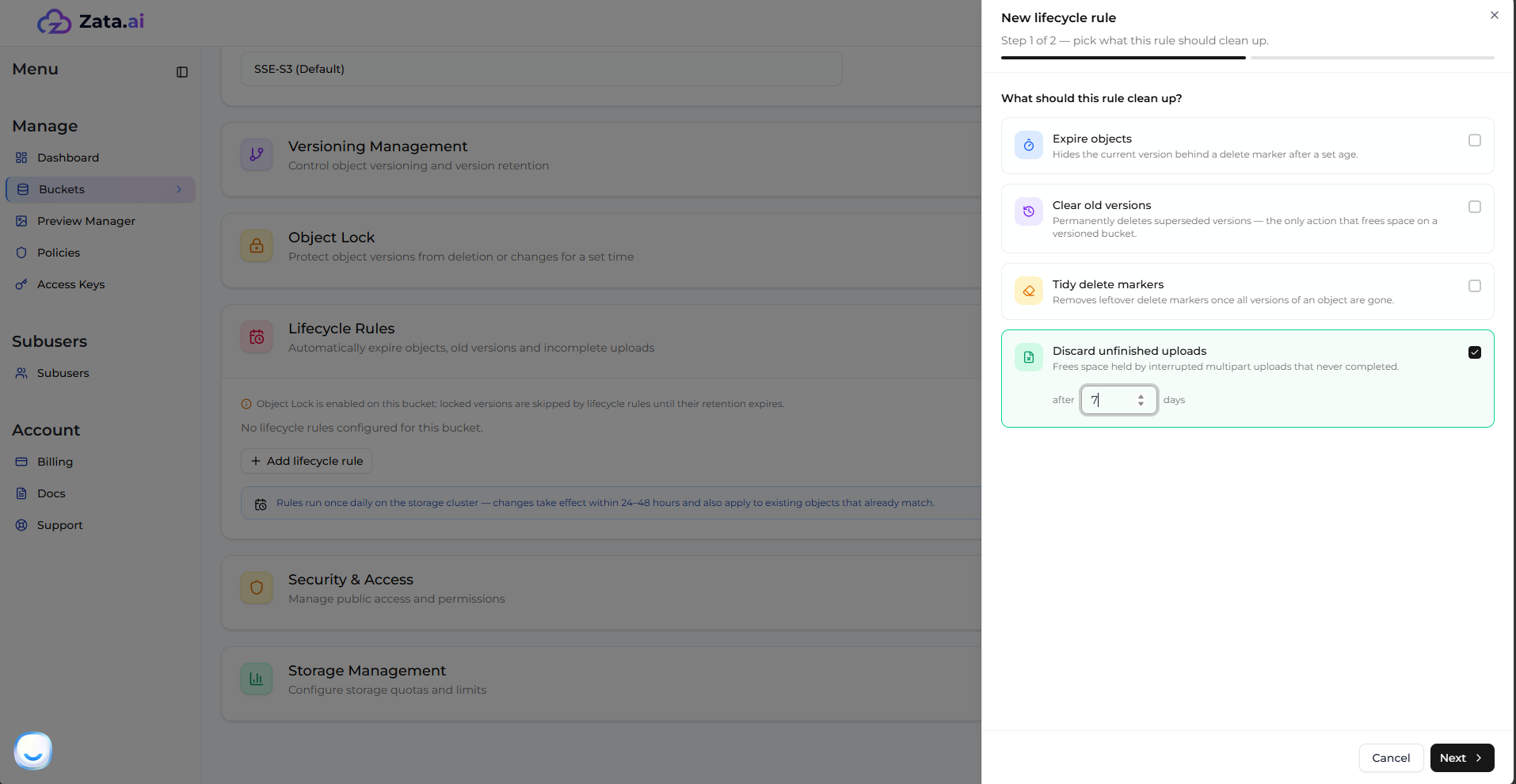
### 4. Discard Unfinished Uploads
Sometimes, multipart uploads are interrupted (e.g., due to network failure) and never completed, leaving unused data taking up storage space. This rule automatically frees space held by these interrupted uploads after a specified number of days (e.g., after 7 days).
***
## Multiple Rules and Management
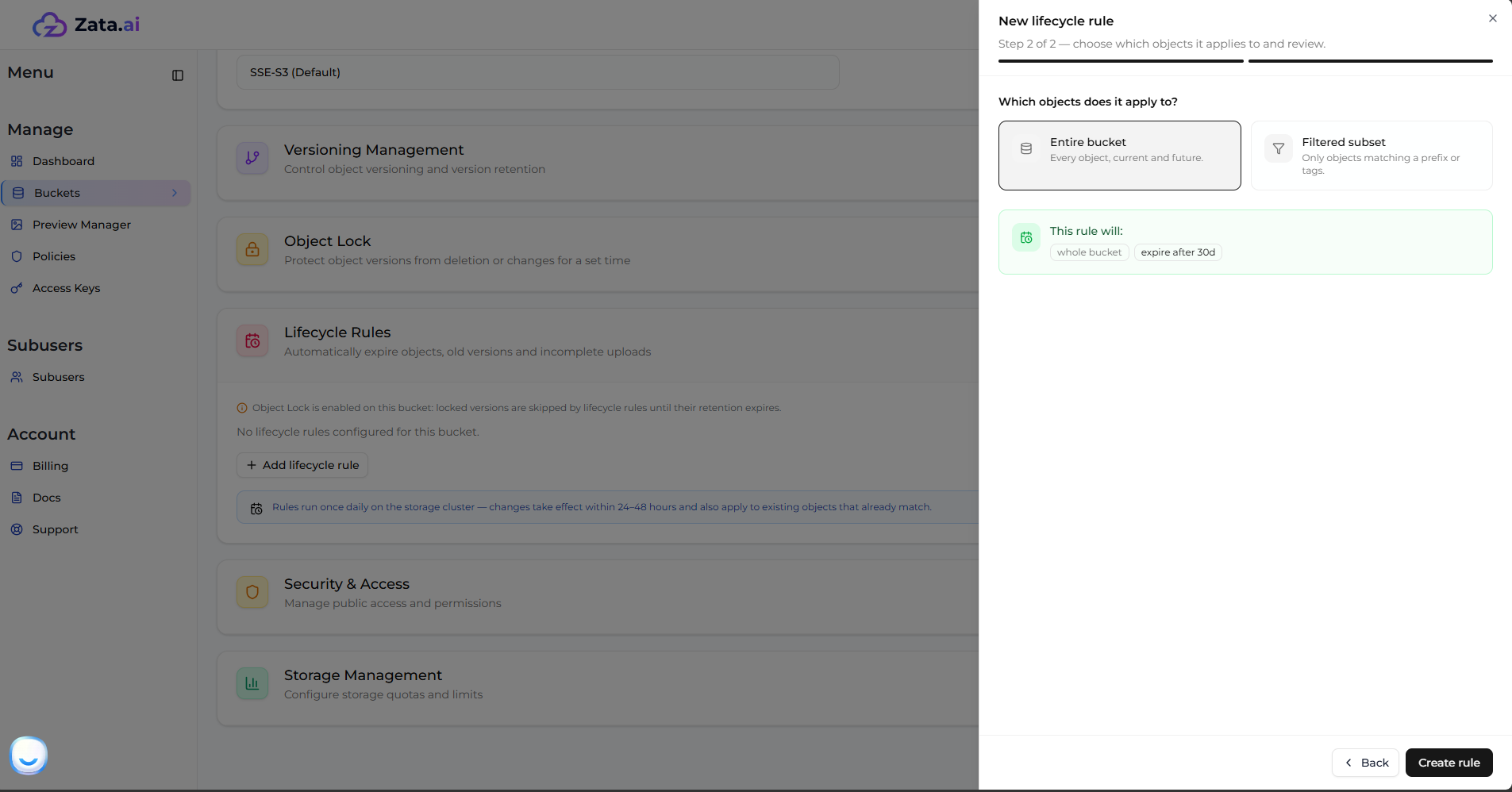
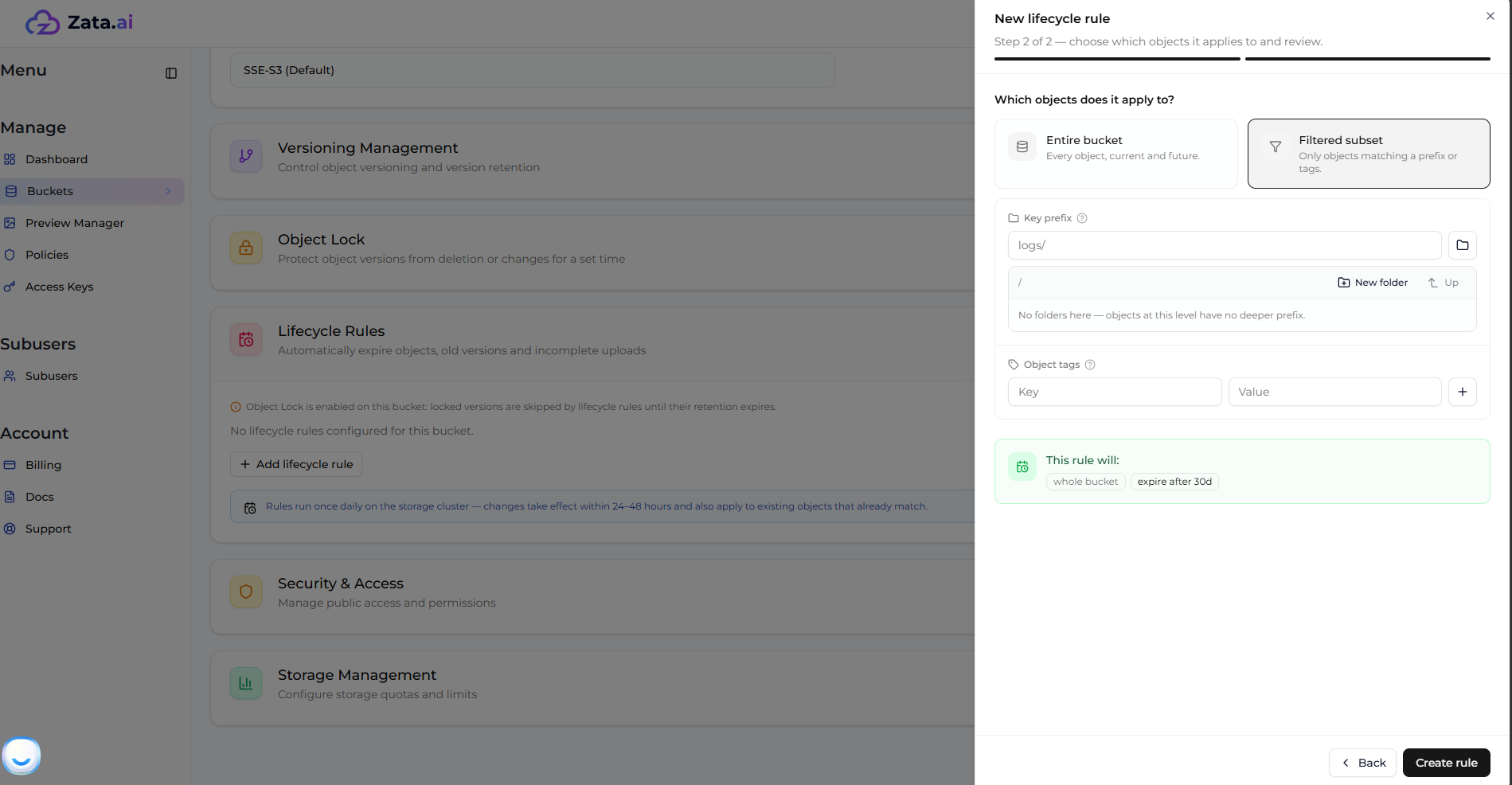
You can also select multiple lifecycle rules to run simultaneously on your bucket.
Once a rule is created, you can disable, edit, and delete the lifecycle rule at any time directly from the settings.