> For the complete documentation index, see [llms.txt](https://docs.zata.ai/llms.txt). Markdown versions of documentation pages are available by appending `.md` to page URLs; this page is available as [Markdown](https://docs.zata.ai/manage/bucket/object-lock.md).
# Object Lock (WORM)
Zata.ai provides **S3 Object Lock**, which follows the Write-Once-Read-Many (WORM) model. This feature allows you to store objects using a model that prevents them from being deleted or overwritten for a fixed amount of time or indefinitely.
Object Lock helps you meet regulatory requirements that require WORM storage or simply add an extra layer of protection against object changes and deletion.
> **IMPORTANT** Object Lock capability can **only be enabled during bucket creation**. It cannot be turned on for an existing bucket. Enabling Object Lock will permanently turn on Bucket Versioning.
***
## Retention Modes and Features
Zata.ai's Object Lock offers three distinct ways to protect your data. You can learn how to use and configure each of these by visiting their dedicated pages:
* [**Governance Mode**](/manage/bucket/object-lock/governance-mode.md)**:** Users cannot delete or overwrite an object version or alter its lock settings unless they have special permissions.
* [**Compliance Mode**](/manage/bucket/object-lock/compliance-mode.md)**:** A protected object version cannot be overwritten or deleted by **anyone** until its retention period has expired.
* [**Legal Hold**](/manage/bucket/object-lock/legal-hold.md)**:** Provides the same protection as a retention period, but it has no expiration date and must be explicitly turned off.
***
## Retention Ceilings (Recommended Maximum Dates)
When you select a "Retain Until" date in the Zata dashboard for either Governance or Compliance mode, you will see a **Recommended Maximum Date**.
Because Zata is a prepaid cloud platform, your data is tied to your billing lifecycle. The recommended maximum date ensures that you don't lock your data past the point when your account might naturally expire or be suspended (e.g., due to the end of a free trial or an unpaid invoice).
* **For Trial Users:** The recommended date is usually up to 45 days from account creation.
* **For Billed Users:** The recommended date is usually up to 120 days from the start of the current billing cycle.
> **NOTE** You can set retention dates beyond this ceiling, but doing so will not prevent data from being wiped if your account is suspended and permanently terminated due to non-payment.
***
## Bulk Retention (Apply to All Unprotected Versions)
If you have many objects in a bucket that are not currently protected (e.g., they were uploaded before you enabled a default rule, or their previous retention expired), you can lock them all at once. This action will lock every version that currently has no active retention, while leaving already-locked versions unchanged.
You can initiate Bulk Retention from two different places in the Zata Dashboard:
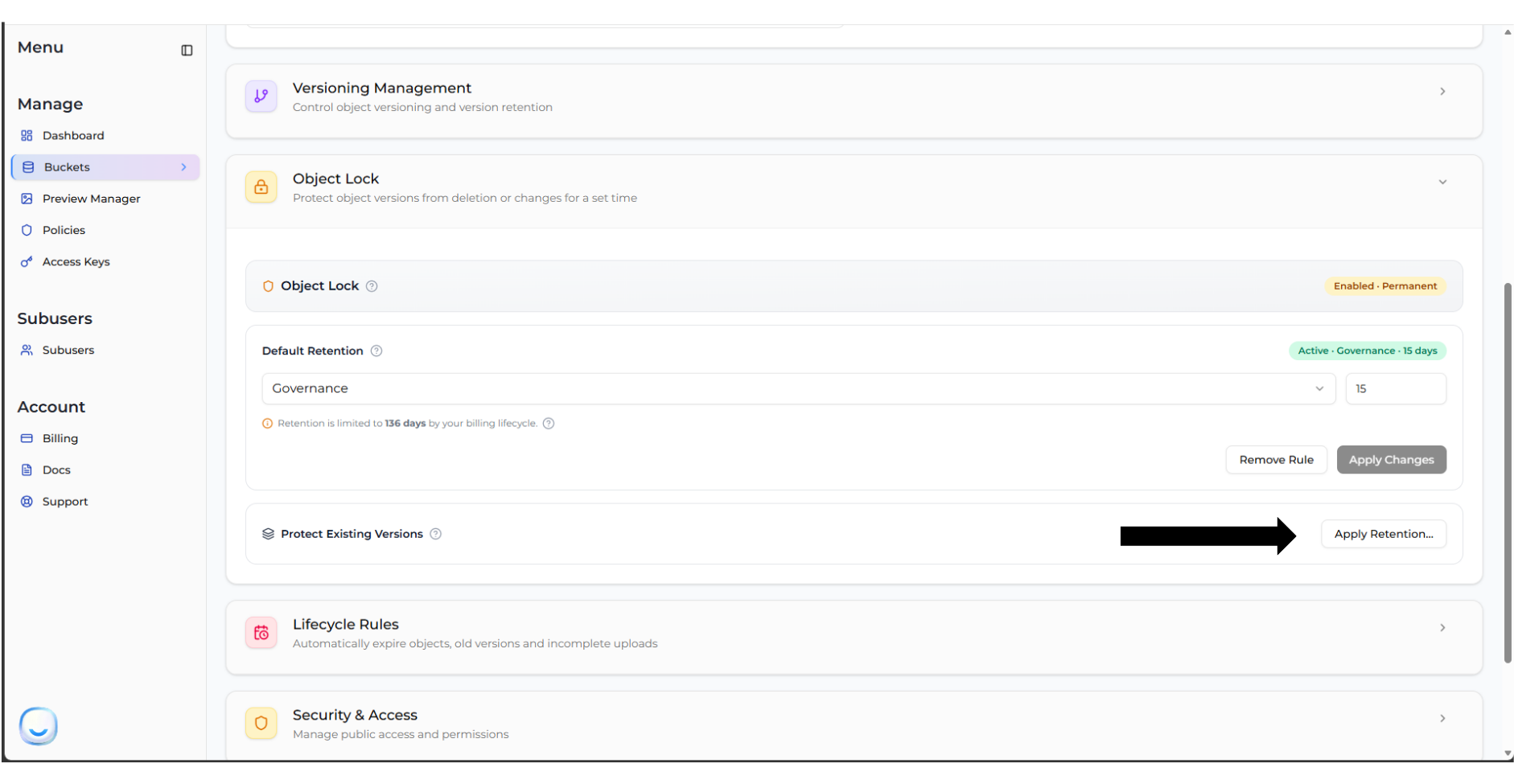
**Option 1: From Bucket Settings** Navigate to **Bucket > Settings** and locate the **Object Lock** section. Click the **Apply Retention...** button under the *Protect Existing Versions* section.
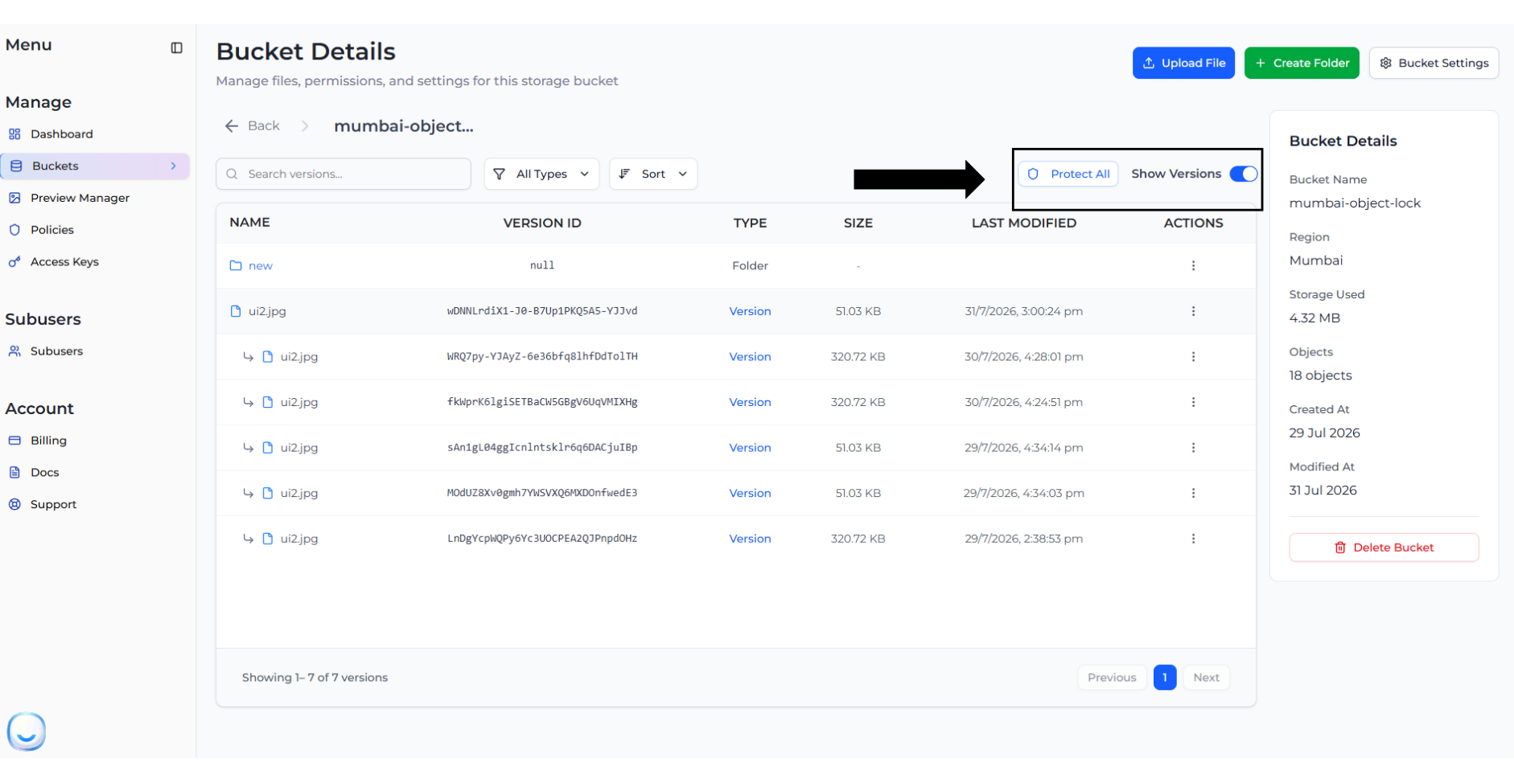
**Option 2: From the Files View** Navigate to your bucket's file list and toggle **Show Versions** to ON. Then, click the **Protect All** button.
### Applying the Bulk Retention
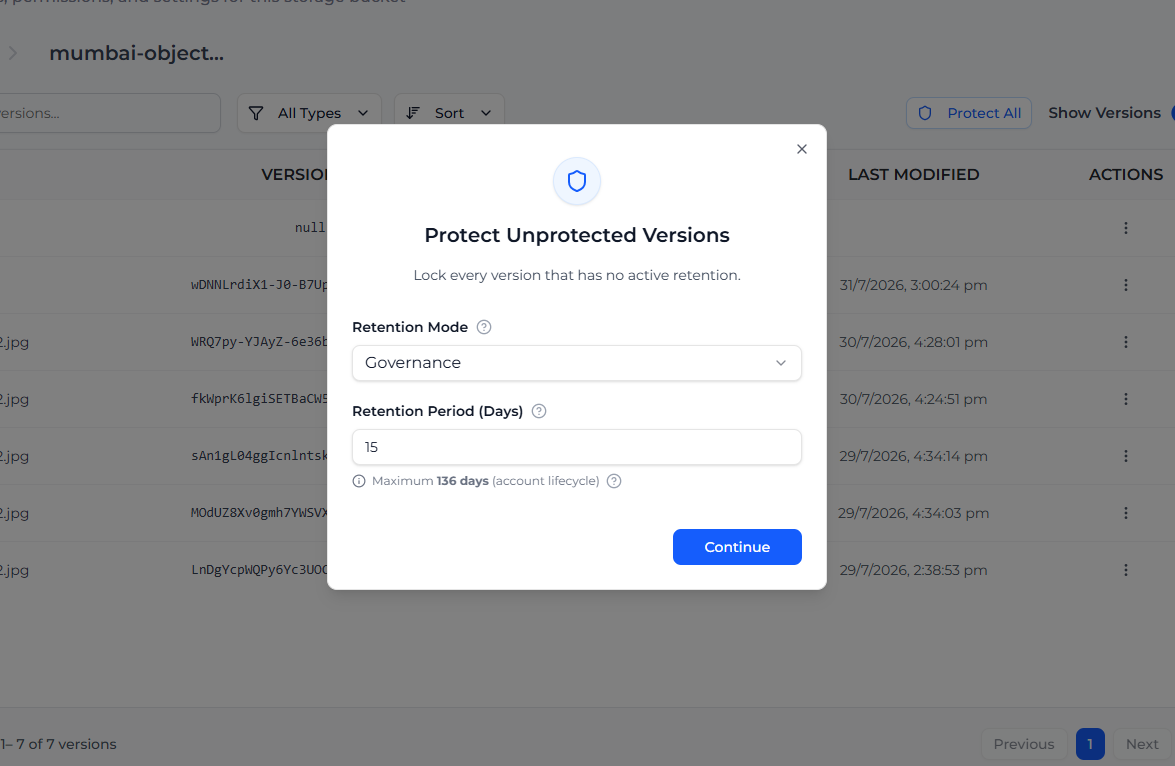
Regardless of which option you choose, a modal will appear where you can define the retention settings:
1. Select the **Retention Mode** (Governance or Compliance) and set the **Retention Period (Days)**. Then click **Continue**.
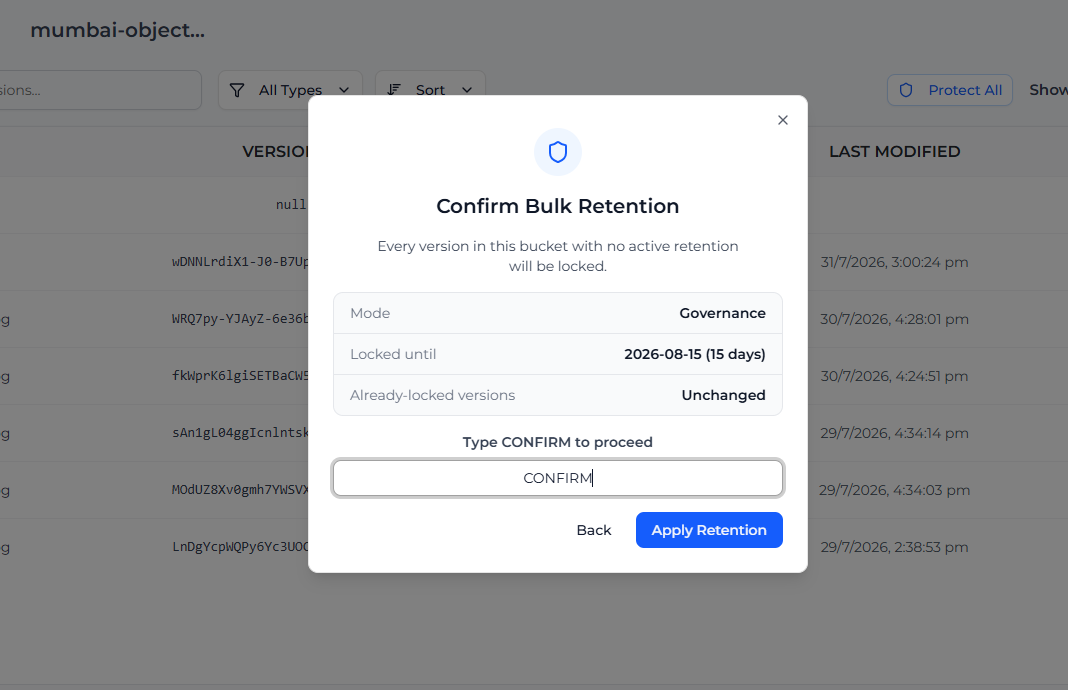
2. You will be asked to confirm your choice by typing "CONFIRM".
3. Click **Apply Retention** to instantly apply the chosen retention mode and period to every unprotected version in the bucket.
> **Note on Reapplying Retention to Expired Versions** When using Bulk Retention on versions whose previous retention has expired, the success depends on the previous retention mode:
>
> * If the expired version was previously in **Governance** mode, you can successfully apply either a new Governance or Compliance rule.
> * If the expired version was previously in **Compliance** mode, you cannot downgrade it to Governance mode (the new rule will not apply). You can only apply a new Compliance rule.