> For the complete documentation index, see [llms.txt](https://docs.zata.ai/llms.txt). Markdown versions of documentation pages are available by appending `.md` to page URLs; this page is available as [Markdown](https://docs.zata.ai/subusers/assign-bucket-to-subuser.md).
# Assign a Bucket to a Subuser
Give a subuser access to one of your buckets
A new subuser has no access to any bucket until you assign one — the access type chosen at creation only controls *how* they connect (access keys, or keys plus a dashboard login). You can assign a bucket to a subuser in two ways. Both give the same result; use whichever is more convenient.
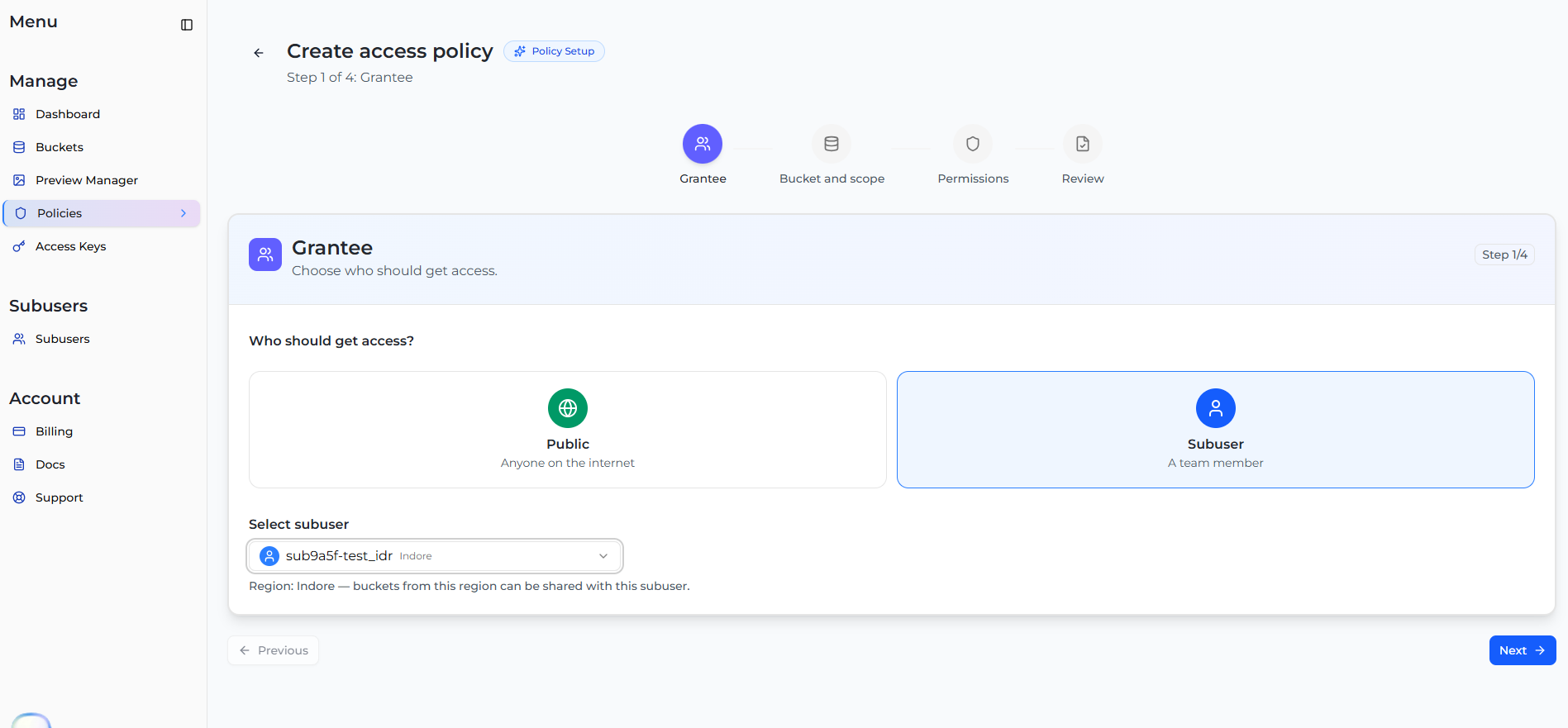
* **From the Policies page** — create an access policy and choose the subuser as the grantee. Useful when you are setting up access for a bucket.
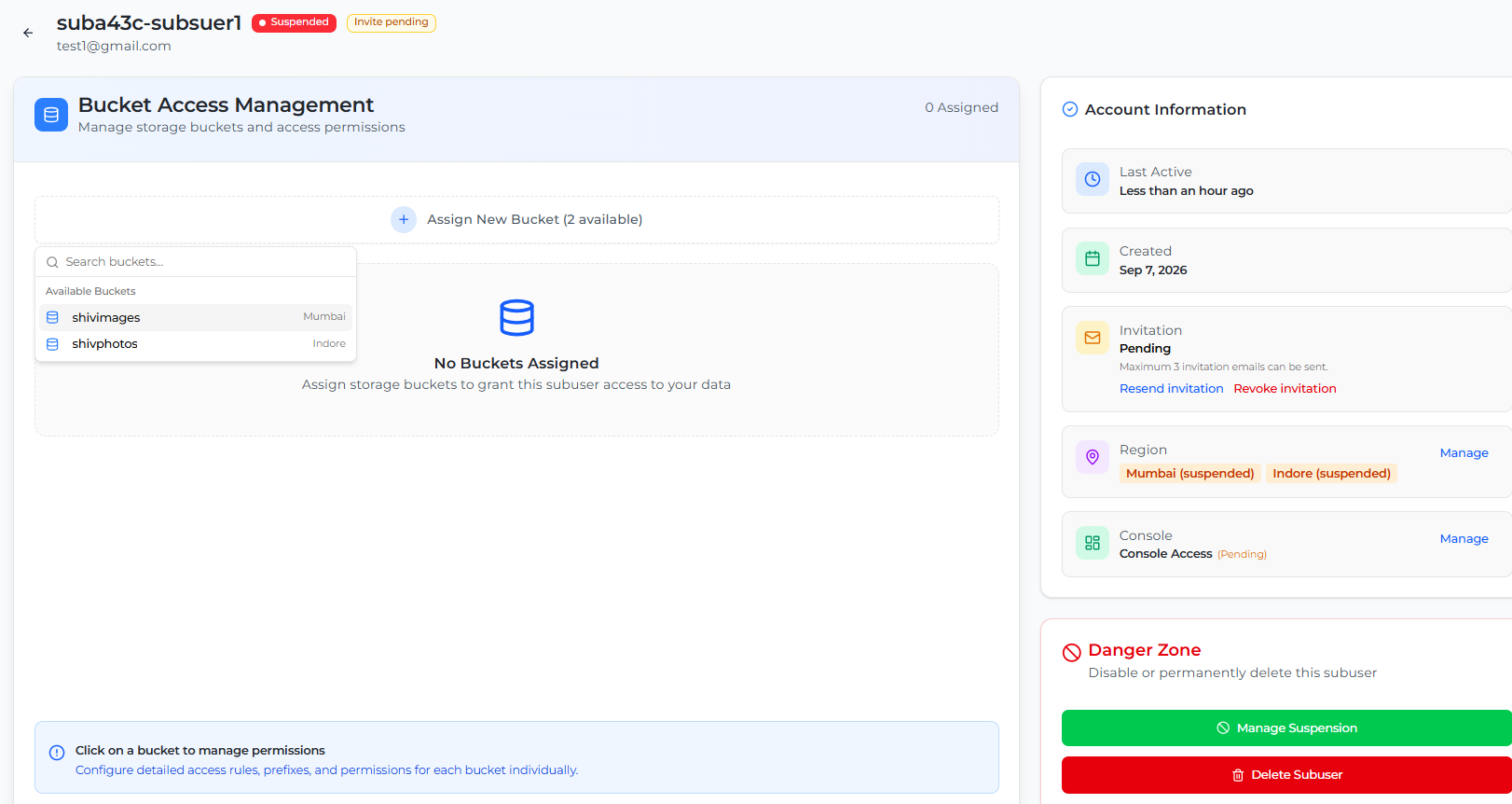
* **From the subuser's page** — click **+ Assign New Bucket**. Useful right after creating a subuser, or whenever you are managing that subuser.
Only the account owner can assign buckets to subusers. A subuser can see the access they have been given, and ask for more, from their own [Policies](/subusers/subuser-portal/policies.md) page — you approve or reject those requests.
### Method 1: From the Policies page
1. From the left sidebar menu, navigate to **Policies**.
2. Click **+ Create Policy**. A 4-step wizard opens.
3. **Grantee** — select **Subuser**, choose the **Region**, then select the subuser.
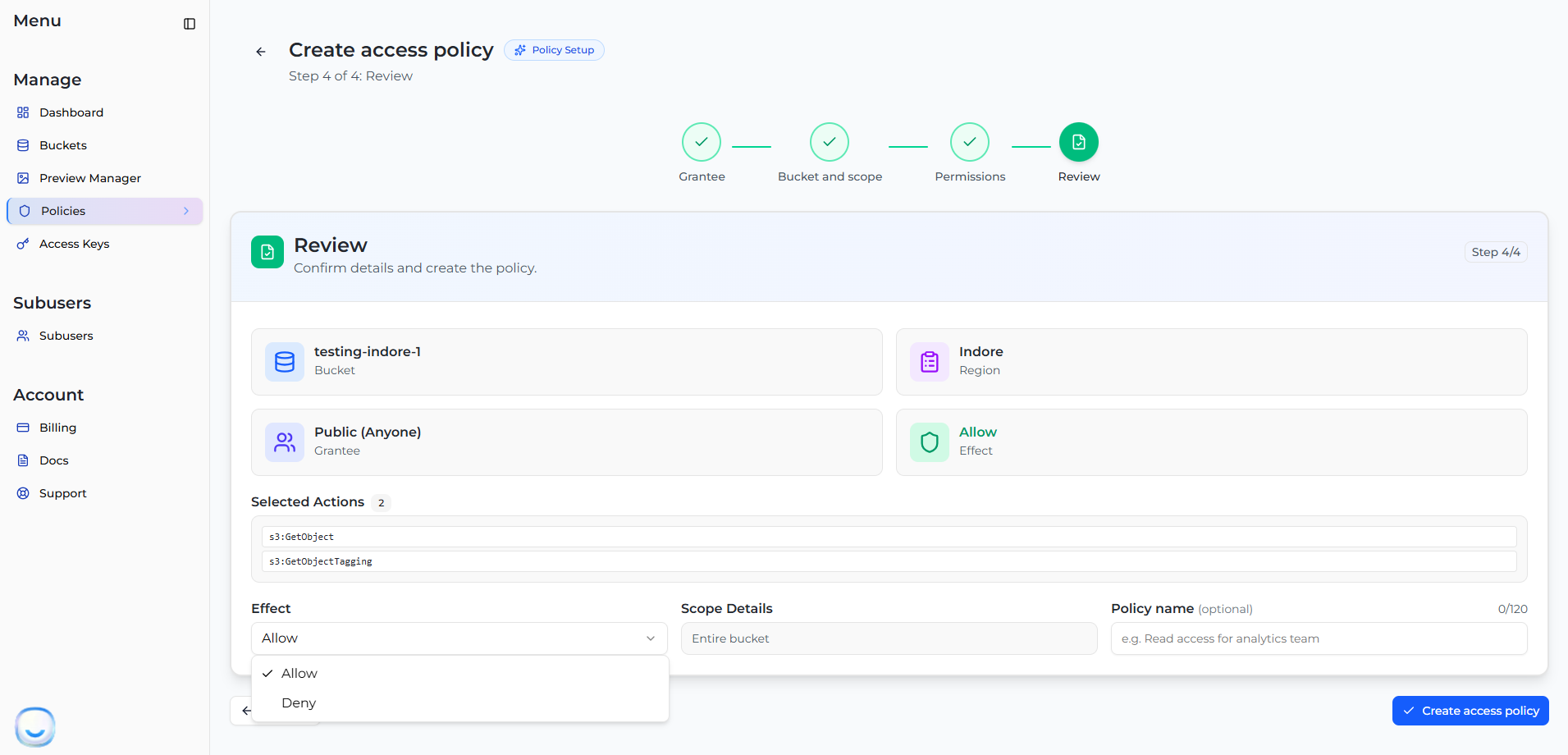
4. **Bucket and scope** — select the bucket, then choose the **Access scope**:
* **Entire bucket** — access to all objects in the bucket.
* **Specific folders** — access only to the paths you choose.
5. **Permissions** — choose the actions the subuser is allowed, such as downloading files or uploading objects.
6. **Review** — check the grantee, bucket and permissions, keep the **Effect** as `Allow`, optionally enter a **Policy name**, and click **Create access policy**.
The policy appears in the **Access Policies** list, where you can view, edit or delete it later. For every option in the wizard, see [Bucket Policy Configuration](/manage/bucket/bucket-policy-configuration.md).
### Method 2: From the subuser's page
This works right after you create the subuser, or at any time later.
1. From the left sidebar menu, open **Subusers**.
2. Click the subuser's name. The **Bucket Access Management** page opens.
3. Click **+ Assign New Bucket** and choose the bucket.
4. In the **Add Access Rule** popup, select a permission:
| Permission | Description |
| ------------- | ------------------------------------------- |
| View Only | Read and list (view/download objects) |
| Upload Only | Create and upload new objects |
| View & Upload | Read and write (view, download, and upload) |
| Full Access | Complete control, including delete |
5. Optionally set:
* **Scope** — leave empty for whole-bucket access, or enter a folder path (e.g. `photos/2026`) to restrict the rule to that folder. If the folder doesn't exist yet, you'll be asked whether to create it first.
* **Notes** — an optional internal label for this rule.
6. Click **Create Rule**.
7. You are taken to the **Manage Bucket Access Rules** page. Check that the rule shows the permission you chose and **Status → Active**.
From this page you can also **Edit**, **Suspend** (temporarily block without deleting) or **Delete** (revoke) the rule at any time. These are the same steps as [Step 7: Assign Bucket](/subusers/create-a-subuser.md) in Create a Subuser.
### Changing or removing a subuser's bucket access
* A rule created from the subuser's page — open the subuser, then **Edit**, **Suspend** or **Delete** the rule on the **Manage Bucket Access Rules** page.
* A policy created from the Policies page — open **Policies**, find the policy, and edit or delete it from its actions menu.
What each permission allows in detail: [Access Types & Bucket Permissions](/subusers/roles.md).