> For the complete documentation index, see [llms.txt](https://docs.zata.ai/llms.txt). Markdown versions of documentation pages are available by appending `.md` to page URLs; this page is available as [Markdown](https://docs.zata.ai/subusers/managing-invitations.md).
# Managing Invitations
Invitation lifecycle for Programmatic + Dashboard subusers
A subuser created with **Programmatic + Dashboard access** cannot log in to the dashboard right away. Their access keys are issued immediately but stay suspend until they accept an emailed invitation or root itself activate account for subuser and subuser set their own password. Programmatic-only subusers never go through this flow.
### Invitation statuses
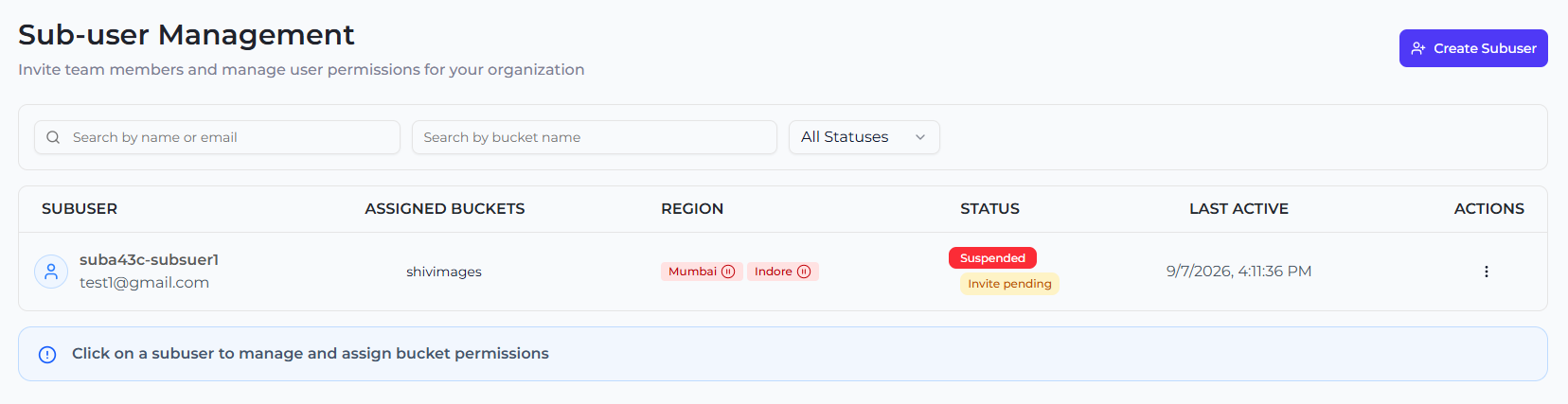
Shown as a badge on the subuser's row and detail page:
| Status | Meaning |
| ------------------- | ------------------------------------------------------------------ |
| **Invite pending** | Sent, not yet accepted. |
| **Invite accepted** | Subuser has set a password and can log in. |
| **Invite expired** | The link's validity window (7 days) has passed without acceptance. |
| **Invite revoked** | You cancelled the invitation before it was accepted. |
Accepting or not accepting an invitation only controls the subuser's own dashboard login — you can still assign regions, buckets, and access rules to the subuser at any time regardless of invitation status.
### What the subuser sees
The invitation email links to a **Set your password** page. Depending on the link's state, the subuser sees one of:
* **Valid** — a form asking for a new password (8–128 characters, with at least one lowercase letter, one uppercase letter, one digit, and one special character) and a confirmation field. Submitting sets the password and redirects to sign-in.
* **Expired** — "This invitation has expired. Ask your account owner to resend the invitation from the subuser's page."
* **Already accepted** — "This invitation was already used. You can sign in with your existing password."
* **Revoked** — "This invitation is no longer valid. Contact your account owner if you believe this is a mistake."
* **Invalid link** — the link is missing or malformed.
### Resending an invitation
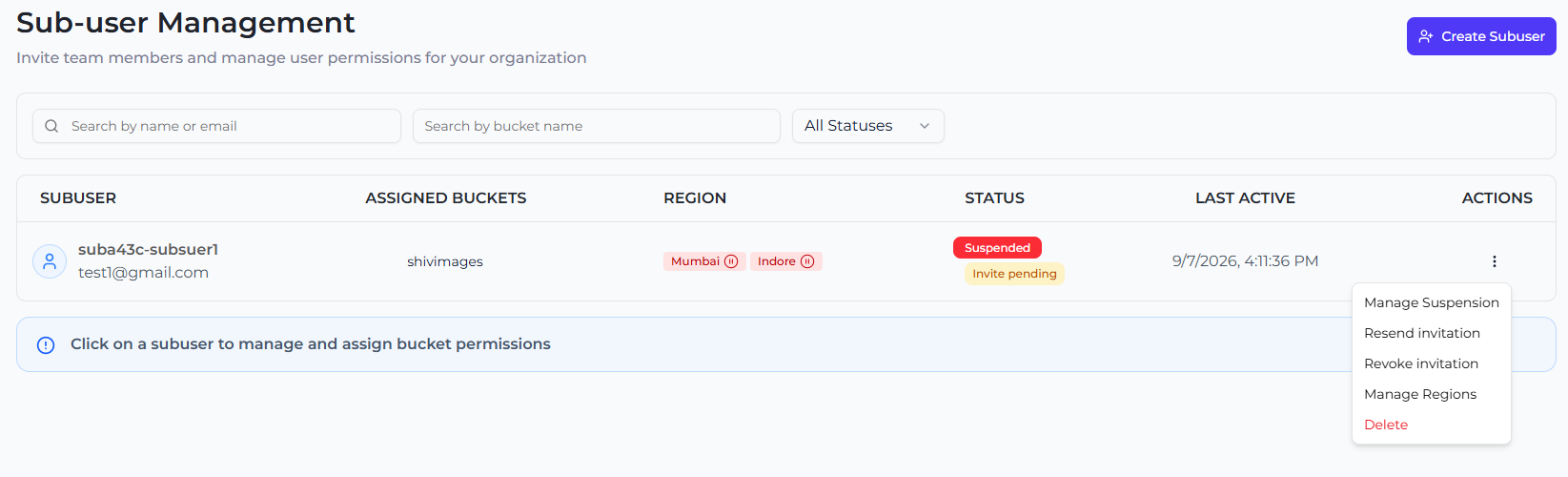
From the subuser's row menu or detail page, click **Resend invitation**. This sends a new link and invalidates the old one.
* You must wait a short cooldown (about 2 minutes) between resends.
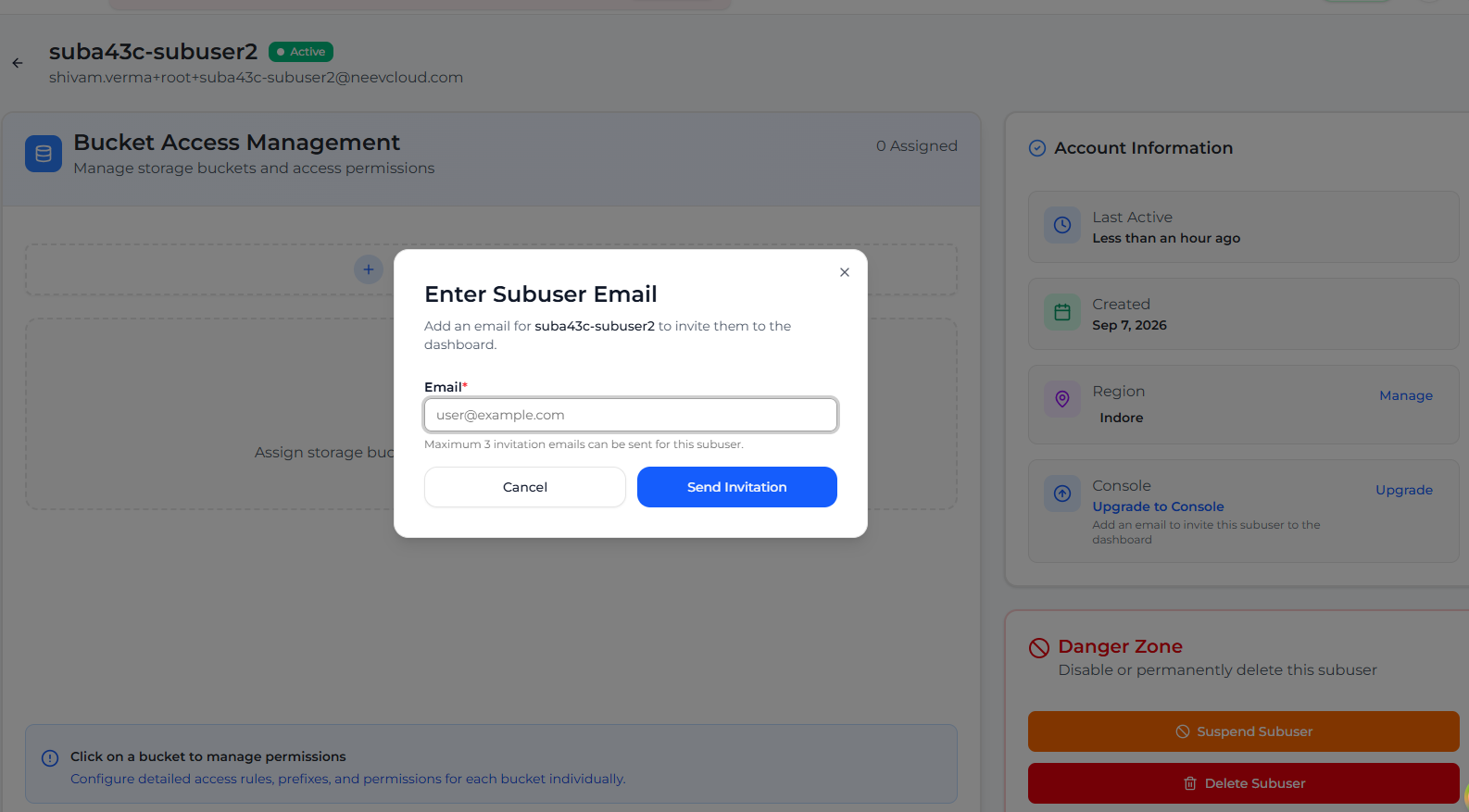
* There is a maximum of **3 invitation emails** per subuser in total. Once reached, you'll need to delete and recreate the subuser to send another.
* Resending is disabled once the invitation has already been accepted.
### Revoking an invitation
Click **Revoke invitation** to cancel a pending invite before it's accepted — the link stops working immediately. This is disabled once the invitation has already been accepted (revoke the subuser's dashboard access instead by suspending it — see [Suspend & Reactivate a Subuser](/subusers/suspend-and-reactivate.md)).
### Granting console (dashboard) access to a programmatic subuser — Upgrade to Console
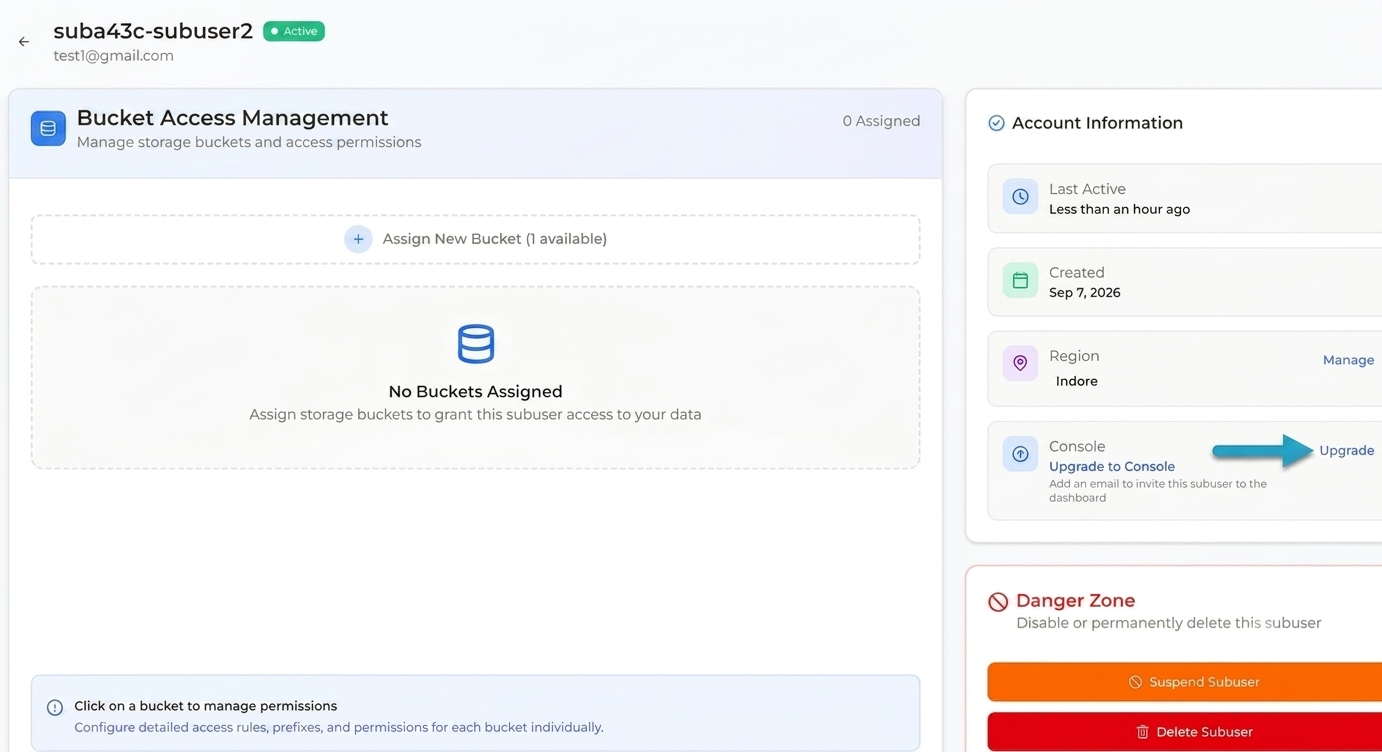
A subuser created as **Programmatic access only** has API/CLI keys but no login. To give them console access, upgrade them — you do **not** need to create a new access key, and you do not delete and recreate the subuser:
1. Open the subuser's detail page.
2. Select **Upgrade to Console**.
3. Enter the subuser's email address.
4. Zata sends them an invitation, exactly as it does at creation time.
5. The subuser opens the invitation and sets their own password.
6. They can then sign in to the Zata dashboard (console) from the **Sub-user** tab on the sign-in page.
Their existing access keys are unaffected by the upgrade — they keep working throughout.
### Updating a subuser's email
You can update the email address of a subuser that has console (dashboard) access — for example when the address was mistyped or the subuser no longer uses it.
1. Open **Subusers** from the sidebar.
2. Click the subuser to open their detail page.
3. In the **Console** card (it shows **Console Access**), click **Manage**.
4. Enter the new email address.
5. Click **Update Changes**.
What happens next:
* A brand-new invitation is sent to the new address, and the previous invitation link stops working. This happens whether or not the subuser had accepted an invitation before.
* If the subuser had already accepted a previous invitation, their existing password keeps working until they follow the new link.
* Their access keys, regions and bucket access are not affected.
**Limit:** every email change uses one of the subuser's **3 invitation emails** — the first invitation and any resends count too. Once all 3 have been used, the email address can no longer be changed. If it still needs to change, raise a support ticket from the dashboard and the Zata team will help.
A programmatic-only subuser has no email address yet, so the **Console** card shows **Upgrade to Console** instead of **Manage** — see [Granting console (dashboard) access to a programmatic subuser](#granting-console-dashboard-access-to-a-programmatic-subuser-upgrade-to-console).
### Recovering the password for an existing subuser
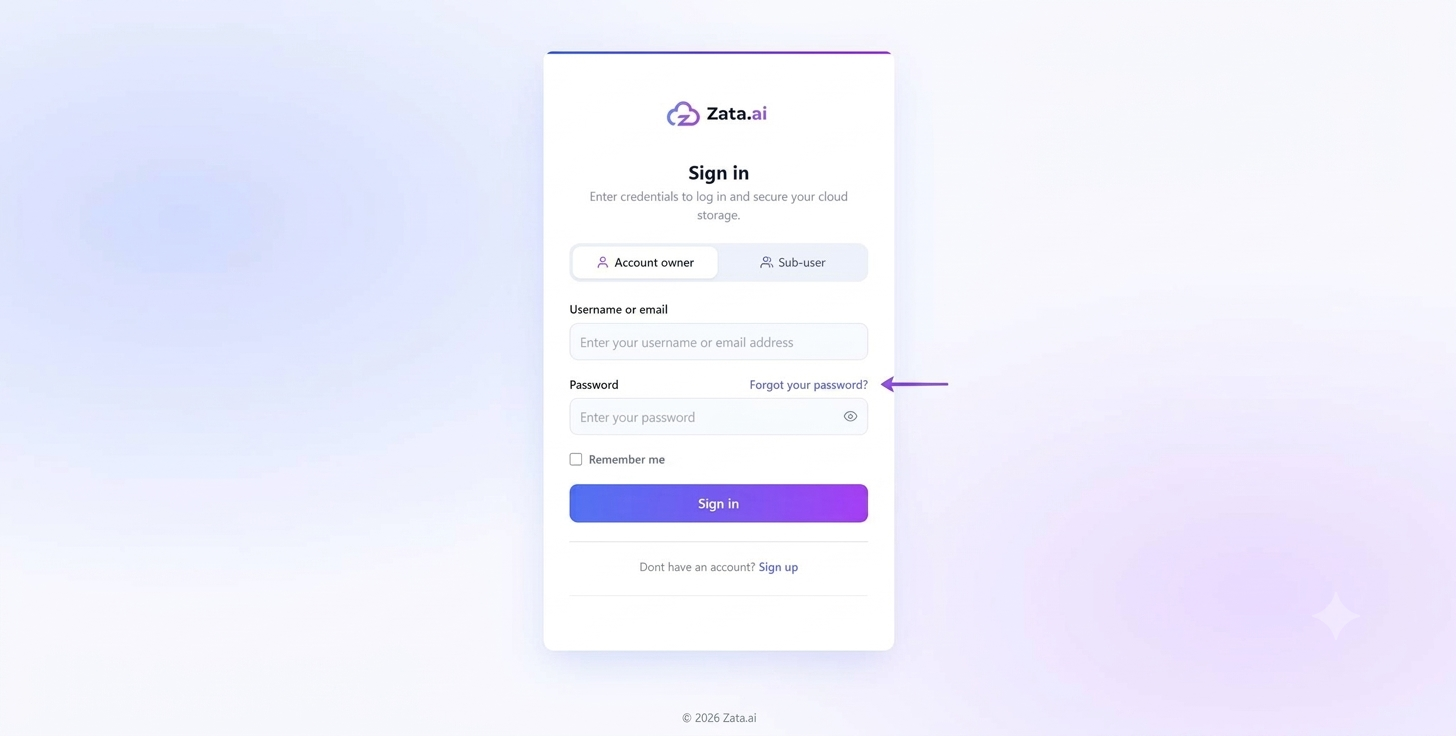
If a subuser was created a while ago and no longer knows their password — or their invitation link has expired — they don't need a new invitation. They can reset the password themselves from the sign-in page.
1. Go to the sign-in page and select the **Sub-user** tab.
2. Click **Forgot your password?** next to the Password field.
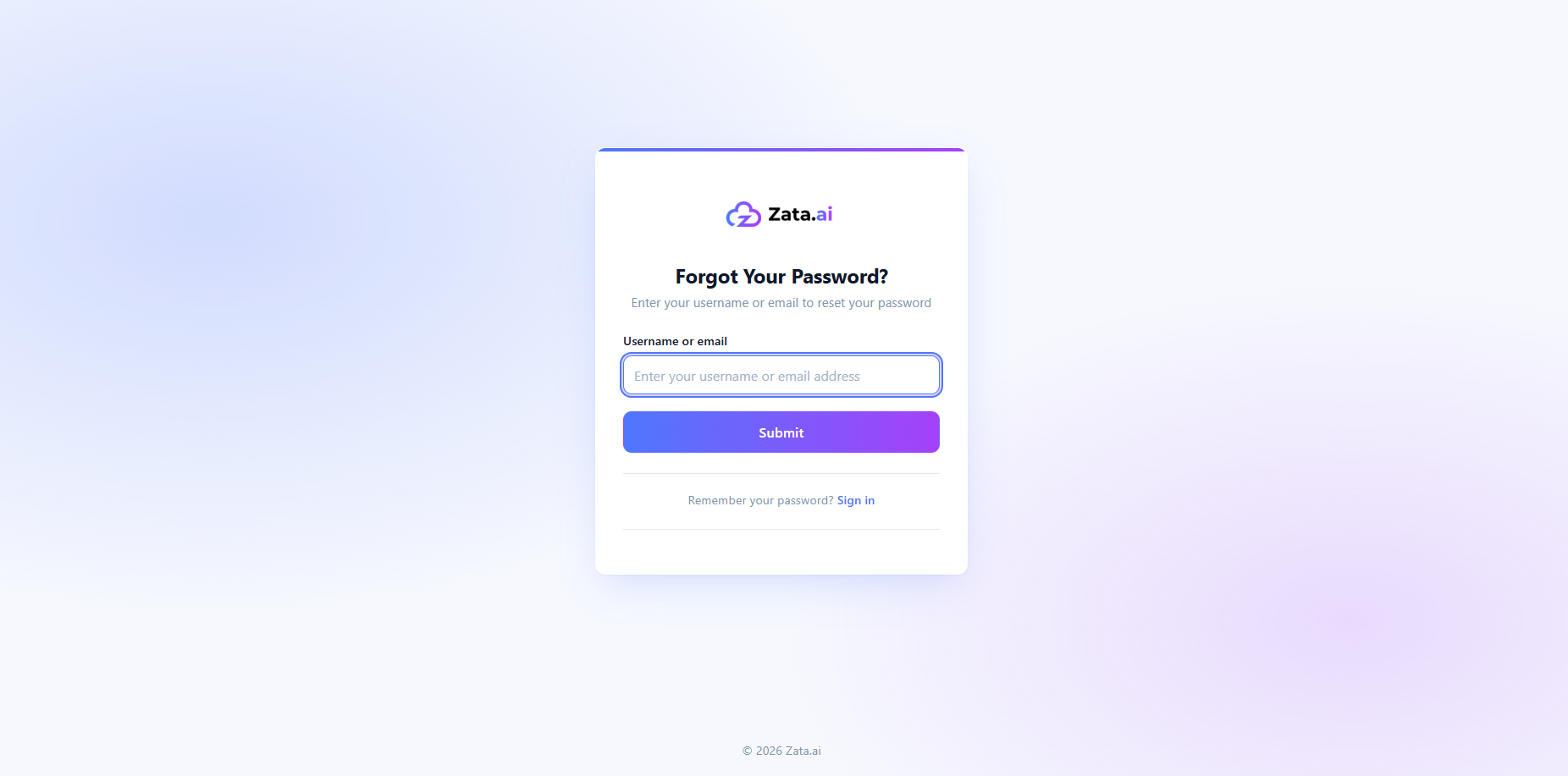
3. Enter the subuser's **username or email address** and click **Submit**.
4. If the email on the subuser's account is valid and reachable, a password reset link is sent to it. The subuser opens the link and sets a new password (8–128 characters, with at least one lowercase letter, one uppercase letter, one digit, and one special character), then signs in.
**If the email is wrong, inaccessible, or no longer in use**, the reset mail can't be delivered and the subuser must contact the **root account owner**. The root user edits the subuser's email to a valid address (see [Changing a subuser's email](#changing-a-subusers-email)). That sends a fresh invitation to the new address — the subuser verifies the email from that mail and sets their own password, after which they can sign in normally.