> For the complete documentation index, see [llms.txt](https://docs.zata.ai/llms.txt). Markdown versions of documentation pages are available by appending `.md` to page URLs; this page is available as [Markdown](https://docs.zata.ai/manage/bucket/generating-a-public-access-url-for-an-object.md).
# Generating a Public Access URL for an Object
### Accessing an Object Using Public URL
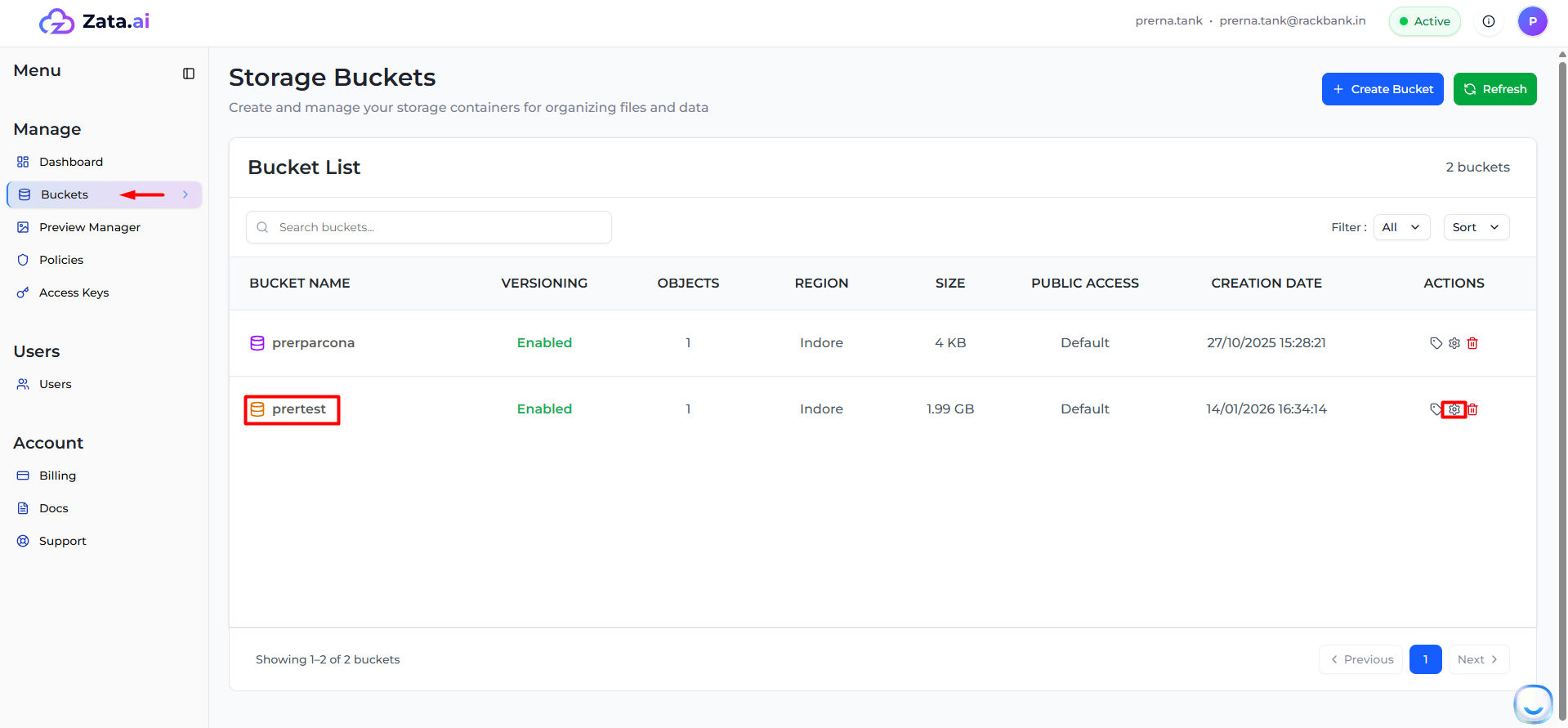
1. Log in to the **Zata.ai Dashboard**.
2. Go to the **Buckets** section and select your required bucket.
***
\
3\. Click on **Bucket Settings**.\
4\. Open the **Permissions** tab.
5\. Enable public access by adding the following bucket policy:
```json
{
"Version": "2012-10-17",
"Statement": [{
"Effect": "Allow",
"Principal": "*",
"Action": "s3:GetObject",
"Resource": [
"arn:aws:s3:::/*"
]
}]
}
```
Explanation for documentation:
* **Effect: Allow** → Grants permission.
* **Principal: "\*"** → Allows access to everyone (public access).
* **Action: s3:GetObject** → Allows only read/download access.
* **Resource** → Applies to all objects inside the bucket.
Replace `` with your actual bucket name.\
Example:
```
arn:aws:s3:::prertest/*
```
\
7\. Open your **S3 Browser** application.\
8\. Connect using your access credentials.
***
9\. Your bucket will now be accessible publicly.\
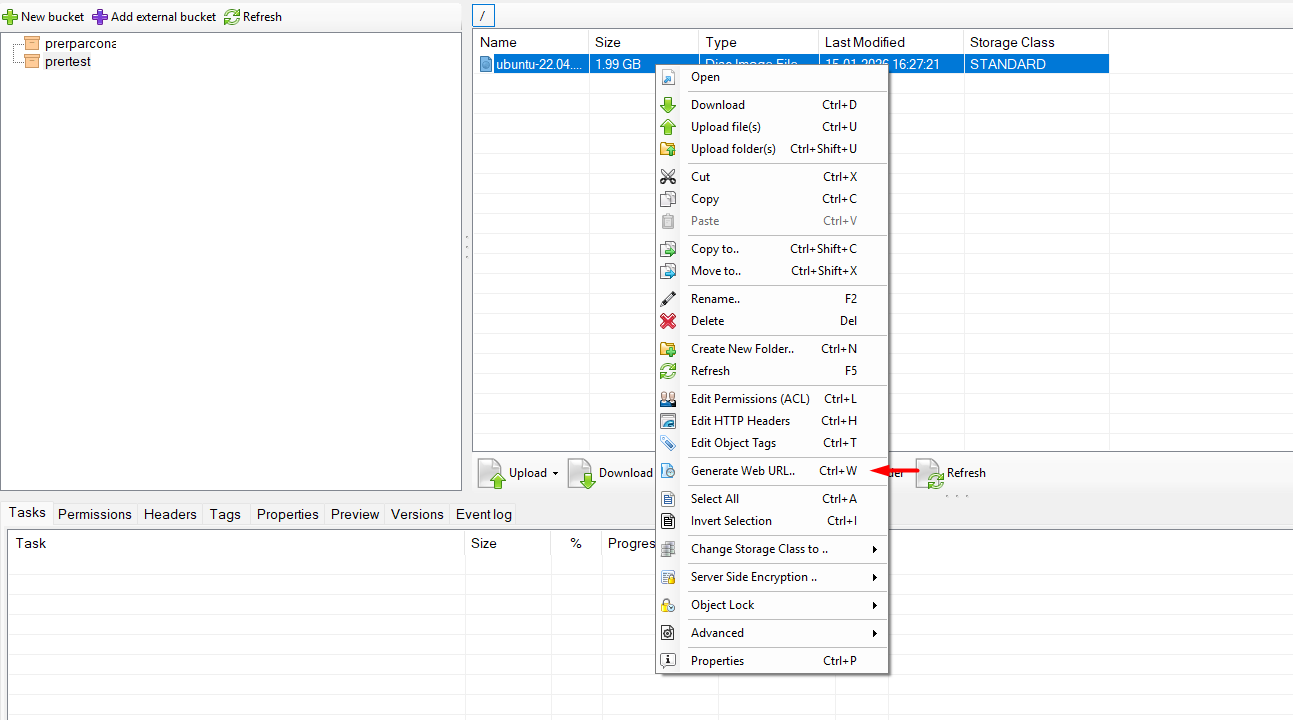
10\. Navigate inside the bucket and select the required object.
***
\
11\. Right-click on the object.\
12\. Select **Generate Web URL**.
***
\
Click on **Copy** .
\
13\. Paste the copied URL into any web browser and press Enter, The object will open directly in the browser using the public URL.
\
\